Native Android Development Tutorial (Kotlin and Jetpack Compose) - Part 2
In Part 1 we built a Notes app whose data disappears when the process dies. In this part we store the notes in a real database hosted on Appwrite, and we load, create, update and delete them from the Kotlin app. It is the same backend, the same table and the same schema as in the React Native and Flutter tutorials: you can even look at the same rows from the three apps.
Versions used in this part: Appwrite Android SDK
io.appwrite:sdk-for-android28.x, plus the versions listed in Part 1. The SDK uses the current vocabulary TablesDB / Tables / Rows, and Kotlin coroutines (suspendfunctions).
Visual guide. Use this map to locate the current part before starting the examples.
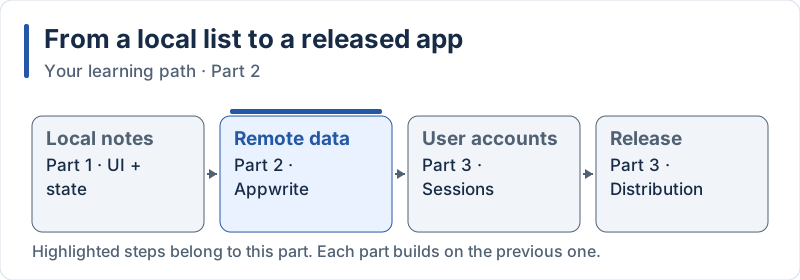
The highlighted steps are developed in this part.
Table of Contents
6. Database Integration with Appwrite
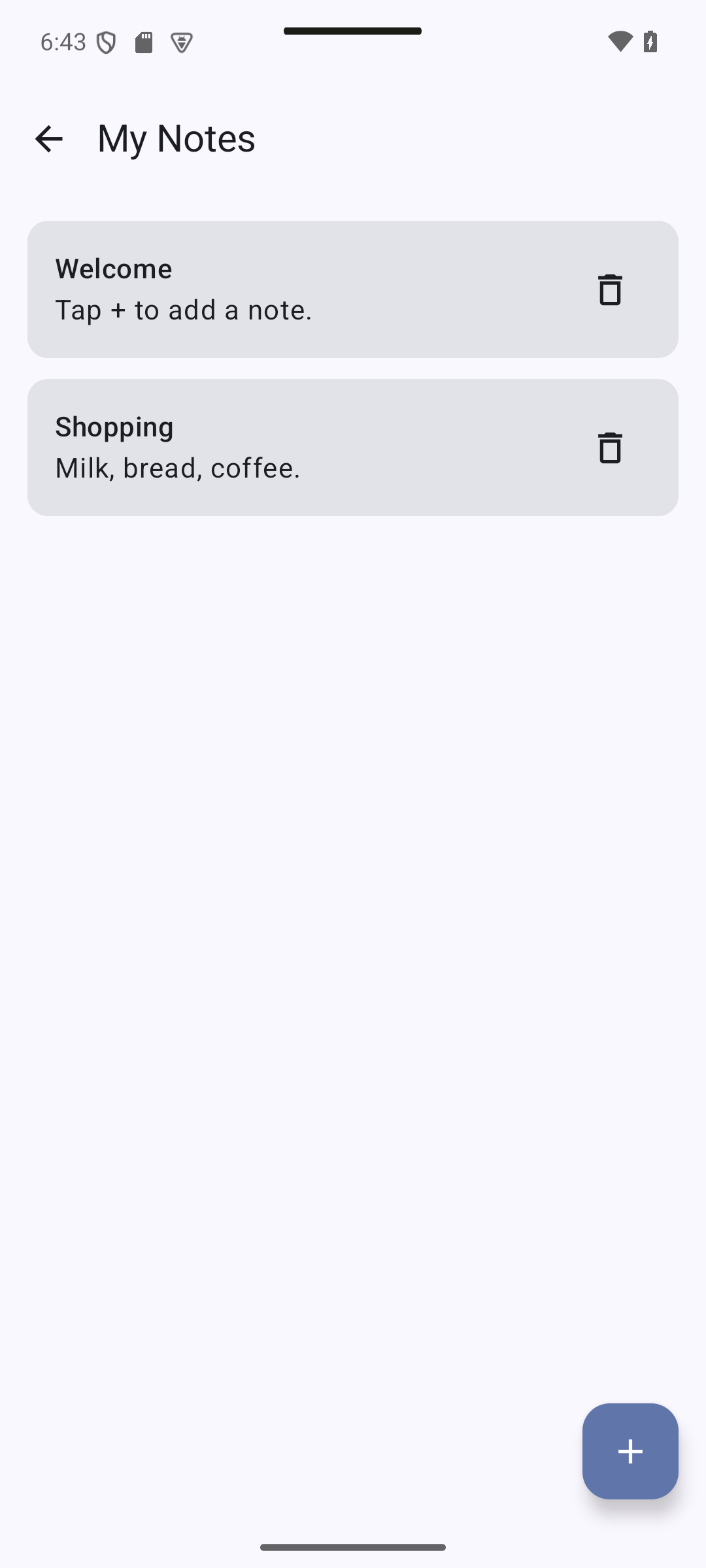
Expected result — native UI preview. Target appearance after a successful load. This native preview uses local sample data; verify persistence separately against Appwrite.
6.1 Understanding Appwrite
Expected result — native UI preview. The repository supplies the cards displayed by Compose. Expected appearance only: these rows were supplied locally for the capture.
Concepts in this section:
- BaaS (Backend as a Service): a ready-made backend (database, authentication, storage) that you call from the app through an SDK, without writing a server
- Project → Database → Table → Row → Column: how Appwrite organizes data
- Platform: an app (Android, iOS, web) that is allowed to talk to your project
- Permissions: rules saying who can create, read, update or delete
Visual guide. Locate the device/server boundary, then follow the request and its response.
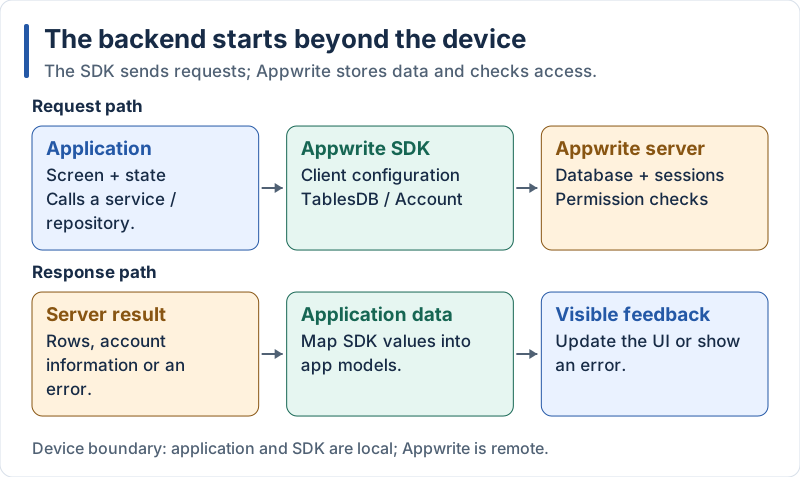
The SDK is in the application; persistence and permission checks happen on the server.
If you did Part 2 of the React Native / Flutter tutorial, you already have a project, a database and a table: reuse them, and only add the Android platform in step 6 below. Otherwise follow the steps in 6.2.
Why Appwrite for this course? One SDK for authentication and database (used again in Part 3), official SDKs for Android, Flutter and React Native, and permissions that are part of the data model: a good introduction to backend security.
6.2 Appwrite Project and Database Setup
Reference checkpoint. Reference cards: create the listed columns and register com.example.notes in the supplied project. These are teaching checklists, not screenshots of your Appwrite console.
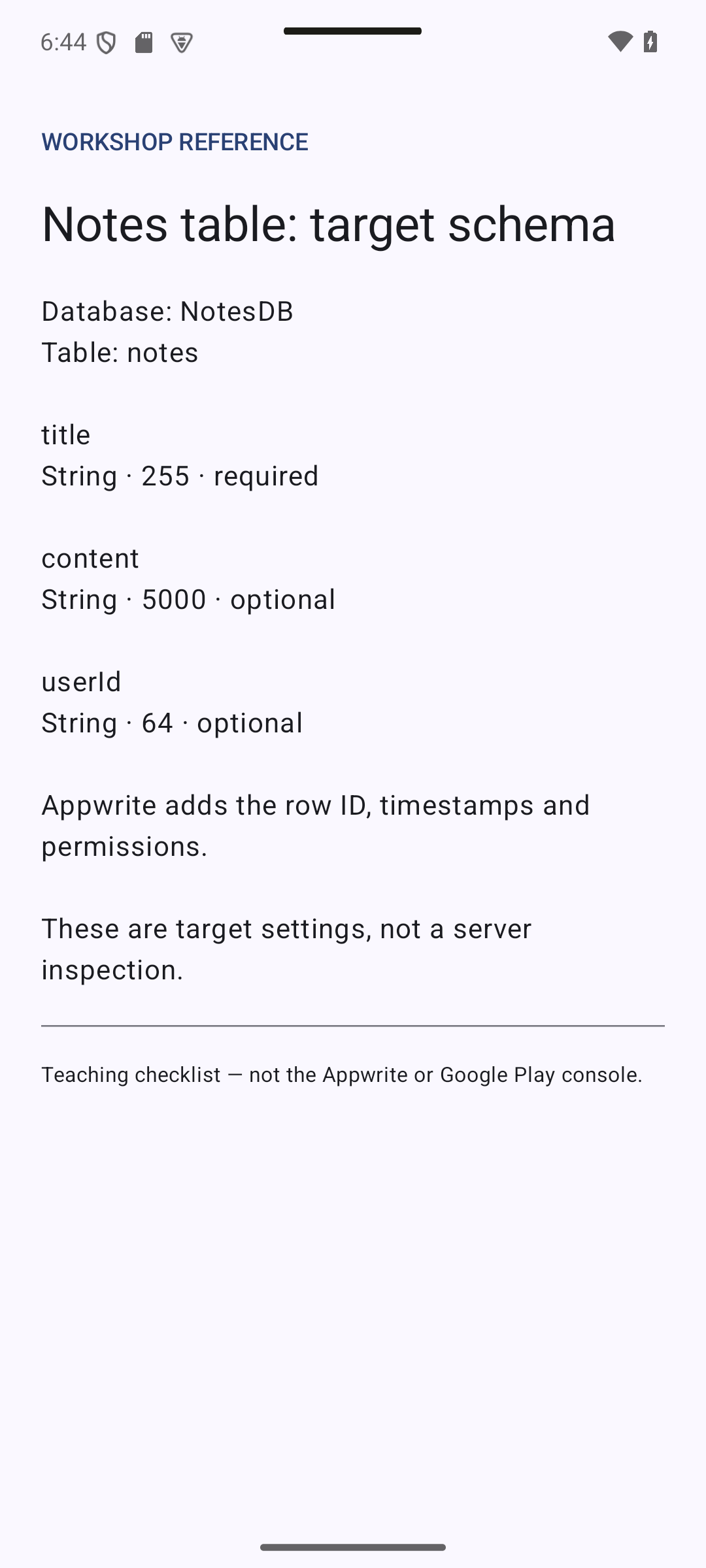
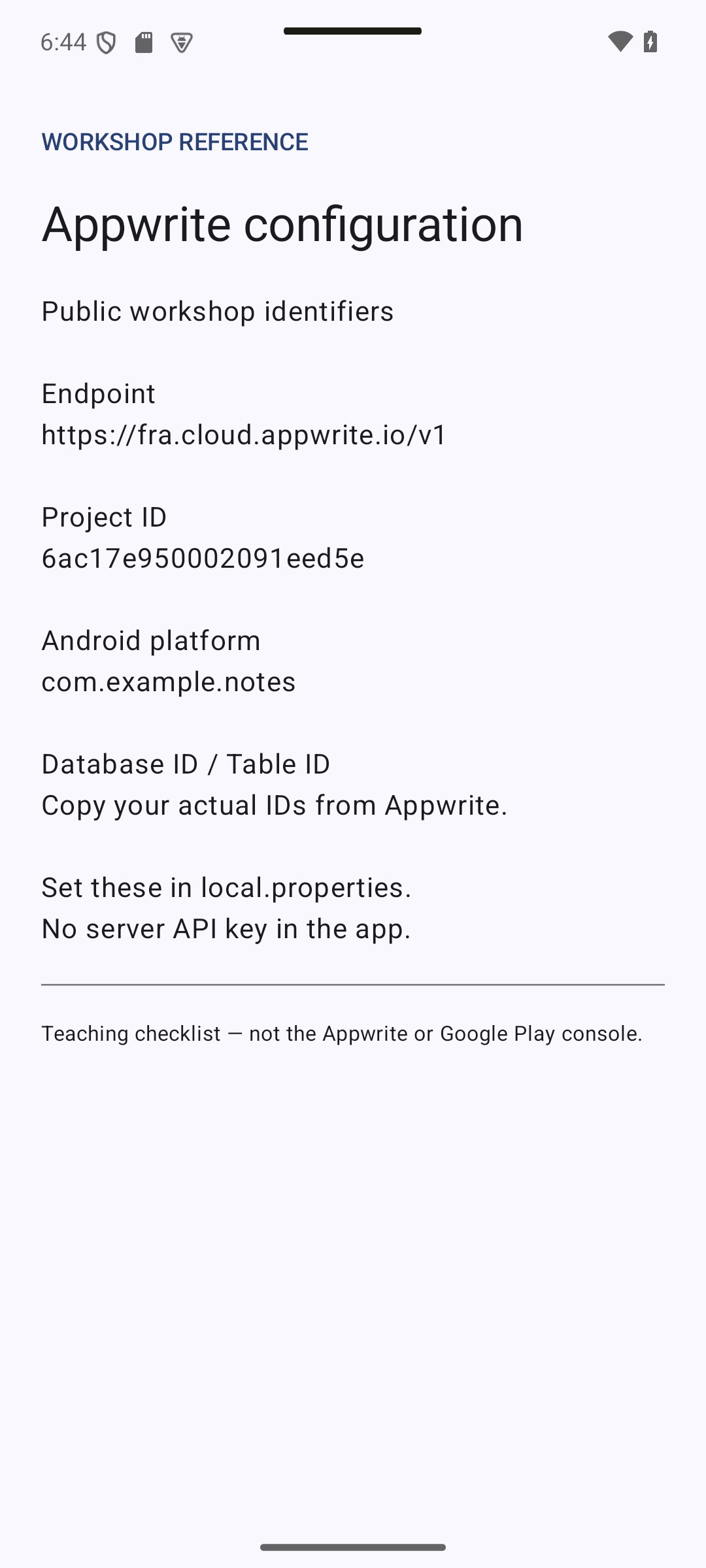
Concepts in this section: project, database, table and columns, table permissions.
Visual guide. Read project → database → table, then inspect one horizontal row and one vertical column.
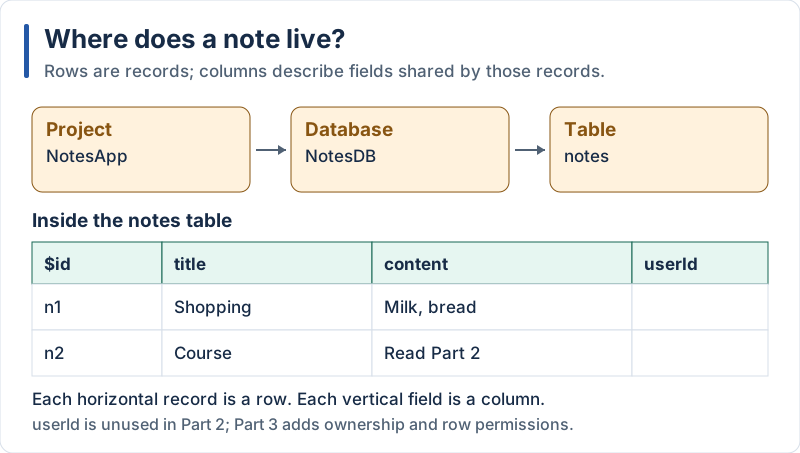
The table illustration omits timestamps and permissions; userId is populated in Part 3.
-
For this workshop, use the supplied Appwrite project: Project ID
6ac17e950002091eed5e, endpointhttps://fra.cloud.appwrite.io/v1. Open https://cloud.appwrite.io with an account that has access to it. If you are doing the exercise in your own project instead, substitute its ID and endpoint throughout. Database and table IDs must come from your actual setup; their display names are not their IDs. -
In Databases, create a database named
NotesDB. Keep its Database ID. -
Inside it, create a table named
notes. Keep its Table ID. -
In the table, add these columns:
Column Type Size Required titlestring 255 yes contentstring 5000 no userIdstring 64 no Appwrite adds the system fields
$id,$createdAt,$updatedAtand$permissionsautomatically.userIdstays empty for now: we use it in Part 3. -
In the table Settings → Permissions, add the role Any with Create, Read, Update and Delete.
⚠️ Learning shortcut: “Any” means anybody on the Internet who knows your project ID can read and modify these rows. We only do this because the app has no login yet. In Part 3 we remove it and replace it with per-user permissions.
-
Register the Android app as a platform (Overview → Add platform → Android) with the package name
com.example.notes(theapplicationIdfrom Part 1). Appwrite only accepts requests from registered apps. If you later get an “Invalid package name / platform” error, the id registered in the console does not match theapplicationIdof the app.
6.3 Configuration Values
Reference checkpoint. Copy the supplied endpoint and project ID into local.properties, together with your actual database and table IDs.
Concepts in this section:
- Configuration that changes between environments must not be hard-coded in the source
- Public vs secret: everything compiled into an app can be extracted by anyone. Project ID, endpoint and table ID are identifiers, not secrets. Never put an API key (server key) in a mobile app: permissions, not hidden values, protect your data.
- Android: Gradle can generate a
BuildConfigclass with constants. The values come from the filelocal.properties, which is not committed to Git
Visual guide. Follow the public identifiers into the built app; keep the server credential on its separate path.
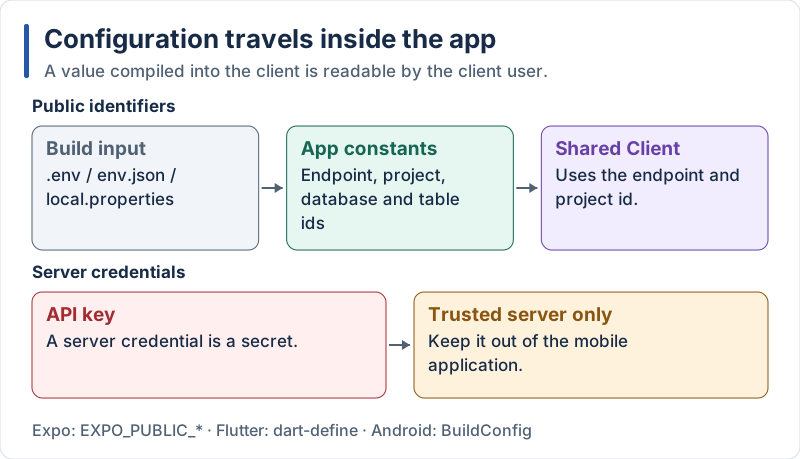
Changing the configuration source does not make a compiled value secret.
Add the values to local.properties (at the root of the project; Android Studio already put sdk.dir in it):
# local.properties
appwrite.endpoint=https://fra.cloud.appwrite.io/v1
appwrite.projectId=6ac17e950002091eed5e
appwrite.databaseId=your_database_id
appwrite.tableId=your_table_id
Then read them in the module build file and expose them as BuildConfig fields. Here is the complete app/build.gradle.kts for this part (the new lines are marked):
// app/build.gradle.kts
import java.util.Properties

plugins {
    alias(libs.plugins.android.application)
    alias(libs.plugins.kotlin.compose)
    alias(libs.plugins.kotlin.serialization)
}

// NEW: read local.properties
val localProperties = Properties().apply {
    val file = rootProject.file("local.properties")
    if (file.exists()) file.inputStream().use { load(it) }
}

fun configValue(name: String): String = localProperties.getProperty(name, "")

android {
    namespace = "com.example.notes"
    compileSdk = 37

    defaultConfig {
        applicationId = "com.example.notes"
        minSdk = 26
        targetSdk = 36
        versionCode = 1
        versionName = "1.0"

        // NEW: constants available in Kotlin as BuildConfig.APPWRITE_...
        buildConfigField("String", "APPWRITE_ENDPOINT", "\"${configValue("appwrite.endpoint")}\"")
        buildConfigField("String", "APPWRITE_PROJECT_ID", "\"${configValue("appwrite.projectId")}\"")
        buildConfigField("String", "APPWRITE_DATABASE_ID", "\"${configValue("appwrite.databaseId")}\"")
        buildConfigField("String", "APPWRITE_TABLE_ID", "\"${configValue("appwrite.tableId")}\"")
    }

    buildTypes {
        release {
            isMinifyEnabled = false
        }
    }

    compileOptions {
        sourceCompatibility = JavaVersion.VERSION_17
        targetCompatibility = JavaVersion.VERSION_17
    }

    buildFeatures {
        compose = true
        buildConfig = true // NEW: generate the BuildConfig class
    }
}

dependencies {
    implementation(libs.androidx.core.ktx)
    implementation(libs.androidx.activity.compose)

    implementation(platform(libs.androidx.compose.bom))
    implementation(libs.androidx.compose.ui)
    implementation(libs.androidx.compose.ui.tooling.preview)
    implementation(libs.androidx.compose.material3)
    implementation(libs.androidx.compose.material.icons.core)
    debugImplementation(libs.androidx.compose.ui.tooling)

    implementation(libs.androidx.lifecycle.viewmodel.compose)
    implementation(libs.androidx.lifecycle.runtime.compose)

    implementation(libs.androidx.navigation3.runtime)
    implementation(libs.androidx.navigation3.ui)
    implementation(libs.androidx.lifecycle.viewmodel.navigation3)
    implementation(libs.kotlinx.serialization.json)

    // NEW: Appwrite
    implementation(libs.appwrite.android)
}
Explanation:
local.propertiesis created by Android Studio and is already listed in.gitignore: it is the right place for per-developer valuesbuildConfigField(type, name, value)generatespublic static final String APPWRITE_ENDPOINT = "..."in theBuildConfigclass. The value must contain the quotes, hence the\"escapesfun configValue(...)is a local function in a Gradle script (Kotlin DSL): Gradle build files are real Kotlin programs- Since AGP 8,
BuildConfigis not generated by default:buildConfig = trueis required getProperty(name, "")returns an empty string when a value is missing. We check this at startup (section 6.4) to give a clear error- A teammate who clones the project must create their own
local.properties: document the four keys in yourREADME
6.4 Appwrite SDK Installation and Configuration
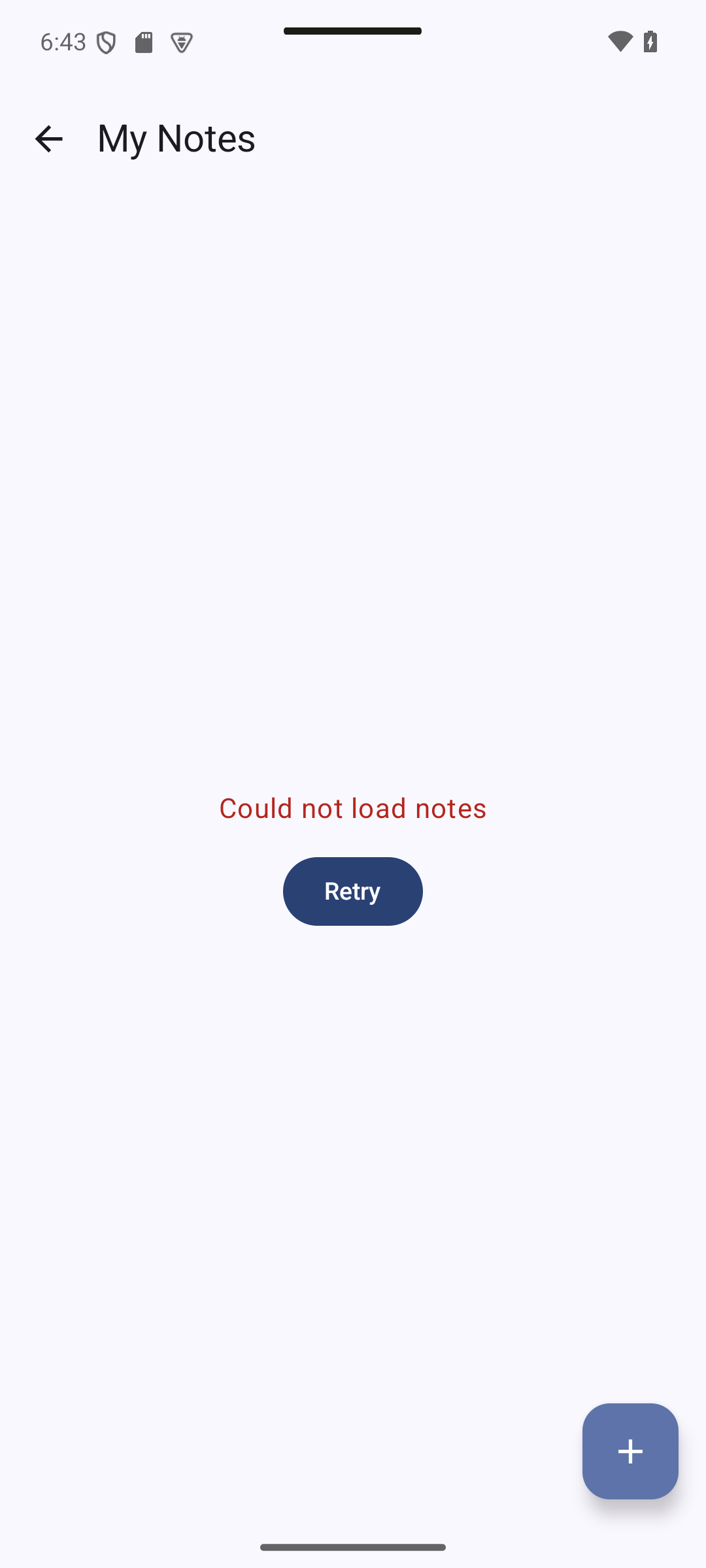
Expected result — native UI preview. Expected success and failure UI after the screen in 6.6 is connected. Check Gradle sync and the shared client configuration; these UI previews do not prove an SDK connection.
Concepts in this section:
- The client object holds the endpoint and project and is shared by all services
- Services (
TablesDB,Account) are thin wrappers around the Appwrite REST API; their methods aresuspendfunctions - Application class and a small container: one place that creates the long-lived objects (manual dependency injection)
Visual guide. Find the owner of the shared client and the two services that use it.
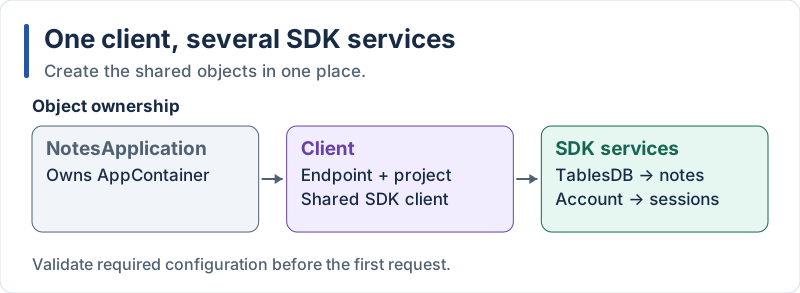
TablesDB handles notes; Account will handle authentication in Part 3.
Add the SDK to the version catalog:
# gradle/libs.versions.toml (excerpt: add these two lines)
[versions]
appwrite = "28.0.0"

[libraries]
appwrite-android = { group = "io.appwrite", name = "sdk-for-android", version.ref = "appwrite" }
The app needs the Internet permission, and a custom Application class. Update the manifest (the new lines are marked):
<?xml version="1.0" encoding="utf-8"?>
<!-- app/src/main/AndroidManifest.xml -->
<manifest xmlns:android="http://schemas.android.com/apk/res/android">

    <!-- NEW -->
    <uses-permission android:name="android.permission.INTERNET" />

    <application
        android:name=".NotesApplication"
        android:allowBackup="true"
        android:label="Notes"
        android:supportsRtl="true"
        android:theme="@style/Theme.Notes">
        <activity
            android:name=".MainActivity"
            android:exported="true">
            <intent-filter>
                <action android:name="android.intent.action.MAIN" />
                <category android:name="android.intent.category.LAUNCHER" />
            </intent-filter>
        </activity>
    </application>

</manifest>
Create the container and the Application class:
// app/src/main/java/com/example/notes/AppContainer.kt
package com.example.notes

import android.content.Context
import io.appwrite.Client
import io.appwrite.services.Account
import io.appwrite.services.TablesDB

/** Creates the long-lived objects of the app, once. */
class AppContainer(context: Context) {

    init {
        // Fail early with a clear message when local.properties is incomplete
        val missing = mapOf(
            "appwrite.endpoint" to BuildConfig.APPWRITE_ENDPOINT,
            "appwrite.projectId" to BuildConfig.APPWRITE_PROJECT_ID,
            "appwrite.databaseId" to BuildConfig.APPWRITE_DATABASE_ID,
            "appwrite.tableId" to BuildConfig.APPWRITE_TABLE_ID,
        ).filterValues { it.isEmpty() }.keys
        check(missing.isEmpty()) { "Missing ${missing.joinToString()} in local.properties" }
    }

    private val client = Client(context)
        .setEndpoint(BuildConfig.APPWRITE_ENDPOINT)
        .setProject(BuildConfig.APPWRITE_PROJECT_ID)

    val tablesDB = TablesDB(client)
    val account = Account(client) // used in Part 3
}
// app/src/main/java/com/example/notes/NotesApplication.kt
package com.example.notes
import android.app.Application
class NotesApplication : Application() {
// Created lazily, the first time a screen needs it
val container: AppContainer by lazy { AppContainer(this) }
}Explanation:
Client(context)needs aContext: the SDK uses it to store the session cookies on the device (we benefit from this in Part 3)- Unlike React Native (
setPlatform), the Android SDK reads the package name of the app by itself: that is what you registered in the console - The
Applicationobject lives as long as the process: it is the natural owner of objects shared by all screens by lazycreates the container on first use, andcheck(...)throws anIllegalStateExceptionwith our message if something is missingClientmethods return the client: the fluent (chained) style, as in Flutter and React Native- The manifest line
android:name=".NotesApplication"tells Android to instantiate our class instead of the defaultApplication
6.5 Notes Repository
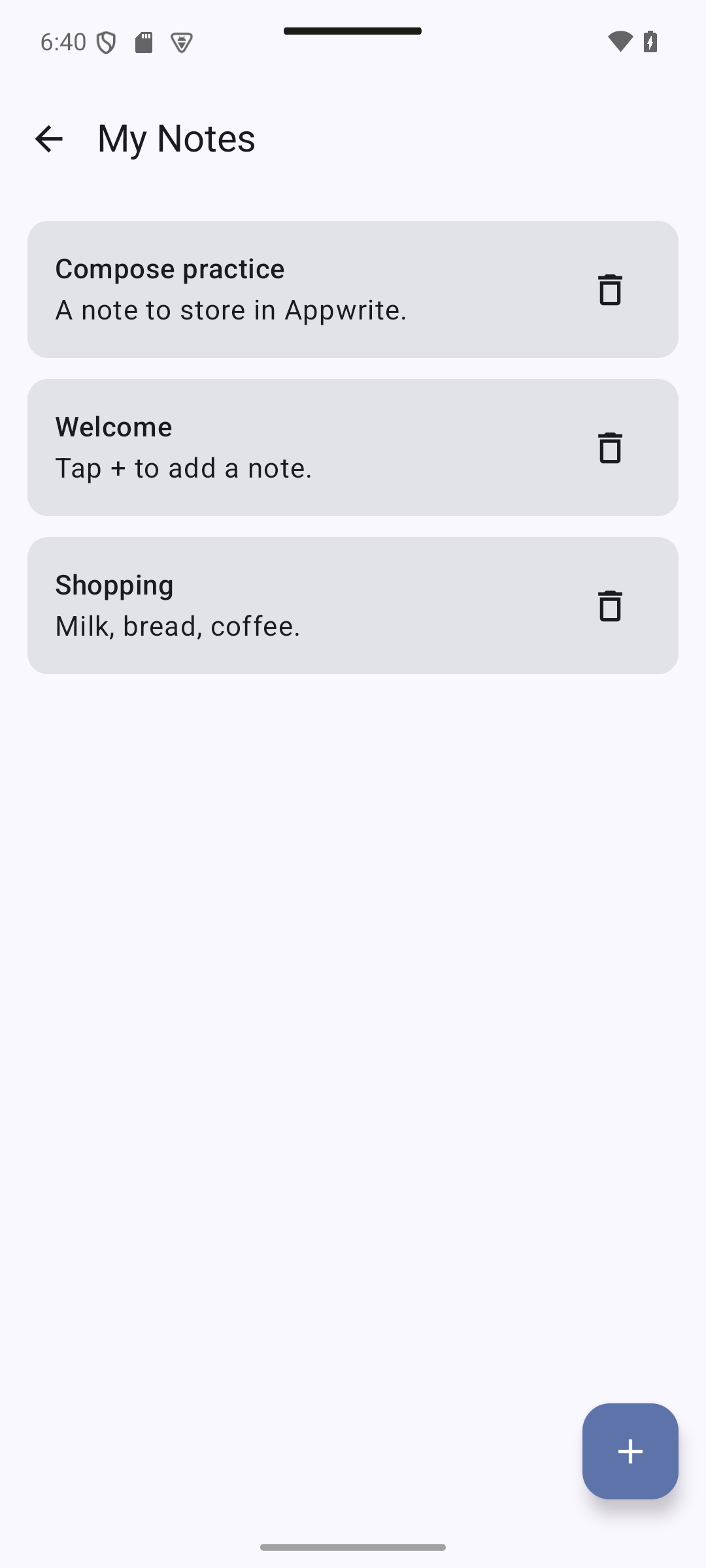
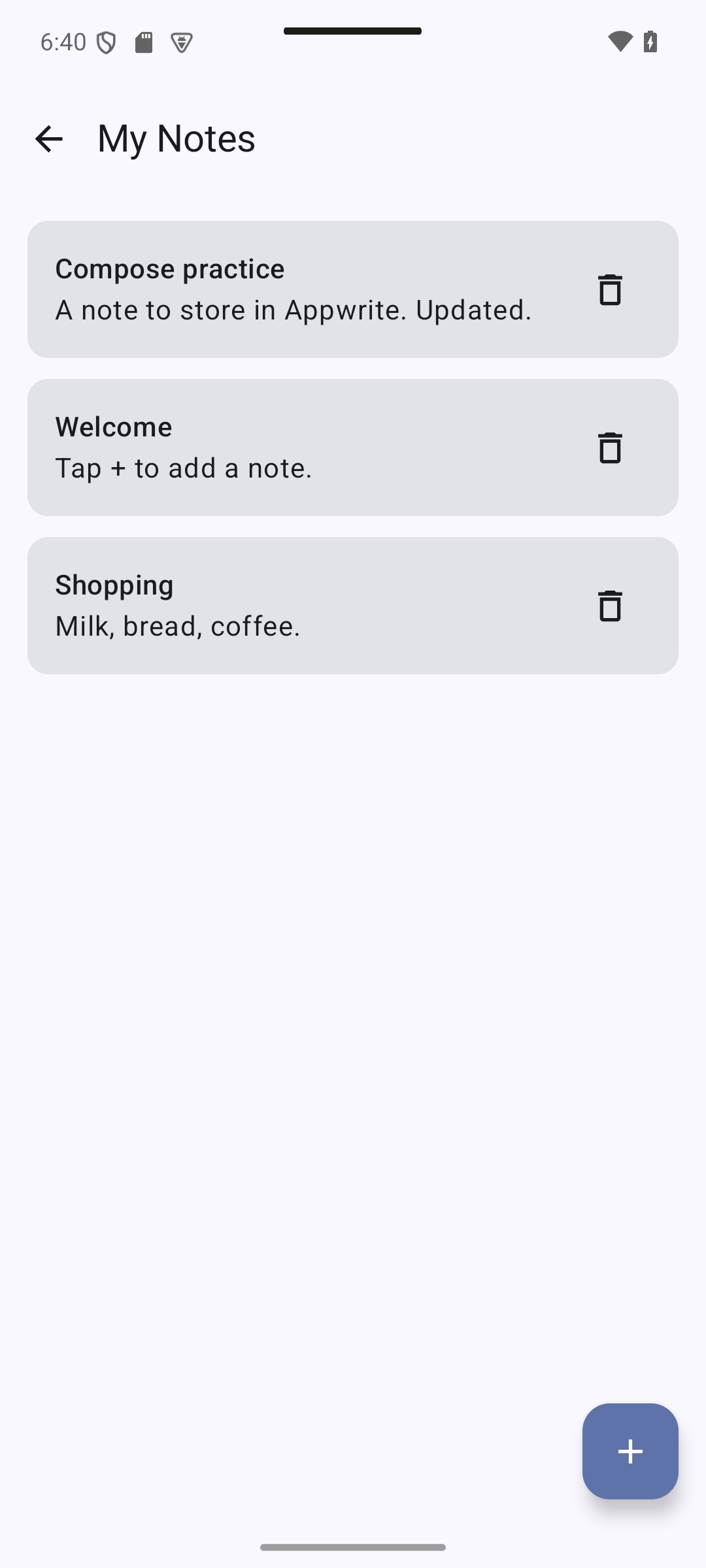
Expected result — native UI preview. The repository has no separate screen. Its create and update results become visible in the list; compare the edited content and check the corresponding row in Appwrite.
Concepts in this section:
- Repository: the only class that talks to the data source. Screens and ViewModels never use Appwrite directly: the backend can change without touching the UI
- Mapping: converting a database row into the app’s own
Notetype - Queries: server-side sorting and filtering (
Query.orderDesc, andQuery.equalin Part 3) - Coroutines: a
suspendfunction can pause without blocking the thread, so network calls are written like normal code
Visual guide. Follow both directions: request toward Appwrite, mapped Note back toward the UI.
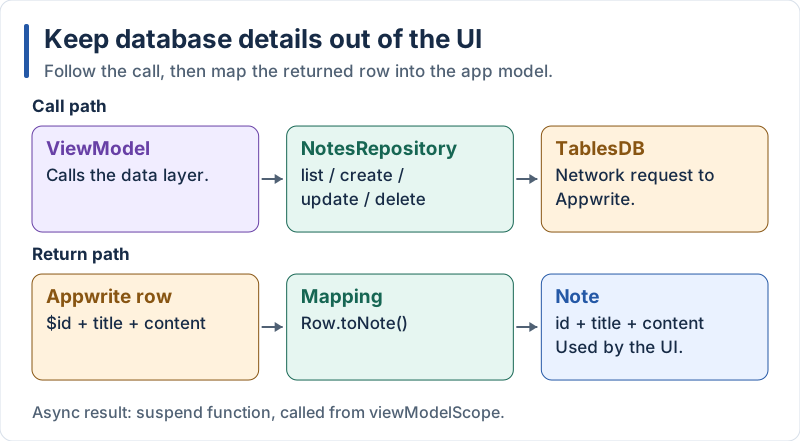
The UI uses the app model rather than the raw SDK row.
// app/src/main/java/com/example/notes/data/NotesRepository.kt
package com.example.notes.data

import com.example.notes.BuildConfig
import com.example.notes.model.Note
import com.example.notes.model.NoteDraft
import io.appwrite.ID
import io.appwrite.Query
import io.appwrite.models.Row
import io.appwrite.services.TablesDB

class NotesRepository(private val tablesDB: TablesDB) {

    private val databaseId = BuildConfig.APPWRITE_DATABASE_ID
    private val tableId = BuildConfig.APPWRITE_TABLE_ID

    suspend fun list(): List<Note> =
        tablesDB.listRows(
            databaseId = databaseId,
            tableId = tableId,
            queries = listOf(Query.orderDesc("\$createdAt")), // newest first
        ).rows.map { it.toNote() }

    suspend fun create(draft: NoteDraft): Note =
        tablesDB.createRow(
            databaseId = databaseId,
            tableId = tableId,
            rowId = ID.unique(),
            data = mapOf("title" to draft.title, "content" to draft.content),
        ).toNote()

    suspend fun update(id: String, draft: NoteDraft): Note =
        tablesDB.updateRow(
            databaseId = databaseId,
            tableId = tableId,
            rowId = id,
            data = mapOf("title" to draft.title, "content" to draft.content),
        ).toNote()

    suspend fun delete(id: String) {
        tablesDB.deleteRow(databaseId = databaseId, tableId = tableId, rowId = id)
    }
}

/** Database vocabulary (`id`, `data`) stays here; the rest of the app only sees [Note]. */
private fun Row<Map<String, Any>>.toNote() = Note(
    id = id,
    title = data["title"] as String,
    content = data["content"] as? String ?: "",
)
Expose the repository from the container:
// app/src/main/java/com/example/notes/AppContainer.kt (excerpt)
import com.example.notes.data.NotesRepository

class AppContainer(context: Context) {
    // ...client, tablesDB and account as before...

    val notesRepository = NotesRepository(tablesDB)
}
Explanation:
- The Kotlin SDK uses named arguments (
databaseId = ...), like Dart; the JavaScript SDK takes one object ID.unique()asks Appwrite to generate a unique row id"\$createdAt": the backslash stops Kotlin from reading$createdAtas a string template- Row data comes back as a
Map<String, Any>:data["content"] as? String ?: ""is the safe cast (as?) with a default (?:, the Elvis operator) for an optional column private fun Row<...>.toNote()is an extension function: it adds a method to an existing class without modifying it- We do not catch errors here: failures throw an
AppwriteException, and the ViewModel decides how to show them. Because these aresuspendfunctions, the caller controls on which coroutine they run
6.6 Fetch Notes from the Screen
Expected result — native UI preview. Expected states: initial spinner, populated list, or an error with Retry. All three states are injected locally for these captures.
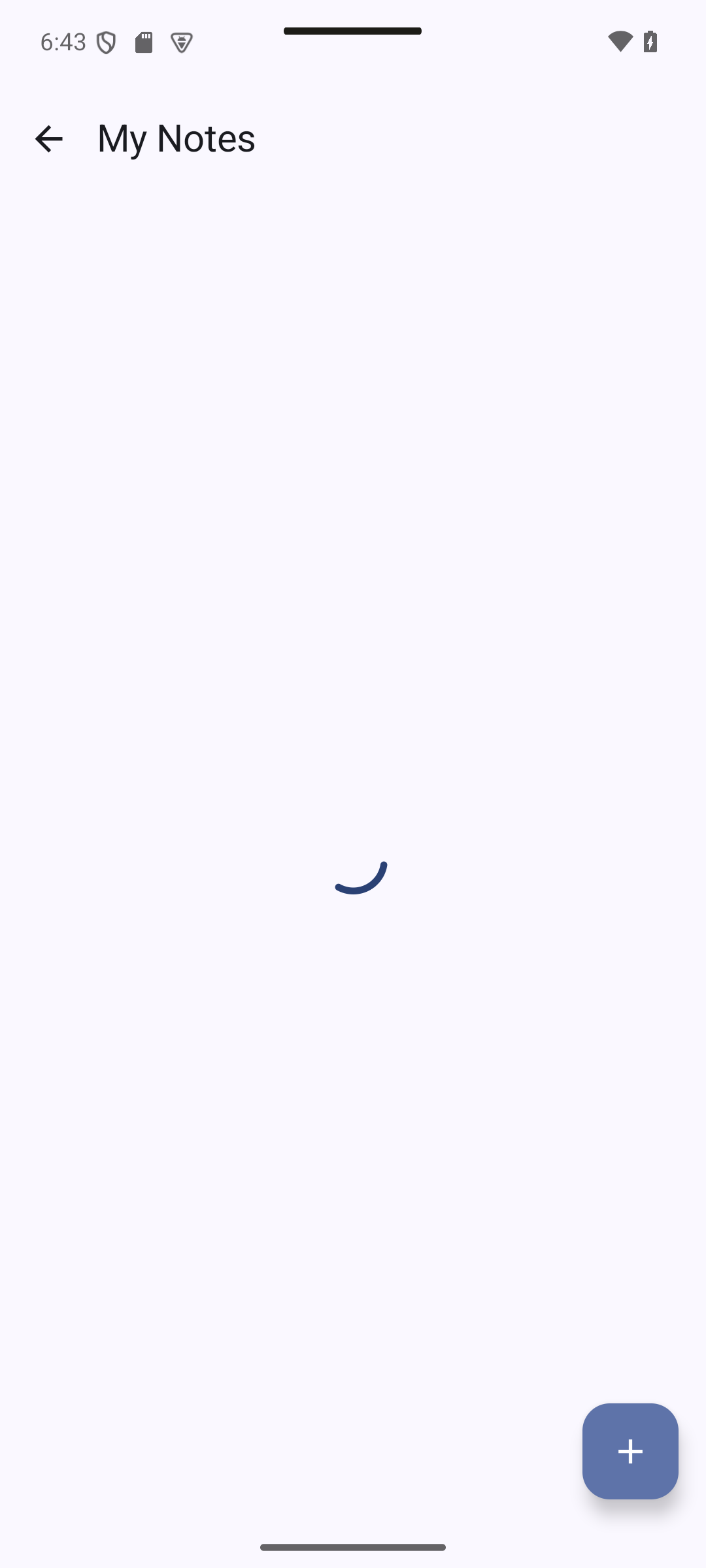
Concepts in this section:
- The states of remote data: loading, error, success (and empty, which is a success)
viewModelScope: a coroutine scope that is cancelled automatically when the ViewModel is cleared- A single
UiStateobject describing everything the screen displays - Pull-to-refresh with
PullToRefreshBox
Visual guide. Choose the visible state for a failed request, an empty response, and a response containing notes.
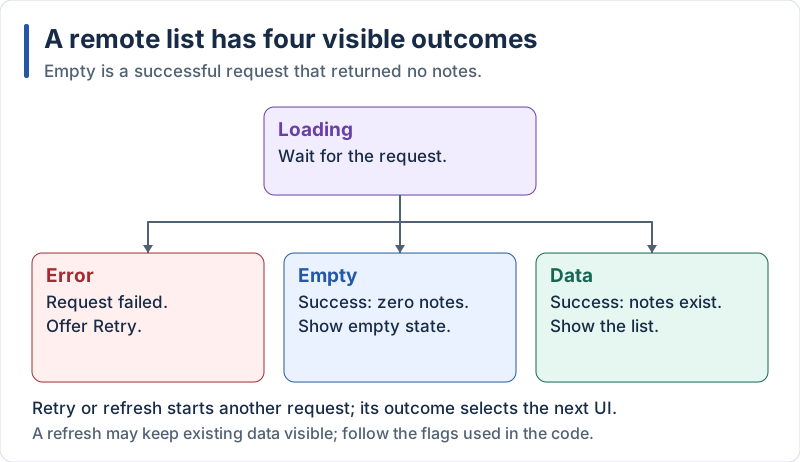
Retry and refresh trigger a new request; empty is one successful outcome.
Visual guide. Follow the normal response, then compare a rotation with removal of the ViewModel owner.
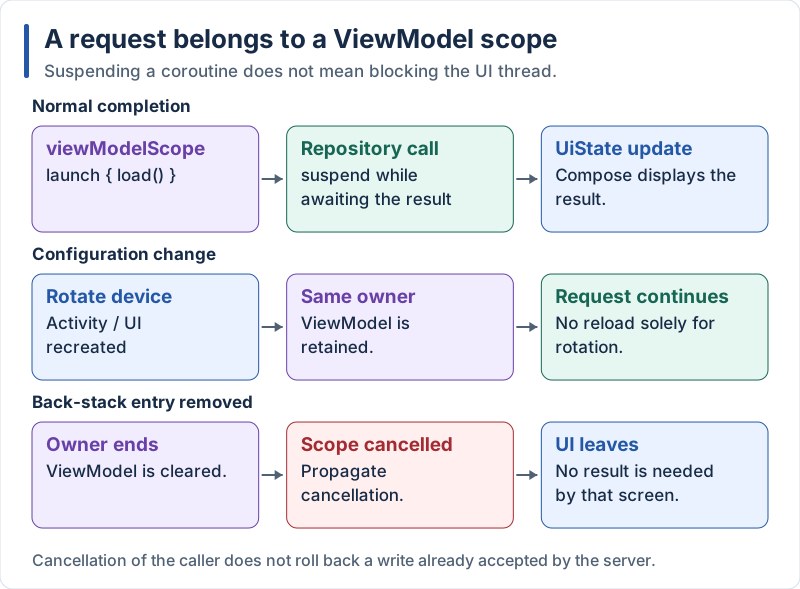
The scope belongs to the ViewModel, not to each rendering of the screen.
Describe the screen state in one immutable class, and let the ViewModel load the notes when it is created. First the state and the loading part of the ViewModel:
// app/src/main/java/com/example/notes/ui/NotesViewModel.kt (excerpt)
data class NotesUiState(
    val notes: List<Note> = emptyList(),
    val loading: Boolean = true,
    val error: String? = null,   // full-screen error: the initial load failed
    val message: String? = null, // one-off message for a snackbar: a write failed
)

class NotesViewModel(private val repository: NotesRepository) : ViewModel() {

    private val _state = MutableStateFlow(NotesUiState())
    val state: StateFlow<NotesUiState> = _state.asStateFlow()

    init {
        load()
    }

    fun load() {
        viewModelScope.launch {
            _state.update { it.copy(loading = true, error = null) }
            try {
                val notes = repository.list()
                _state.update { it.copy(notes = notes, loading = false) }
            } catch (e: CancellationException) {
                throw e // never swallow cancellation
            } catch (e: Exception) {
                _state.update { it.copy(loading = false, error = e.message ?: "Could not load notes") }
            }
        }
    }
}
The screen displays one UI per state:
// app/src/main/java/com/example/notes/ui/NotesScreen.kt (excerpt)
val state by viewModel.state.collectAsStateWithLifecycle()

// inside the Scaffold content lambda
when {
    state.loading && state.notes.isEmpty() -> {
        Box(Modifier.fillMaxSize().padding(innerPadding), contentAlignment = Alignment.Center) {
            CircularProgressIndicator()
        }
    }
    state.error != null -> {
        Column(
            modifier = Modifier.fillMaxSize().padding(innerPadding).padding(24.dp),
            verticalArrangement = Arrangement.spacedBy(12.dp, Alignment.CenterVertically),
            horizontalAlignment = Alignment.CenterHorizontally,
        ) {
            Text(state.error!!, color = MaterialTheme.colorScheme.error)
            Button(onClick = viewModel::load) { Text("Retry") }
        }
    }
    else -> {
        PullToRefreshBox(
            isRefreshing = state.loading,
            onRefresh = viewModel::load,
            modifier = Modifier.padding(innerPadding),
        ) {
            LazyColumn(/* ... the list of NoteItem, as in Part 1 ... */)
        }
    }
}
Explanation:
- The ViewModel calls
load()ininit: the request starts when the ViewModel is created and survives rotation (the ViewModel is kept, so the request is not repeated). WithLaunchedEffectoruseEffect-style code in the screen, a rotation would restart it viewModelScope.launch { ... }starts a coroutine. If the user leaves the screen for good, the scope is cancelled and the network request stopstry / catch (e: CancellationException) { throw e }: in coroutines, cancellation is an exception. Catching a generalExceptionwithout rethrowing cancellation would break cancellation_state.update { it.copy(...) }replaces the state atomically with a modified copy. The UI only ever sees complete, consistent stateswhen { ... }with conditions displays exactly one of the three UIs: the same loading / error / success pattern as in React Native and FlutterPullToRefreshBoxgives pull-to-refresh: it displays the indicator whileisRefreshingis true and callsonRefreshwhen the user pulls down
6.7 Add a Note to the Database
Expected result — native UI preview. Save closes the dialog and inserts the new card. In your connected app, restart and verify that Appwrite returns the saved row.
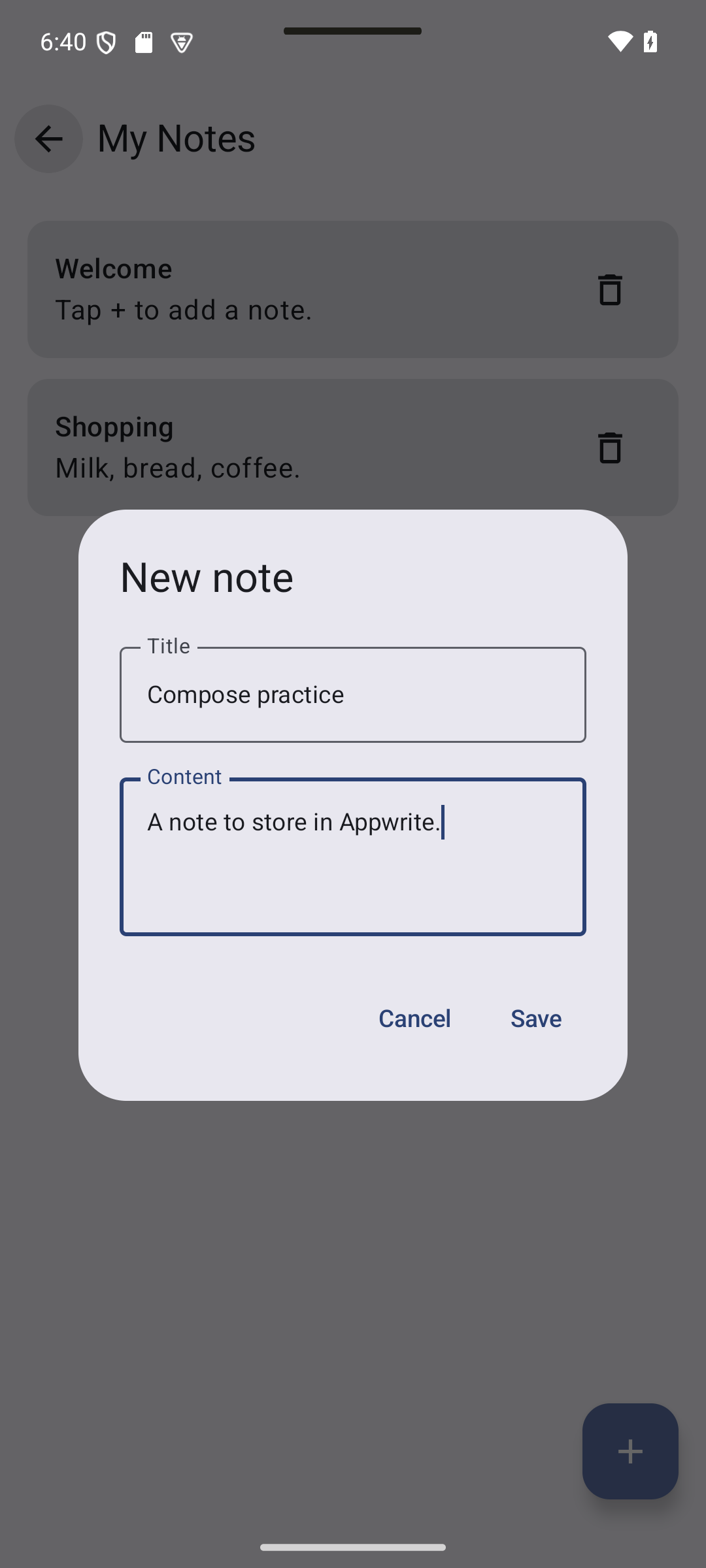
Concepts in this section:
- Writing data and updating the UI with the server’s answer
- Error feedback to the user: a snackbar, with a message kept in the state and consumed once shown
Visual guide. Watch when the form closes and when the list changes: these are separate events.
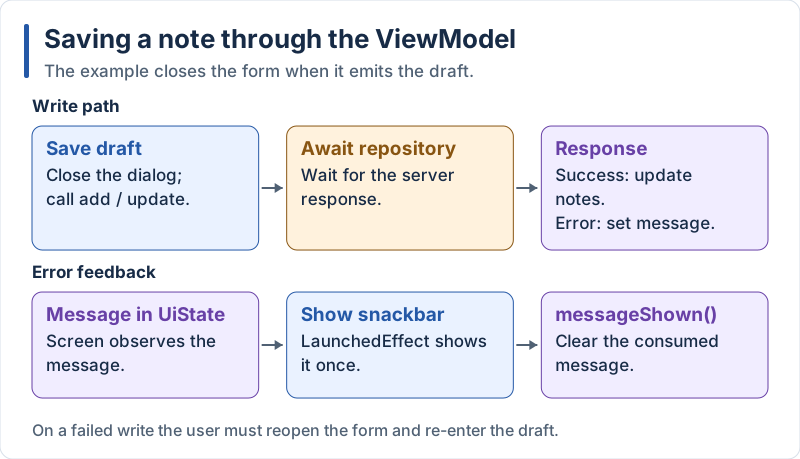
Only a successful server response changes the displayed notes.
Add a helper to the ViewModel that runs a write operation and reports its failure, then add:
// app/src/main/java/com/example/notes/ui/NotesViewModel.kt (excerpt)
fun add(draft: NoteDraft) = launchWrite("Could not save the note") {
    val created = repository.create(draft)
    _state.update { it.copy(notes = listOf(created) + it.notes) }
}

fun messageShown() {
    _state.update { it.copy(message = null) }
}

private fun launchWrite(errorText: String, block: suspend () -> Unit) {
    viewModelScope.launch {
        try {
            block()
        } catch (e: CancellationException) {
            throw e
        } catch (e: Exception) {
            _state.update { it.copy(message = e.message ?: errorText) }
        }
    }
}
Show the message in a snackbar:
// app/src/main/java/com/example/notes/ui/NotesScreen.kt (excerpt)
val snackbarHostState = remember { SnackbarHostState() }

LaunchedEffect(state.message) {
    state.message?.let {
        snackbarHostState.showSnackbar(it)
        viewModel.messageShown()
    }
}

Scaffold(
    snackbarHost = { SnackbarHost(snackbarHostState) },
    // topBar, floatingActionButton... as before
) { innerPadding -> /* ... */ }
And plug the dialog into the ViewModel:
// in NotesScreen (excerpt)
if (dialogOpen) {
    NoteInputDialog(
        initial = editing,
        onSave = { draft ->
            viewModel.add(draft)
            dialogOpen = false
        },
        onDismiss = { dialogOpen = false },
    )
}
Explanation:
- We wait for the server’s answer before changing the list: the screen shows what is really stored, and the new row id comes from the server
- The dialog from Part 1 is reused unchanged: it still returns a
NoteDraft. This is the benefit of the refactoring done in Part 1 - A snackbar message is an event, not a permanent state. We keep it in the state only until it is shown, then call
messageShown()to clear it, so it does not reappear after a rotation LaunchedEffect(key) { ... }runs a coroutine tied to the composition each timekeychanges: the way to call suspend functions such asshowSnackbarfrom a composablefun add(...) = launchWrite(...) { ... }is an expression body with a trailing lambda;block: suspend () -> Unitis a lambda that can call suspend functions- Trade-off compared with the other tutorials: the dialog closes immediately and the user retypes the note if the request fails. Keeping it open would need a per-dialog “saving” state; it is a good exercise
6.8 Delete Notes
Expected result — native UI preview. The trash icon asks for confirmation. Cancel keeps the card; Delete removes it. Both local preview interactions were exercised. Verify the remote row separately.
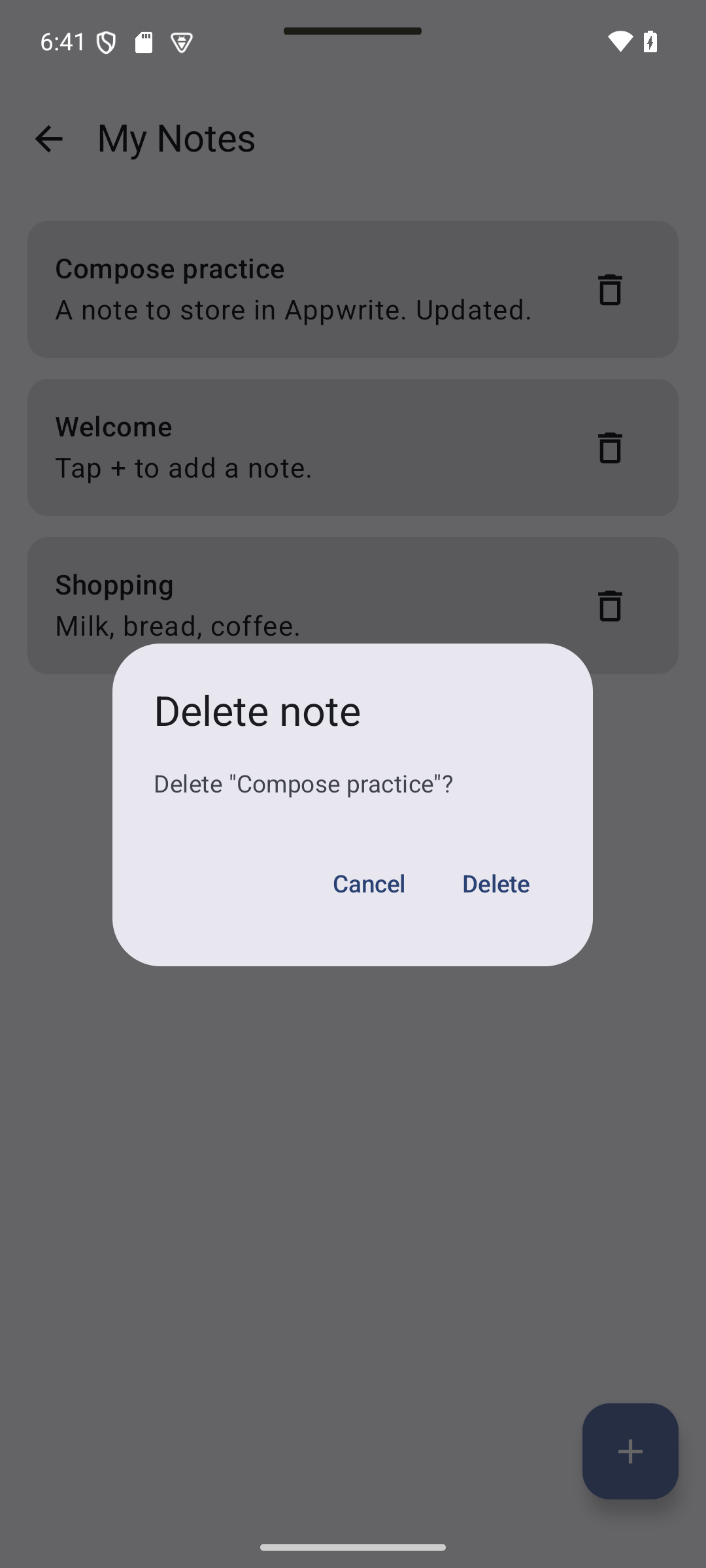
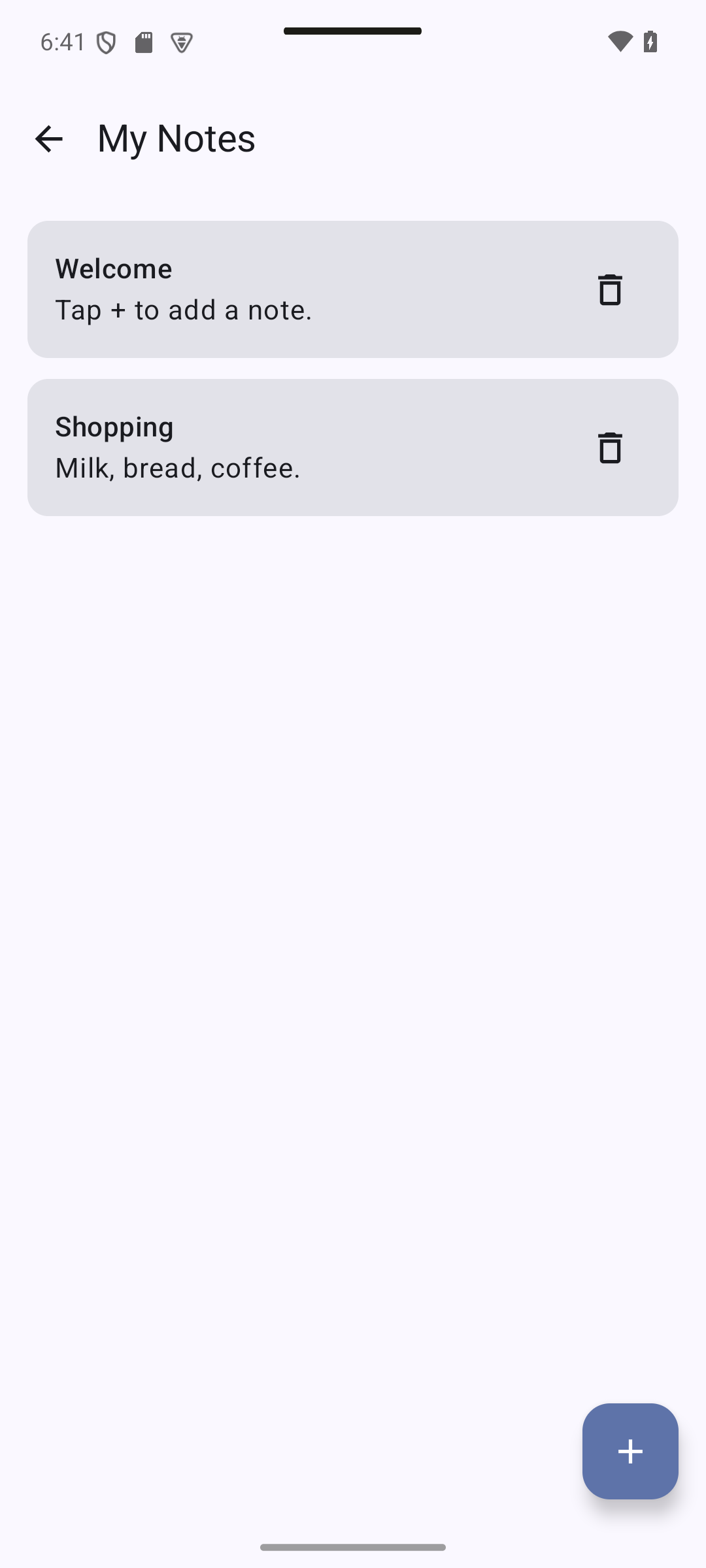
Concepts in this section: destructive actions need a confirmation; pessimistic updates (wait for the server) vs optimistic updates (change the UI first, undo on failure).
Visual guide. Compare cancellation, successful deletion, and failed deletion.
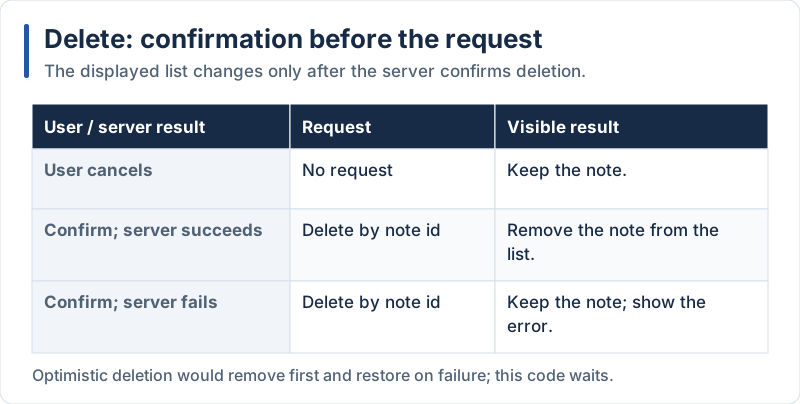
The examples wait for the server before removing the note from the list.
We use the pessimistic approach: simple and always consistent.
// app/src/main/java/com/example/notes/ui/NotesViewModel.kt (excerpt)
fun delete(id: String) = launchWrite("Could not delete the note") {
    repository.delete(id)
    _state.update { s -> s.copy(notes = s.notes.filterNot { it.id == id }) }
}
// app/src/main/java/com/example/notes/ui/NotesScreen.kt (excerpt)
var noteToDelete by remember { mutableStateOf<Note?>(null) }
// in the list: onDelete = { noteToDelete = note }
noteToDelete?.let { note ->
AlertDialog(
onDismissRequest = { noteToDelete = null },
title = { Text("Delete note") },
text = { Text("Delete \"${note.title}\"?") },
confirmButton = {
TextButton(
onClick = {
viewModel.delete(note.id)
noteToDelete = null
},
) { Text("Delete") }
},
dismissButton = { TextButton(onClick = { noteToDelete = null }) { Text("Cancel") } },
)
}Explanation:
noteToDeleteholds the note waiting for confirmation, ornull.noteToDelete?.let { ... }displays the dialog only when it is not null (safe call + scope function)- The note is removed from the list after the server confirmed
- Same flow as in React Native and Flutter: confirm, call the backend, then update the list
6.9 Update Notes
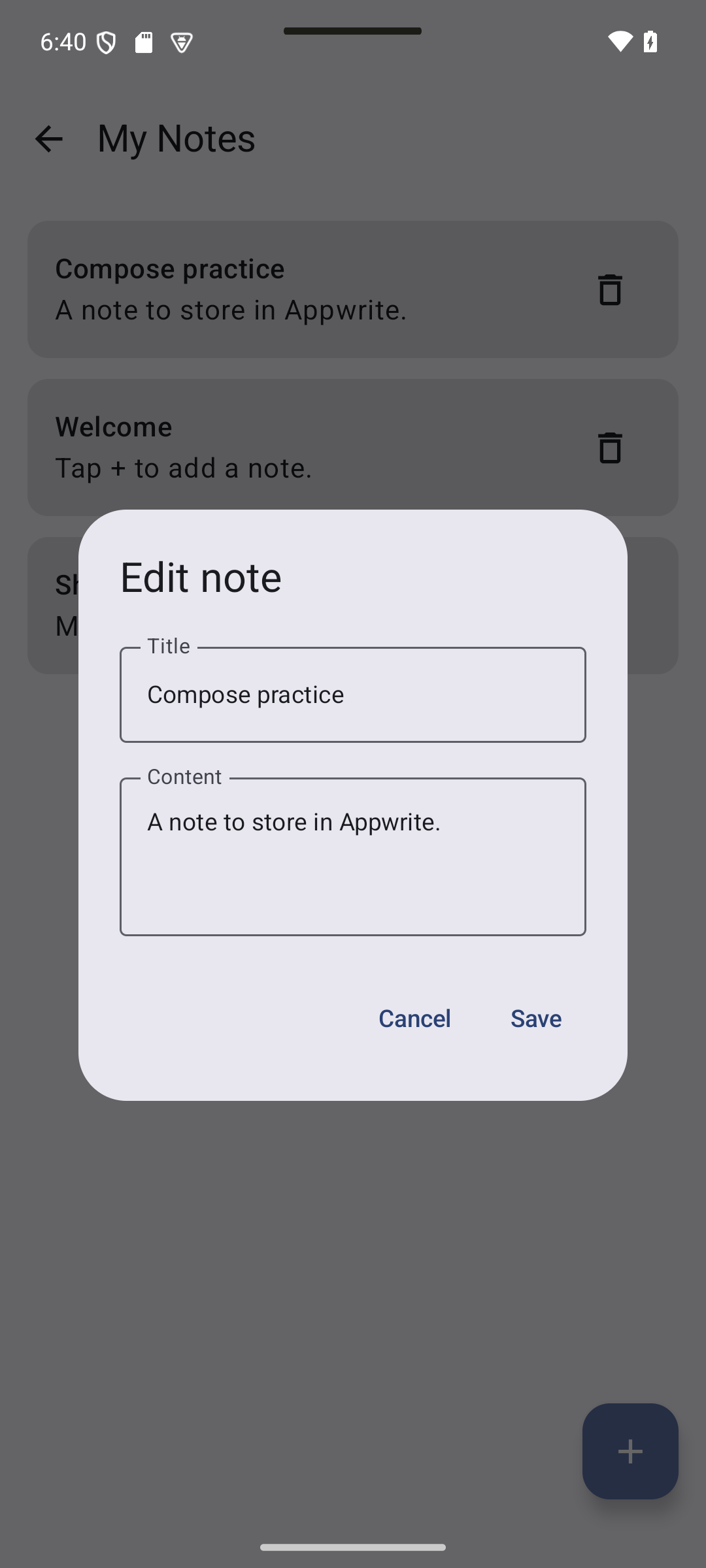
Expected result — native UI preview. Tap the card, modify its content, then Save. The existing card changes without creating a second note.
Concepts in this section: reusing the same form for create and edit; one save branch per case.
Visual guide. Use the current editing mode to select the request and the list update.
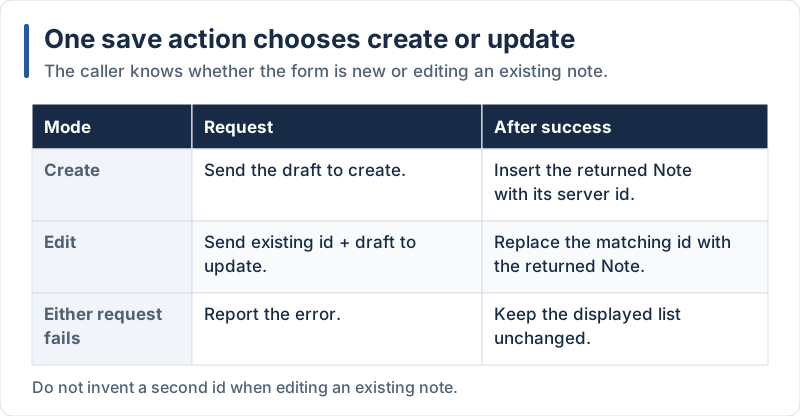
An edit keeps the existing id; creation uses the id returned by the server.
// app/src/main/java/com/example/notes/ui/NotesViewModel.kt (excerpt)
fun update(id: String, draft: NoteDraft) = launchWrite("Could not update the note") {
    val updated = repository.update(id, draft)
    _state.update { s -> s.copy(notes = s.notes.map { if (it.id == id) updated else it }) }
}
Here is the complete ViewModel at the end of this part:
// app/src/main/java/com/example/notes/ui/NotesViewModel.kt
package com.example.notes.ui

import androidx.lifecycle.ViewModel
import androidx.lifecycle.ViewModelProvider.AndroidViewModelFactory.Companion.APPLICATION_KEY
import androidx.lifecycle.viewModelScope
import androidx.lifecycle.viewmodel.initializer
import androidx.lifecycle.viewmodel.viewModelFactory
import com.example.notes.NotesApplication
import com.example.notes.data.NotesRepository
import com.example.notes.model.Note
import com.example.notes.model.NoteDraft
import kotlin.coroutines.cancellation.CancellationException
import kotlinx.coroutines.flow.MutableStateFlow
import kotlinx.coroutines.flow.StateFlow
import kotlinx.coroutines.flow.asStateFlow
import kotlinx.coroutines.flow.update
import kotlinx.coroutines.launch

data class NotesUiState(
    val notes: List<Note> = emptyList(),
    val loading: Boolean = true,
    val error: String? = null,   // full-screen error: the initial load failed
    val message: String? = null, // one-off message for a snackbar: a write failed
)

class NotesViewModel(private val repository: NotesRepository) : ViewModel() {

    private val _state = MutableStateFlow(NotesUiState())
    val state: StateFlow<NotesUiState> = _state.asStateFlow()

    init {
        load()
    }

    fun load() {
        viewModelScope.launch {
            _state.update { it.copy(loading = true, error = null) }
            try {
                val notes = repository.list()
                _state.update { it.copy(notes = notes, loading = false) }
            } catch (e: CancellationException) {
                throw e // never swallow cancellation
            } catch (e: Exception) {
                _state.update { it.copy(loading = false, error = e.message ?: "Could not load notes") }
            }
        }
    }

    fun add(draft: NoteDraft) = launchWrite("Could not save the note") {
        val created = repository.create(draft)
        _state.update { it.copy(notes = listOf(created) + it.notes) }
    }

    fun update(id: String, draft: NoteDraft) = launchWrite("Could not update the note") {
        val updated = repository.update(id, draft)
        _state.update { s -> s.copy(notes = s.notes.map { if (it.id == id) updated else it }) }
    }

    fun delete(id: String) = launchWrite("Could not delete the note") {
        repository.delete(id)
        _state.update { s -> s.copy(notes = s.notes.filterNot { it.id == id }) }
    }

    fun messageShown() {
        _state.update { it.copy(message = null) }
    }

    private fun launchWrite(errorText: String, block: suspend () -> Unit) {
        viewModelScope.launch {
            try {
                block()
            } catch (e: CancellationException) {
                throw e
            } catch (e: Exception) {
                _state.update { it.copy(message = e.message ?: errorText) }
            }
        }
    }

    companion object {
        /** Tells Android how to build this ViewModel: it needs the repository. */
        val Factory = viewModelFactory {
            initializer {
                val app = this[APPLICATION_KEY] as NotesApplication
                NotesViewModel(app.container.notesRepository)
            }
        }
    }
}
And the complete screen:
// app/src/main/java/com/example/notes/ui/NotesScreen.kt
package com.example.notes.ui

import androidx.compose.foundation.layout.Arrangement
import androidx.compose.foundation.layout.Box
import androidx.compose.foundation.layout.Column
import androidx.compose.foundation.layout.PaddingValues
import androidx.compose.foundation.layout.fillMaxSize
import androidx.compose.foundation.layout.padding
import androidx.compose.foundation.lazy.LazyColumn
import androidx.compose.foundation.lazy.items
import androidx.compose.material.icons.Icons
import androidx.compose.material.icons.automirrored.filled.ArrowBack
import androidx.compose.material.icons.filled.Add
import androidx.compose.material3.AlertDialog
import androidx.compose.material3.Button
import androidx.compose.material3.CircularProgressIndicator
import androidx.compose.material3.ExperimentalMaterial3Api
import androidx.compose.material3.FloatingActionButton
import androidx.compose.material3.Icon
import androidx.compose.material3.IconButton
import androidx.compose.material3.MaterialTheme
import androidx.compose.material3.Scaffold
import androidx.compose.material3.SnackbarHost
import androidx.compose.material3.SnackbarHostState
import androidx.compose.material3.Text
import androidx.compose.material3.TextButton
import androidx.compose.material3.TopAppBar
import androidx.compose.material3.pulltorefresh.PullToRefreshBox
import androidx.compose.runtime.Composable
import androidx.compose.runtime.LaunchedEffect
import androidx.compose.runtime.getValue
import androidx.compose.runtime.mutableStateOf
import androidx.compose.runtime.remember
import androidx.compose.runtime.saveable.rememberSaveable
import androidx.compose.runtime.setValue
import androidx.compose.ui.Alignment
import androidx.compose.ui.Modifier
import androidx.compose.ui.unit.dp
import androidx.lifecycle.compose.collectAsStateWithLifecycle
import androidx.lifecycle.viewmodel.compose.viewModel
import com.example.notes.model.Note

@OptIn(ExperimentalMaterial3Api::class)
@Composable
fun NotesScreen(
    onBack: () -> Unit,
    viewModel: NotesViewModel = viewModel(factory = NotesViewModel.Factory),
) {
    val state by viewModel.state.collectAsStateWithLifecycle()

    // UI-only state: dialogs
    var dialogOpen by rememberSaveable { mutableStateOf(false) }
    var editingId by rememberSaveable { mutableStateOf<String?>(null) }
    val editing = state.notes.find { it.id == editingId }
    var noteToDelete by remember { mutableStateOf<Note?>(null) }

    // Show write errors in a snackbar, then consume the message
    val snackbarHostState = remember { SnackbarHostState() }
    LaunchedEffect(state.message) {
        state.message?.let {
            snackbarHostState.showSnackbar(it)
            viewModel.messageShown()
        }
    }

    Scaffold(
        topBar = {
            TopAppBar(
                title = { Text("My Notes") },
                navigationIcon = {
                    IconButton(onClick = onBack) {
                        Icon(Icons.AutoMirrored.Filled.ArrowBack, contentDescription = "Back")
                    }
                },
            )
        },
        floatingActionButton = {
            FloatingActionButton(
                onClick = {
                    editingId = null
                    dialogOpen = true
                },
            ) {
                Icon(Icons.Filled.Add, contentDescription = "Add note")
            }
        },
        snackbarHost = { SnackbarHost(snackbarHostState) },
    ) { innerPadding ->
        when {
            state.loading && state.notes.isEmpty() -> {
                Box(
                    Modifier.fillMaxSize().padding(innerPadding),
                    contentAlignment = Alignment.Center,
                ) {
                    CircularProgressIndicator()
                }
            }

            state.error != null -> {
                Column(
                    modifier = Modifier.fillMaxSize().padding(innerPadding).padding(24.dp),
                    verticalArrangement = Arrangement.spacedBy(12.dp, Alignment.CenterVertically),
                    horizontalAlignment = Alignment.CenterHorizontally,
                ) {
                    Text(state.error!!, color = MaterialTheme.colorScheme.error)
                    Button(onClick = viewModel::load) { Text("Retry") }
                }
            }

            else -> {
                PullToRefreshBox(
                    isRefreshing = state.loading,
                    onRefresh = viewModel::load,
                    modifier = Modifier.padding(innerPadding),
                ) {
                    LazyColumn(
                        modifier = Modifier.fillMaxSize(),
                        contentPadding = PaddingValues(16.dp),
                        verticalArrangement = Arrangement.spacedBy(12.dp),
                    ) {
                        if (state.notes.isEmpty()) {
                            item { Text("No notes yet.") }
                        }
                        items(state.notes, key = { it.id }) { note ->
                            NoteItem(
                                note = note,
                                onEdit = {
                                    editingId = note.id
                                    dialogOpen = true
                                },
                                onDelete = { noteToDelete = note },
                            )
                        }
                    }
                }
            }
        }
    }

    if (dialogOpen) {
        NoteInputDialog(
            initial = editing,
            onSave = { draft ->
                val id = editingId
                if (id == null) viewModel.add(draft) else viewModel.update(id, draft)
                dialogOpen = false
            },
            onDismiss = { dialogOpen = false },
        )
    }

    noteToDelete?.let { note ->
        AlertDialog(
            onDismissRequest = { noteToDelete = null },
            title = { Text("Delete note") },
            text = { Text("Delete \"${note.title}\"?") },
            confirmButton = {
                TextButton(
                    onClick = {
                        viewModel.delete(note.id)
                        noteToDelete = null
                    },
                ) { Text("Delete") }
            },
            dismissButton = { TextButton(onClick = { noteToDelete = null }) { Text("Cancel") } },
        )
    }
}
Explanation:
- The Appwrite repository needs a constructor argument, so
viewModel()alone cannot create the ViewModel any more. AViewModelProvider.Factoryexplains how:viewModelFactory { initializer { ... } }builds the ViewModel from theApplication(APPLICATION_KEY) and its container. (Libraries such as Hilt or Koin automate this wiring in bigger apps) editingis derived from the list: the dialog starts with the current values of the note, while the dialog state itself stays in the UI layerupdatereturns the updatedNotefrom the server; we replace the old item withmap. Columns that are not sent keep their value- Run the app and check the result in the Appwrite console (Databases → NotesDB → notes): rows must appear, change and disappear when you use the app. Restart the app: the notes are still there
- Try airplane mode: the first load shows the error screen with Retry; a failed delete shows the snackbar
Compose vs React Native vs Flutter Comparison
Expected result — native UI preview. The remote version keeps the list appearance while moving persistence into a repository.
Visual guide. Use the data-layer diagram and remote states to compare the implementations below.
| Concept | React Native | Flutter | Kotlin + Compose |
|---|---|---|---|
| Appwrite package | react-native-appwrite |
appwrite |
io.appwrite:sdk-for-android |
| Configuration | .env with EXPO_PUBLIC_* |
env.json + --dart-define-from-file |
local.properties → BuildConfig fields |
| Platform registration | setPlatform(...) |
Read from the app id | Read from the package name |
| SDK call style | One object: listRows({ databaseId }) |
Named parameters | Named arguments |
| Async primitive | Promise / async await |
Future / async await |
suspend functions + coroutines |
| Where requests are started | useEffect |
initState |
ViewModel init + viewModelScope |
| Cancellation | Manual (AbortController) |
Check mounted |
Automatic: the scope is cancelled with the ViewModel |
| Screen state | several useState |
fields in State |
one immutable UiState in a StateFlow |
| Loading / error / success | early returns |
branches in build |
when { ... } |
| Pull-to-refresh | FlatList onRefresh |
RefreshIndicator |
PullToRefreshBox |
| User feedback | Alert.alert |
SnackBar |
SnackbarHost + LaunchedEffect |
| Dependency wiring | module imports | top-level final objects, provider |
Application container + ViewModelProvider.Factory (or Hilt/Koin) |
In Part 3 we add user accounts, so that each user only sees (and can only change) their own notes.
By Wahid Hamdi