Cross-Platform Mobile App Development Tutorial (React Native and Flutter Side by Side) - Part 2
In Part 1 we built a Notes app whose data disappears when the app closes. In this part we store the notes in a real database hosted on Appwrite, and we load, create, update and delete them from both the React Native and the Flutter apps.
Versions used in this part:
react-native-appwrite1.x (Expo SDK 57),appwritefor Dart 27.x (Flutter 3.47). Appwrite renamed its “Databases / Collections / Documents” vocabulary to “TablesDB / Tables / Rows”: this tutorial uses the new vocabulary and the newTablesDBservice.
Visual guide. Use this map to locate the current part before starting the examples.
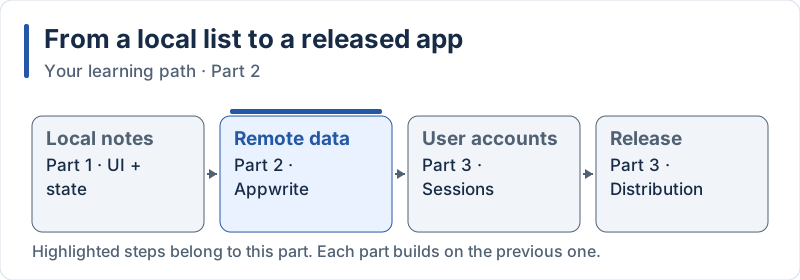
The highlighted steps are developed in this part.
Table of Contents
6. Database Integration with Appwrite
Expected result. The same Notes UI now reads and writes real Appwrite rows. The screenshots below were captured on Android against a dedicated demonstration project.
6.1 Understanding Appwrite
Expected result. The visible target is the loaded list in section 6.6. After restarting the app, saved notes must still be present because Appwrite stores them.
Concepts in this section:
- BaaS (Backend as a Service): a ready-made backend (database, authentication, storage) that you call from the app through an SDK, without writing a server
- Project → Database → Table → Row → Column: how Appwrite organizes data (similar to SQL: table = collection of rows, column = typed field)
- Platform: an app (Android, iOS, web) that is allowed to talk to your project
- Permissions: rules saying who (any visitor, a logged user, one specific user) can create, read, update or delete
Visual guide. Locate the device/server boundary, then follow the request and its response.
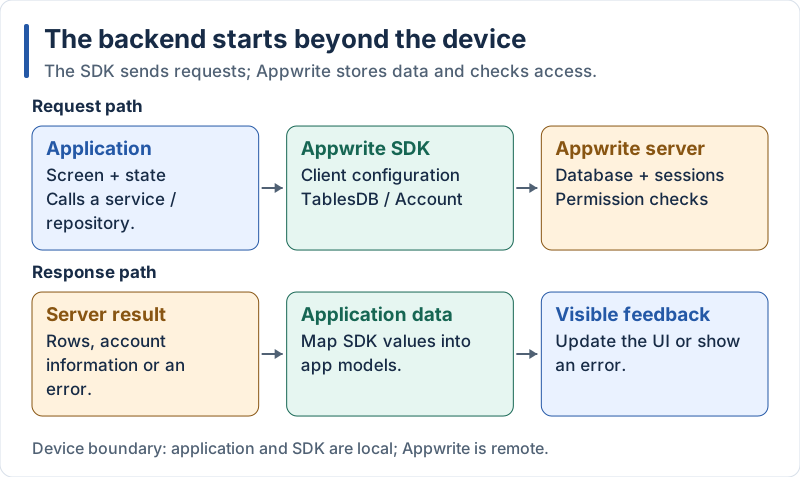
The SDK is in the application; persistence and permission checks happen on the server.
Appwrite is an open-source backend platform. You can use Appwrite Cloud (free plan, nothing to install) or self-host it. We use Appwrite Cloud.
Why Appwrite for this course?
- One SDK for authentication and database (used again in Part 3)
- Official SDKs for React Native and Flutter
- Permissions are part of the data model, which is a good introduction to backend security
6.2 Appwrite Project and Database Setup
Expected result. Observed Appwrite schema: the notes table and its available columns.
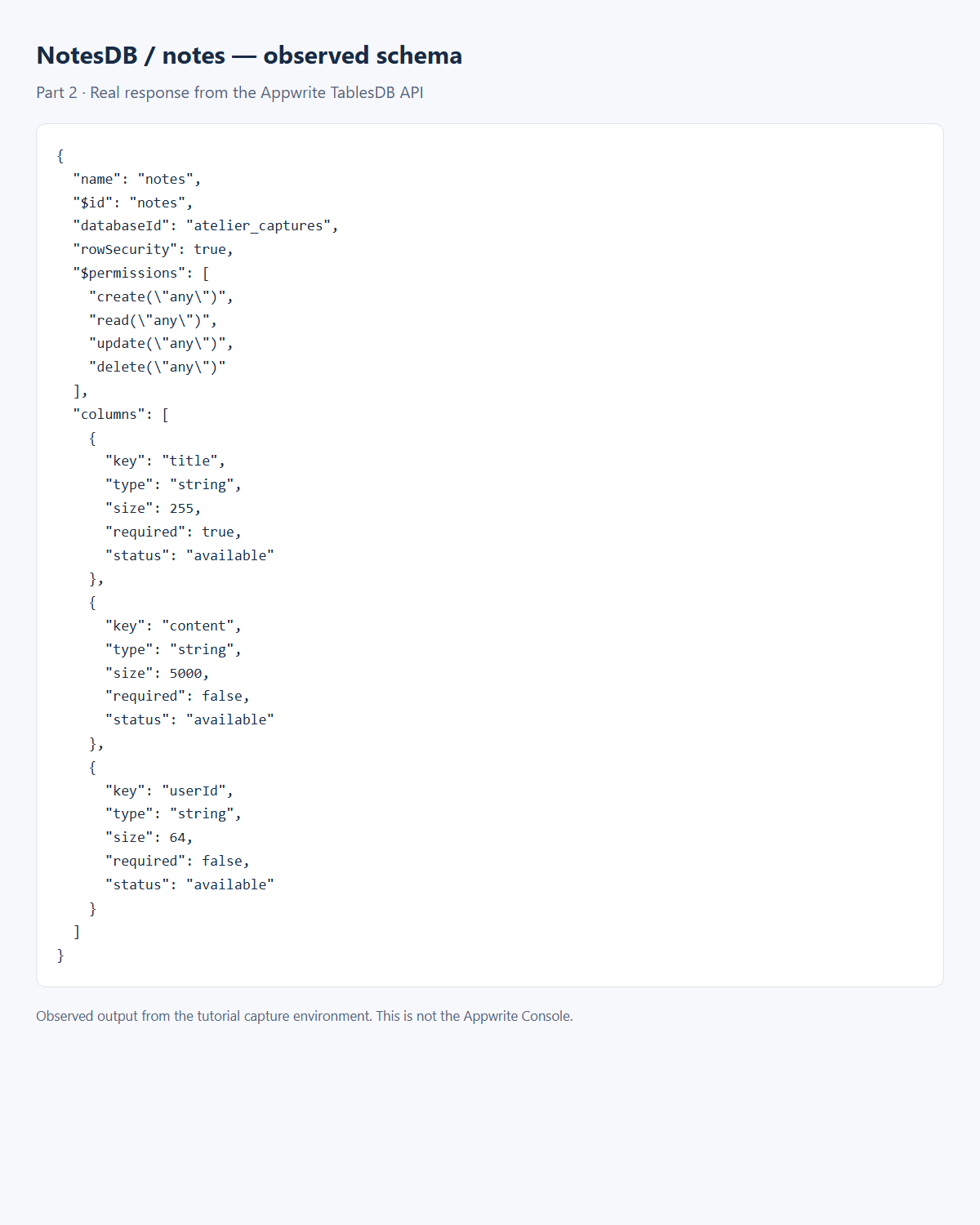
This is a screenshot of a report built from the actual API response, not the Appwrite Console. The optional userId column is prepared for Part 3. These broad Part 2 permissions are temporary; Part 3 replaces them with owner-only access. Register the Android application IDs as platforms too: com.example.notes_app for this Flutter example and host.exp.exponent for Expo Go.
Concepts in this section: project, database, table and columns, table permissions.
Visual guide. Read project → database → table, then inspect one horizontal row and one vertical column.
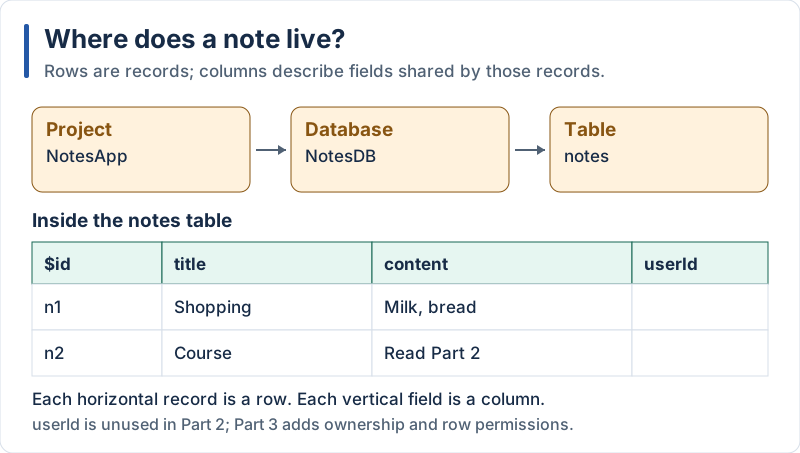
The table illustration omits timestamps and permissions; userId is populated in Part 3.
-
Create an account on https://cloud.appwrite.io and create a project (e.g.
NotesApp). Keep the Project ID and the API endpoint (shown in Settings, for examplehttps://<REGION>.cloud.appwrite.io/v1). -
In Databases, create a database named
NotesDB. Keep its Database ID. -
Inside it, create a table named
notes. Keep its Table ID. -
In the table, add these columns:
Column Type Size Required titlestring 255 yes contentstring 5000 no userIdstring 64 no Appwrite adds the system fields
$id,$createdAt,$updatedAtand$permissionsautomatically.userIdstays empty for now: we use it in Part 3. -
In the table Settings → Permissions, add the role Any with Create, Read, Update and Delete.
⚠️ Learning shortcut: “Any” means anybody on the Internet who knows your project ID can read and modify these rows. We only do this because the app has no login yet. In Part 3 we remove it and replace it with per-user permissions.
-
Register your apps as platforms (Overview → Add platform). Appwrite only accepts requests from registered apps:
- Flutter / Android: package name
com.example.notes_app(the id created byflutter create notes_app; seeandroid/app/build.gradle.kts) - Flutter / iOS: bundle id
com.example.notesApp - Web (to test with
flutter run -d chromeor Expo web): hostnamelocalhost - React Native: Android package
host.exp.exponentwhile developing with Expo Go (we register our own id in Part 3 when we build the app)
If you later get an “Invalid origin / platform” error, the id registered in the console does not match the one used by the app.
- Flutter / Android: package name
6.3 Environment Variables
Expected result. Public configuration used by the running applications.
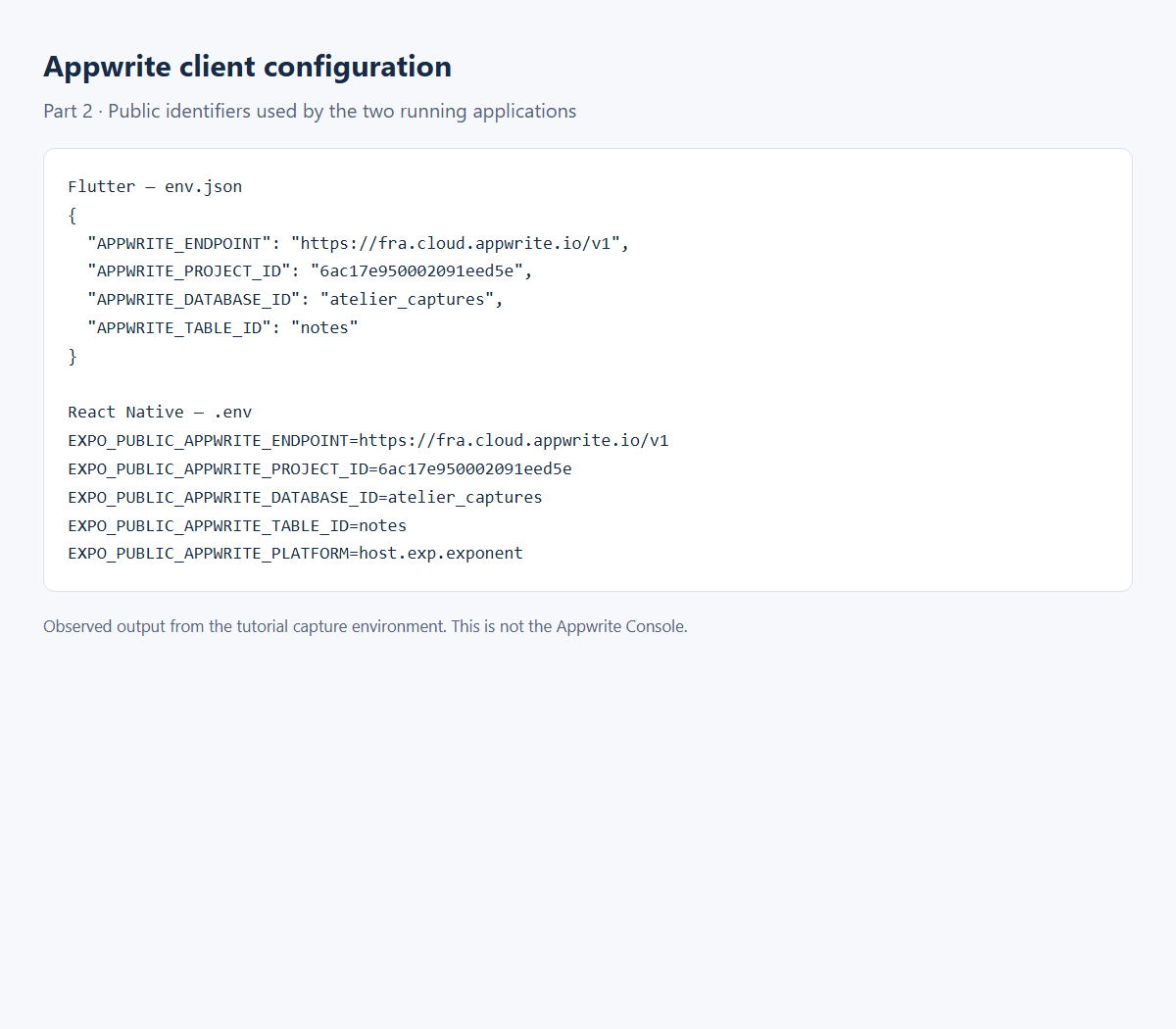
Use your own project and database IDs. This report contains no API key; an administration key must never be included in the mobile app.
Concepts in this section:
- Configuration that changes between environments (dev, prod) must not be hard-coded
- Public vs secret: everything compiled into a mobile app can be extracted by anyone. Project ID, endpoint and table ID are identifiers, not secrets. Never put an API key (server key) in a mobile app: permissions, not hidden values, protect your data.
- Expo: variables prefixed with
EXPO_PUBLIC_are inlined at build time. Flutter:--dart-definevalues are compiled into the app.
Visual guide. Follow the public identifiers into the built app; keep the server credential on its separate path.
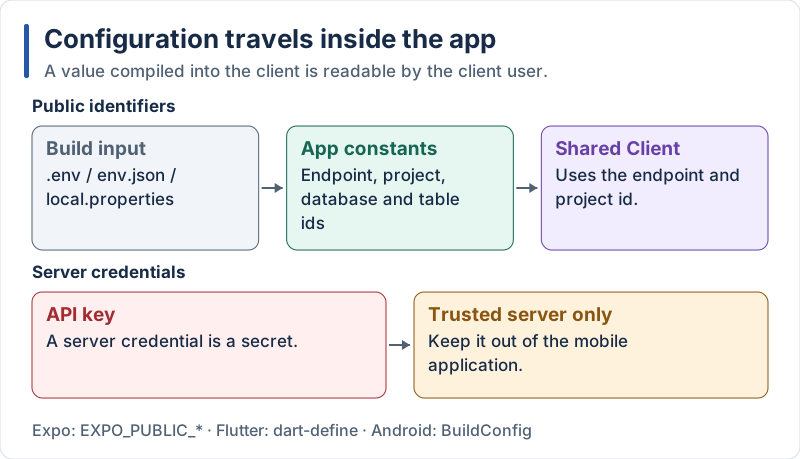
Changing the configuration source does not make a compiled value secret.
React Native
Create a .env file at the root of the project:
# .env
EXPO_PUBLIC_APPWRITE_ENDPOINT=https://<REGION>.cloud.appwrite.io/v1
EXPO_PUBLIC_APPWRITE_PROJECT_ID=your_project_id
EXPO_PUBLIC_APPWRITE_PLATFORM=host.exp.exponent
EXPO_PUBLIC_APPWRITE_DATABASE_ID=your_database_id
EXPO_PUBLIC_APPWRITE_TABLE_ID=your_table_id
Explanation:
- Expo loads
.envautomatically: no extra package (such asreact-native-dotenv) is needed - Only variables starting with
EXPO_PUBLIC_are available in the app code, asprocess.env.EXPO_PUBLIC_... - Restart the dev server after changing the file:
npx expo start -c
Flutter
Create an env.json file at the root of the project:
{
  "APPWRITE_ENDPOINT": "https://<REGION>.cloud.appwrite.io/v1",
  "APPWRITE_PROJECT_ID": "your_project_id",
  "APPWRITE_DATABASE_ID": "your_database_id",
  "APPWRITE_TABLE_ID": "your_table_id"
}
Run the app with:
flutter run --dart-define-from-file=env.jsonExplanation:
--dart-define-from-fileturns every key of the JSON file into a compile-time constant- We do not put a
.envfile in the Flutterassets: assets are shipped inside the app and are readable by anyone, and a file listed there is easy to commit by mistake - In VS Code, add
"args": ["--dart-define-from-file=env.json"]to your launch configuration so the Run button works too
6.4 Appwrite SDK Installation and Configuration
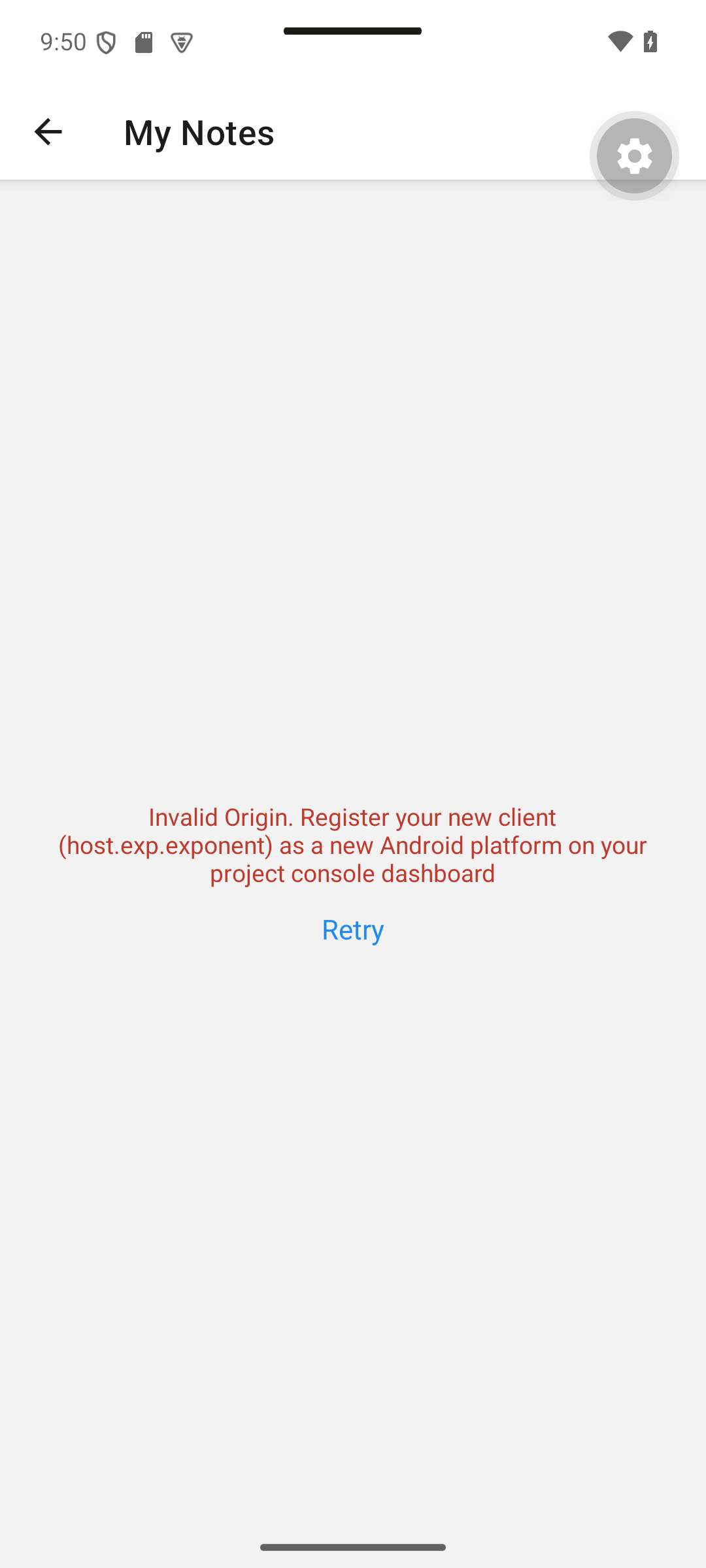
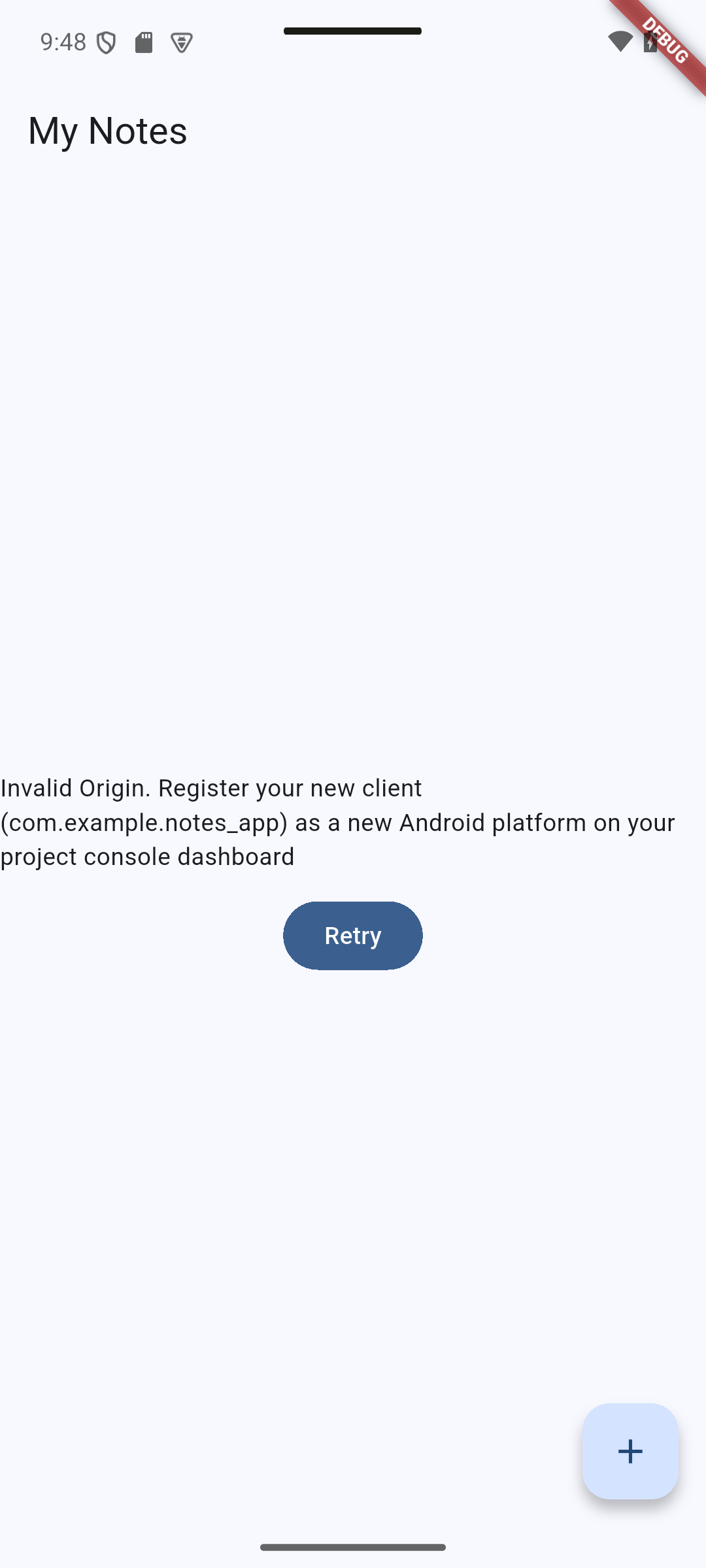
Expected result. A correctly configured client reaches the loaded list in section 6.6. The following real failure was captured before registering the Android platforms; after registration and a retry, the notes loaded.
An unregistered Android platform produces an Invalid Origin error and a Retry action.
| React Native · Android | Flutter · Android |
|---|---|
|
|
Concepts in this section:
- The client object holds the endpoint and project and is shared by all services
- Services (
TablesDB,Account) are thin wrappers that call the Appwrite REST API - A single configuration module avoids repeating
process.env/String.fromEnvironmenteverywhere
Visual guide. Find the owner of the shared client and the two services that use it.
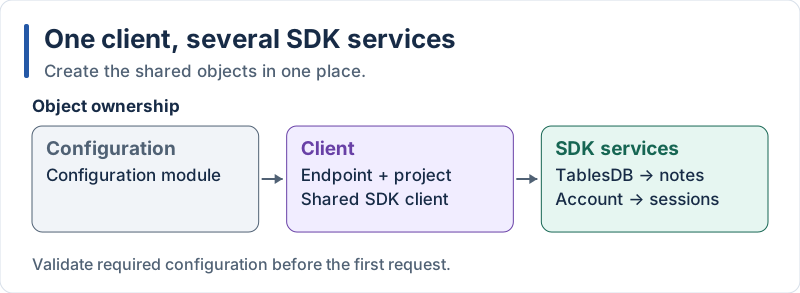
TablesDB handles notes; Account will handle authentication in Part 3.
React Native
npx expo install react-native-appwrite react-native-url-polyfill expo-file-systemreact-native-appwrite depends on an older expo-file-system than the one of Expo SDK 57. Two copies of a native module in one app is a problem (npx expo-doctor reports it), so tell npm to use the version of your project. Add an overrides entry to package.json, then run npm install again:
// package.json (excerpt)
{
  "overrides": {
    "react-native-appwrite": {
      "expo-file-system": "$expo-file-system"
    }
  }
}($expo-file-system means “the version declared in my own dependencies”.) Check with npx expo-doctor: all checks must pass.
// src/lib/appwrite.ts
import 'react-native-url-polyfill/auto';
import { Account, Client, TablesDB } from 'react-native-appwrite';

// Expo inlines every process.env.EXPO_PUBLIC_* it finds at build time.
// The access must be written literally (no destructuring, no dynamic key).
function required(value: string | undefined, name: string): string {
  if (!value) {
    throw new Error(`Missing environment variable ${name}. Check your .env file and restart Expo.`);
  }
  return value;
}

export const config = {
  endpoint: required(process.env.EXPO_PUBLIC_APPWRITE_ENDPOINT, 'EXPO_PUBLIC_APPWRITE_ENDPOINT'),
  projectId: required(process.env.EXPO_PUBLIC_APPWRITE_PROJECT_ID, 'EXPO_PUBLIC_APPWRITE_PROJECT_ID'),
  platform: required(process.env.EXPO_PUBLIC_APPWRITE_PLATFORM, 'EXPO_PUBLIC_APPWRITE_PLATFORM'),
  databaseId: required(process.env.EXPO_PUBLIC_APPWRITE_DATABASE_ID, 'EXPO_PUBLIC_APPWRITE_DATABASE_ID'),
  tableId: required(process.env.EXPO_PUBLIC_APPWRITE_TABLE_ID, 'EXPO_PUBLIC_APPWRITE_TABLE_ID'),
};

export const client = new Client()
  .setEndpoint(config.endpoint)
  .setProject(config.projectId)
  .setPlatform(config.platform);

export const tablesDB = new TablesDB(client);
export const account = new Account(client);
Explanation:
- The official React Native SDK is
react-native-appwrite(not the webappwritepackage) react-native-url-polyfill/autoadds theURLfeatures that the SDK needs and that React Native lackssetPlatformtells Appwrite which registered app is callingrequired()fails with a clear message when a variable is missing instead of an obscure network error laterAccountis created now because Part 3 uses it
Flutter
flutter pub add appwrite// lib/config/app_config.dart
/// Values injected at build time with --dart-define-from-file=env.json
class AppConfig {
static const endpoint = String.fromEnvironment('APPWRITE_ENDPOINT');
static const projectId = String.fromEnvironment('APPWRITE_PROJECT_ID');
static const databaseId = String.fromEnvironment('APPWRITE_DATABASE_ID');
static const tableId = String.fromEnvironment('APPWRITE_TABLE_ID');
/// Fails early with a clear message when a value is missing.
static void validate() {
const values = {
'APPWRITE_ENDPOINT': endpoint,
'APPWRITE_PROJECT_ID': projectId,
'APPWRITE_DATABASE_ID': databaseId,
'APPWRITE_TABLE_ID': tableId,
};
final missing = values.entries.where((e) => e.value.isEmpty).map((e) => e.key);
if (missing.isNotEmpty) {
throw StateError(
'Missing ${missing.join(', ')}. Run with --dart-define-from-file=env.json',
);
}
}
}// lib/services/appwrite_client.dart
import 'package:appwrite/appwrite.dart';
import '../config/app_config.dart';
final Client client = Client()
.setEndpoint(AppConfig.endpoint)
.setProject(AppConfig.projectId);
final TablesDB tablesDB = TablesDB(client);
final Account account = Account(client);Call the validation when the app starts:
// lib/main.dart (excerpt)
import 'config/app_config.dart';

void main() {
  AppConfig.validate();
  runApp(const NotesApp());
}
Explanation:
String.fromEnvironmentcan only be used withconst: the value is fixed at compile time- Flutter does not need
setPlatform: the SDK reads the package name / bundle id of the app itself - Top-level
finalvariables are created lazily the first time they are used, soAppConfig.validate()runs first Clientmethods return the client, which allows the fluent (chained) style
6.5 Notes Service
Expected result. The service has no separate screen. Its observable results are the loaded notes, saved note, confirmed deletion and updated content shown below.
Concepts in this section:
- Service layer: all database calls live in one module; screens never talk to Appwrite directly. This makes the screens simpler and the backend replaceable.
- Mapping: converting a database row into the app’s own
Notetype - Queries: server-side filtering and sorting (
Query.orderDesc, andQuery.equalin Part 3) - Asynchronous code: every network call returns a
Promise(JavaScript) or aFuture(Dart)
Visual guide. Follow both directions: request toward Appwrite, mapped Note back toward the UI.
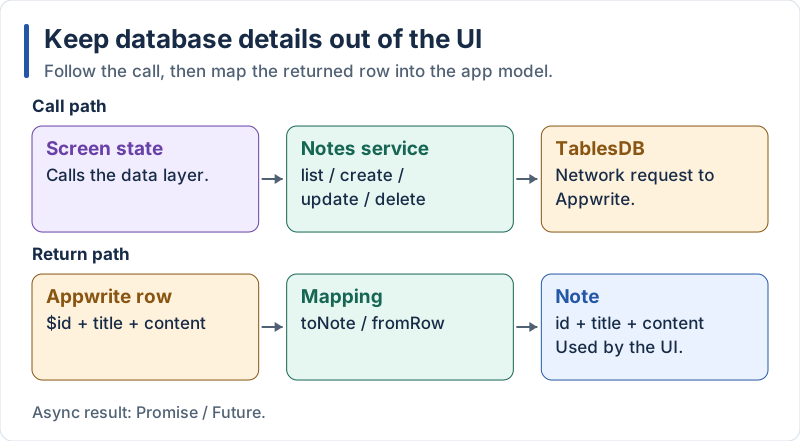
The UI uses the app model rather than the raw SDK row.
React Native
First move the NoteDraft type next to Note, because the service needs it:
// src/types.ts
export type Note = {
  id: string;
  title: string;
  content: string;
};

export type NoteDraft = Pick<Note, 'title' | 'content'>;
In src/components/NoteInputModal.tsx, delete the local export type NoteDraft = ... line and import it instead:
// src/components/NoteInputModal.tsx (excerpt)
import type { Note, NoteDraft } from '../types';
(In src/app/notes.tsx, import NoteDraft from '../types' too.) Then create the service:
// src/services/notes.ts
import { ID, Query, type Models } from 'react-native-appwrite';

import { config, tablesDB } from '../lib/appwrite';
import type { Note, NoteDraft } from '../types';

// Shape of a row in the "notes" table (system fields come from Models.Row)
type NoteRow = Models.Row & {
  title: string;
  content?: string;
  userId?: string;
};

const target = { databaseId: config.databaseId, tableId: config.tableId };

const toNote = (row: NoteRow): Note => ({
  id: row.$id,
  title: row.title,
  content: row.content ?? '',
});

export async function listNotes(): Promise<Note[]> {
  const result = await tablesDB.listRows<NoteRow>({
    ...target,
    queries: [Query.orderDesc('$createdAt')],
  });
  return result.rows.map(toNote);
}

export async function createNote(draft: NoteDraft): Promise<Note> {
  const row = await tablesDB.createRow<NoteRow>({
    ...target,
    rowId: ID.unique(),
    data: draft,
  });
  return toNote(row);
}

export async function updateNote(id: string, draft: NoteDraft): Promise<Note> {
  const row = await tablesDB.updateRow<NoteRow>({ ...target, rowId: id, data: draft });
  return toNote(row);
}

export async function deleteNote(id: string): Promise<void> {
  await tablesDB.deleteRow({ ...target, rowId: id });
}
A small helper turns any error into text for the UI:
// src/lib/errors.ts
export function errorMessage(error: unknown): string {
  return error instanceof Error ? error.message : 'Something went wrong';
}
Explanation:
- The SDK methods take one object with named fields (
databaseId,tableId,rowId,data…) ID.unique()asks Appwrite to generate a unique row idQuery.orderDesc('$createdAt')sorts newest first on the servertoNoteisolates the database vocabulary ($id) from the rest of the app (id)- Appwrite errors are instances of
Error(AppwriteException), soerror.messageis readable text
Flutter
Update the model: a Note can now be built from an Appwrite row.
// lib/models/note.dart
// "Row" is also the name of a Flutter widget, so we import the models with a prefix.
import 'package:appwrite/models.dart' as models;

class Note {
  const Note({required this.id, required this.title, required this.content});

  factory Note.fromRow(models.Row row) => Note(
        id: row.$id,
        title: row.data['title'] as String,
        content: (row.data['content'] as String?) ?? '',
      );

  final String id;
  final String title;
  final String content;

  Note copyWith({String? title, String? content}) =>
      Note(id: id, title: title ?? this.title, content: content ?? this.content);
}

/// Title and content typed by the user, before an id is assigned.
typedef NoteDraft = ({String title, String content});
// lib/services/notes_service.dart
import 'package:appwrite/appwrite.dart';
import '../config/app_config.dart';
import '../models/note.dart';
import 'appwrite_client.dart';
class NotesService {
NotesService(this._db);
final TablesDB _db;
Future<List<Note>> list() async {
final result = await _db.listRows(
databaseId: AppConfig.databaseId,
tableId: AppConfig.tableId,
queries: [Query.orderDesc('\$createdAt')],
);
return result.rows.map(Note.fromRow).toList();
}
Future<Note> create(NoteDraft draft) async {
final row = await _db.createRow(
databaseId: AppConfig.databaseId,
tableId: AppConfig.tableId,
rowId: ID.unique(),
data: {'title': draft.title, 'content': draft.content},
);
return Note.fromRow(row);
}
Future<Note> update(String id, NoteDraft draft) async {
final row = await _db.updateRow(
databaseId: AppConfig.databaseId,
tableId: AppConfig.tableId,
rowId: id,
data: {'title': draft.title, 'content': draft.content},
);
return Note.fromRow(row);
}
Future<void> delete(String id) async {
await _db.deleteRow(
databaseId: AppConfig.databaseId,
tableId: AppConfig.tableId,
rowId: id,
);
}
}
final notesService = NotesService(tablesDB);Explanation:
- The Dart SDK uses named parameters (
databaseId:,tableId:…), the JavaScript SDK uses an object: same idea, different syntax - A Dart
factoryconstructor (Note.fromRow) is the idiomatic place for conversions '\$createdAt': the backslash escapes the$that would otherwise start a string interpolation- The service receives the
TablesDBthrough its constructor (dependency injection), which makes it easy to replace in tests - We do not catch errors here: the screen decides how to show them. If you ever need to re-throw, use
rethrow(it keeps the stack trace), notthrow e
6.6 Fetch Notes from the Screen
Expected result. Shopping and Welcome are loaded from Appwrite.
| React Native · Android | Flutter · Android |
|---|---|
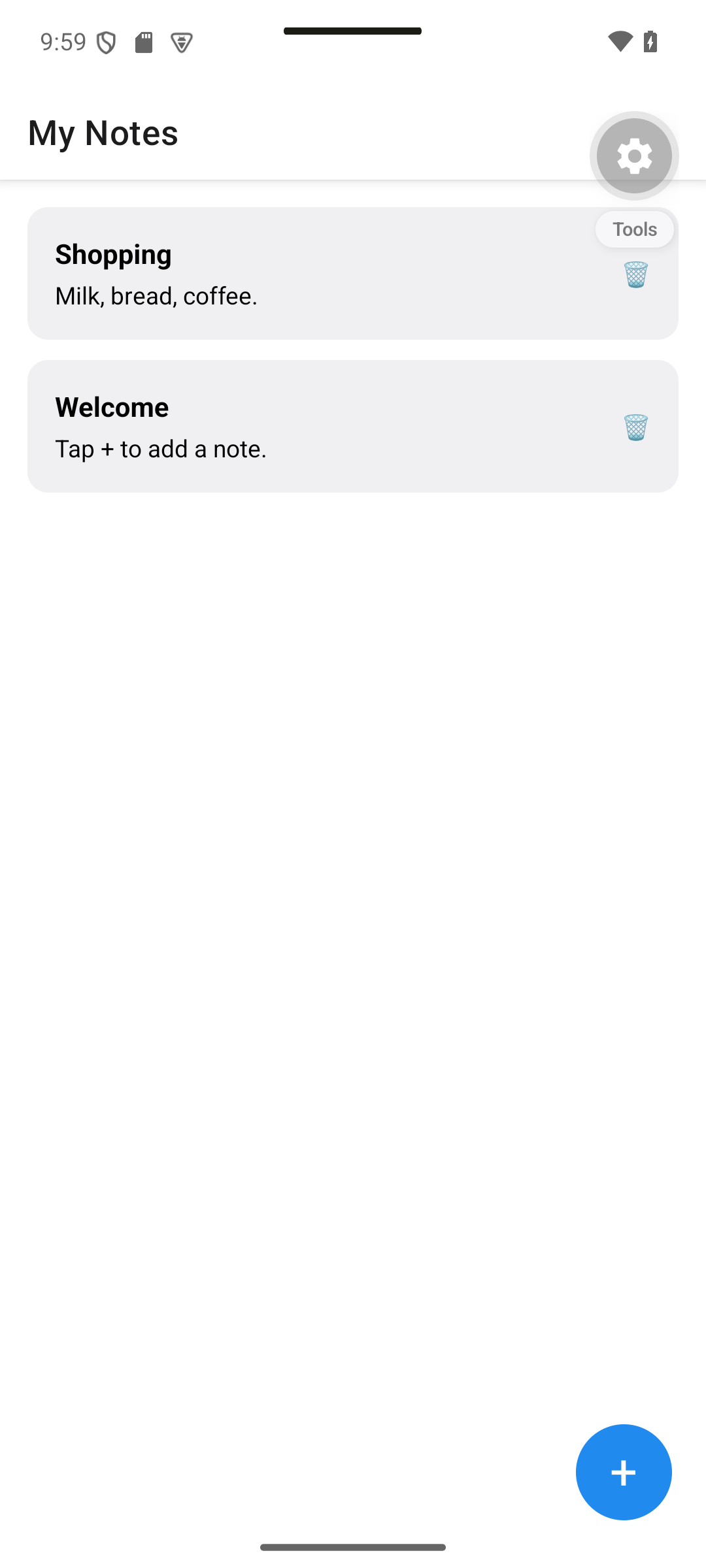
|
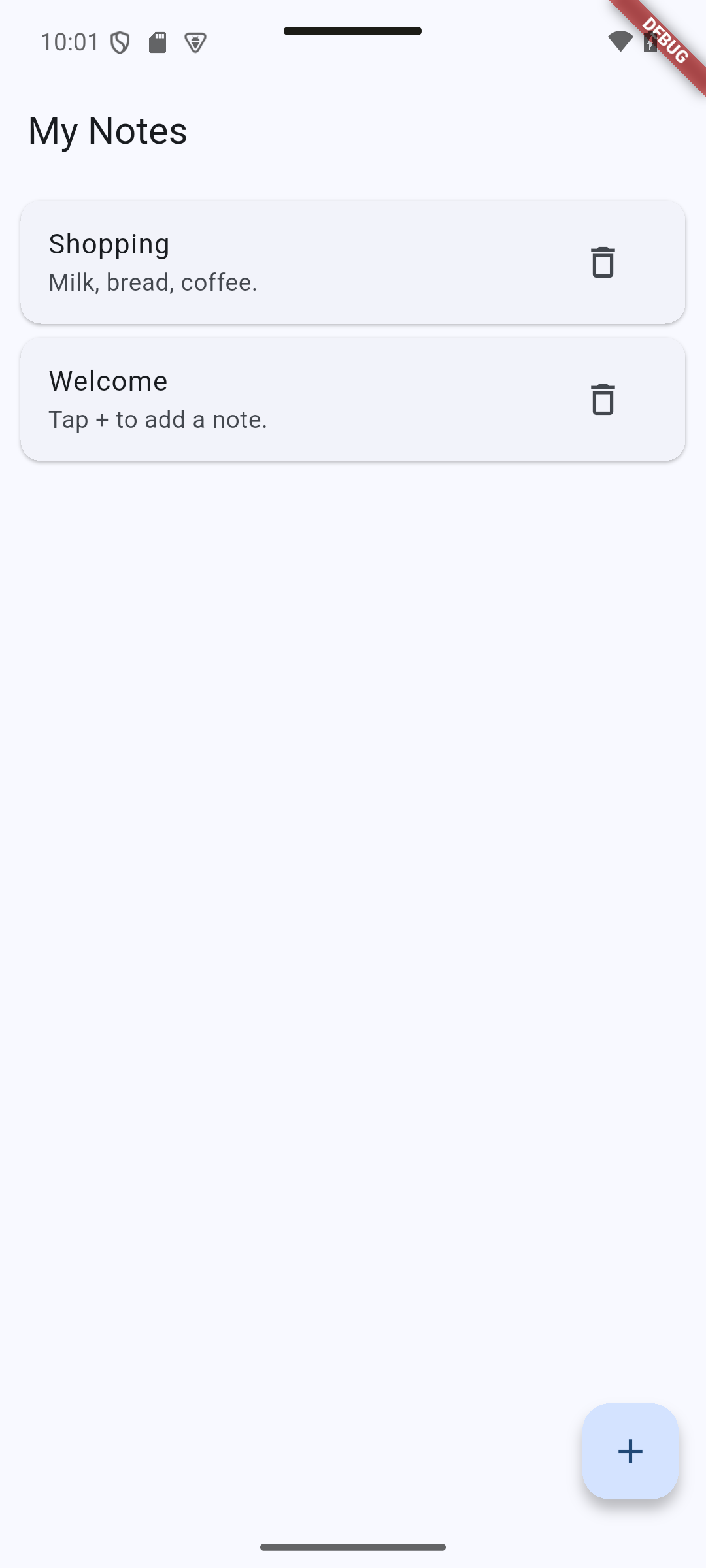
|
The error screen in section 6.4 is a second observed outcome. Loading is transient; the existing state diagram explains the other branches.
Concepts in this section:
- The three states of any remote data: loading, error, success (and empty, which is a success)
- Triggering a request when a screen appears (
useEffect/initState) - Pull-to-refresh
Visual guide. Choose the visible state for a failed request, an empty response, and a response containing notes.
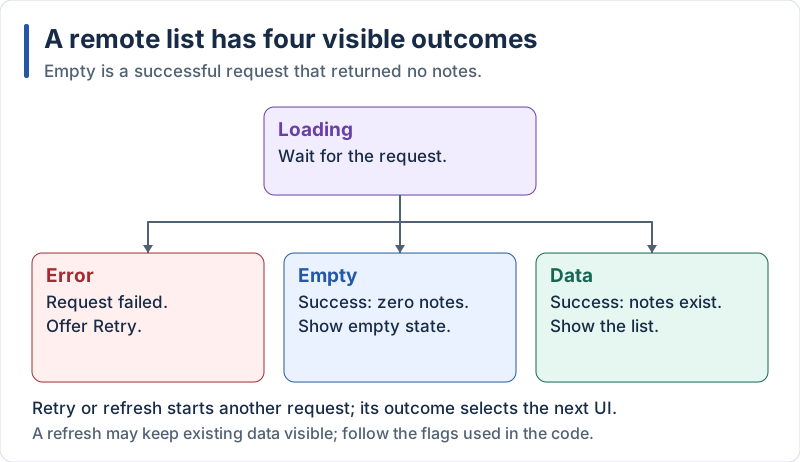
Retry and refresh trigger a new request; empty is one successful outcome.
React Native
Replace the in-memory list of src/app/notes.tsx by a call to the service. Only the top of the screen changes at this stage:
// src/app/notes.tsx (excerpt)
import { useCallback, useEffect, useState } from 'react';
import { ActivityIndicator, FlatList, Pressable, StyleSheet, Text, View } from 'react-native';

import { NoteInputModal } from '../components/NoteInputModal';
import { NoteItem } from '../components/NoteItem';
import { errorMessage } from '../lib/errors';
import { listNotes } from '../services/notes';
import type { Note } from '../types';

export default function NotesScreen() {
  const [notes, setNotes] = useState<Note[]>([]);
  const [loading, setLoading] = useState(true);
  const [error, setError] = useState<string | null>(null);
  const [editing, setEditing] = useState<Note | 'new' | null>(null);

  const load = useCallback(async () => {
    setLoading(true);
    setError(null);
    try {
      setNotes(await listNotes());
    } catch (e) {
      setError(errorMessage(e));
    } finally {
      setLoading(false);
    }
  }, []);

  useEffect(() => {
    void load();
  }, [load]);

  if (loading && notes.length === 0) {
    return (
      <View style={styles.center}>
        <ActivityIndicator size="large" />
      </View>
    );
  }

  if (error) {
    return (
      <View style={styles.center}>
        <Text style={styles.error}>{error}</Text>
        <Pressable onPress={load}>
          <Text style={styles.retry}>Retry</Text>
        </Pressable>
      </View>
    );
  }

  return (
    <View style={styles.container}>
      <FlatList
        data={notes}
        keyExtractor={(note) => note.id}
        contentContainerStyle={styles.list}
        refreshing={loading}
        onRefresh={load}
        ListEmptyComponent={<Text style={styles.empty}>No notes yet.</Text>}
        renderItem={({ item }) => (
          <NoteItem note={item} onEdit={setEditing} onDelete={() => {}} />
        )}
      />
      {/* "+" button and NoteInputModal are unchanged for now */}
    </View>
  );
}
Explanation:
useEffect(..., [load])runsloadonce when the screen is first displayeduseCallbackkeeps the sameloadfunction between renders so the effect does not loop- The
try / catch / finallypattern sets the error and always stops the spinner - Early
returns display one UI per state refreshingandonRefreshgiveFlatListpull-to-refresh for freevoid load()explicitly ignores the returned promise (errors are already handled inside)
Flutter
// lib/screens/notes_screen.dart (excerpt)
import 'package:appwrite/appwrite.dart';
import 'package:flutter/material.dart';

import '../models/note.dart';
import '../services/notes_service.dart';
import '../widgets/note_input_dialog.dart';
import '../widgets/note_item.dart';

class NotesScreen extends StatefulWidget {
  const NotesScreen({super.key});

  @override
  State<NotesScreen> createState() => _NotesScreenState();
}

class _NotesScreenState extends State<NotesScreen> {
  List<Note> _notes = [];
  bool _loading = true;
  String? _error;

  @override
  void initState() {
    super.initState();
    _load();
  }

  Future<void> _load() async {
    setState(() {
      _loading = true;
      _error = null;
    });
    try {
      final notes = await notesService.list();
      if (!mounted) return;
      setState(() => _notes = notes);
    } on AppwriteException catch (e) {
      if (!mounted) return;
      setState(() => _error = e.message ?? 'Could not load notes');
    } finally {
      if (mounted) setState(() => _loading = false);
    }
  }

  @override
  Widget build(BuildContext context) {
    Widget body;
    if (_loading && _notes.isEmpty) {
      body = const Center(child: CircularProgressIndicator());
    } else if (_error != null) {
      body = Center(
        child: Column(
          mainAxisSize: MainAxisSize.min,
          spacing: 12,
          children: [
            Text(_error!),
            FilledButton(onPressed: _load, child: const Text('Retry')),
          ],
        ),
      );
    } else {
      body = RefreshIndicator(
        onRefresh: _load,
        child: _notes.isEmpty
            ? ListView(children: const [Padding(padding: EdgeInsets.all(32), child: Center(child: Text('No notes yet.')))])
            : ListView.builder(
                padding: const EdgeInsets.all(8),
                itemCount: _notes.length,
                itemBuilder: (context, index) {
                  final note = _notes[index];
                  return NoteItem(
                    key: ValueKey(note.id),
                    note: note,
                    onEdit: () {},
                    onDelete: () {},
                  );
                },
              ),
      );
    }

    return Scaffold(
      appBar: AppBar(title: const Text('My Notes')),
      body: body,
      // floatingActionButton unchanged for now
    );
  }
}
Explanation:
initStateruns once when theStateobject is created: the right place to start loadingon AppwriteException catch (e)catches only Appwrite errors; other bugs still surface during developmentif (!mounted) return;after anawait: the user may have left the screen while the request was running, and callingsetStateon a disposedStateis an errorRefreshIndicatoradds pull-to-refresh; the list is wrapped in aListVieweven when empty so the gesture works- The loading / error / success branches are the same three states as in React Native
6.7 Add a Note to the Database
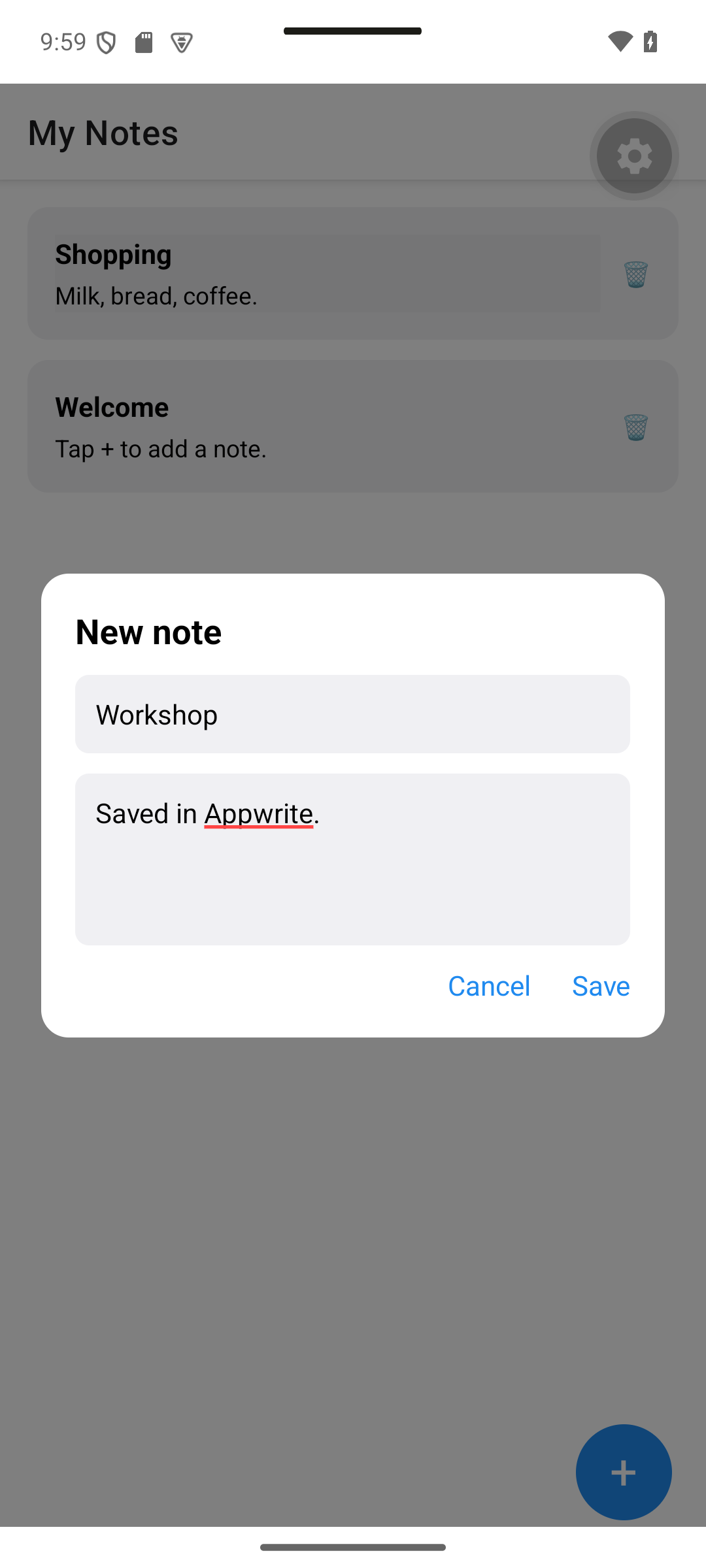
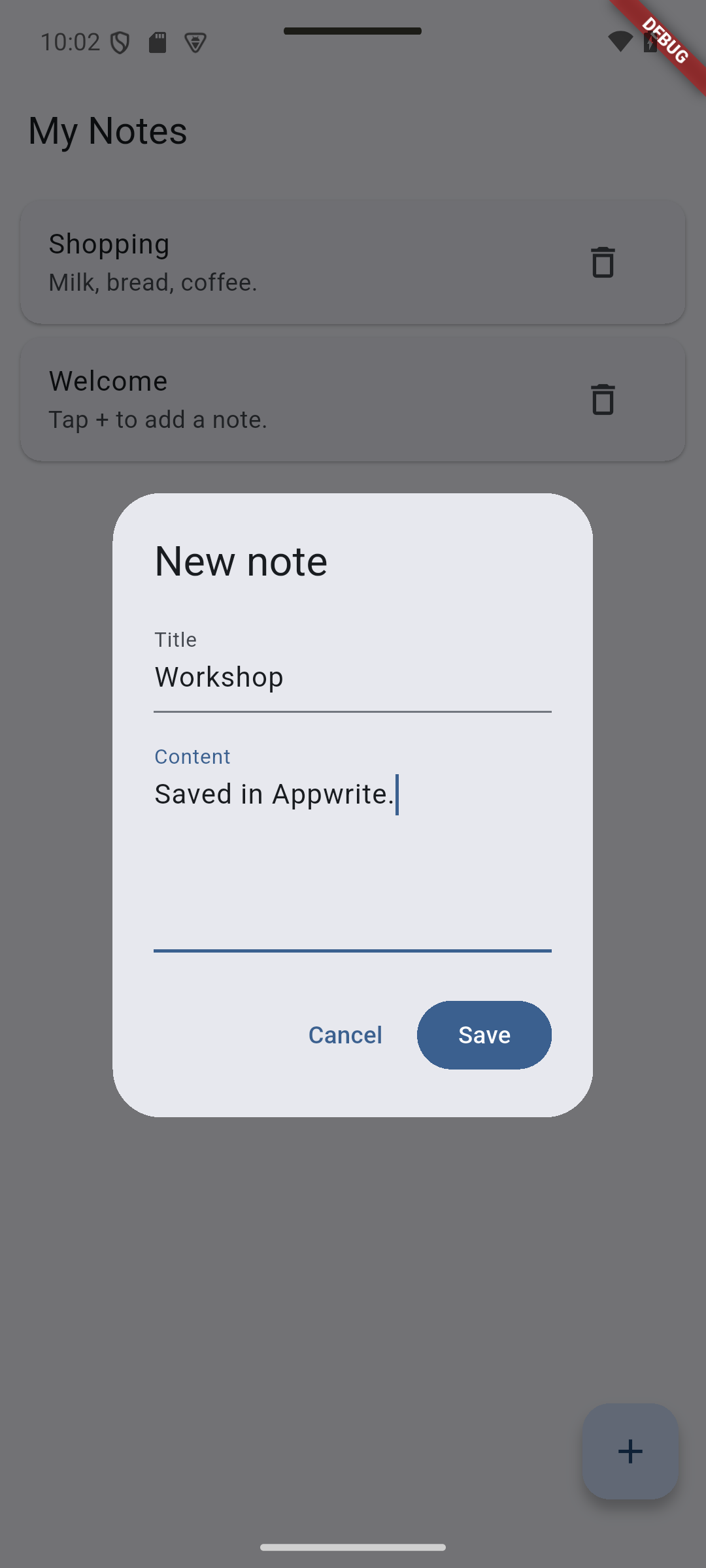
Expected result. Enter Workshop and Saved in Appwrite. before saving.
| React Native · Android | Flutter · Android |
|---|---|
|
|
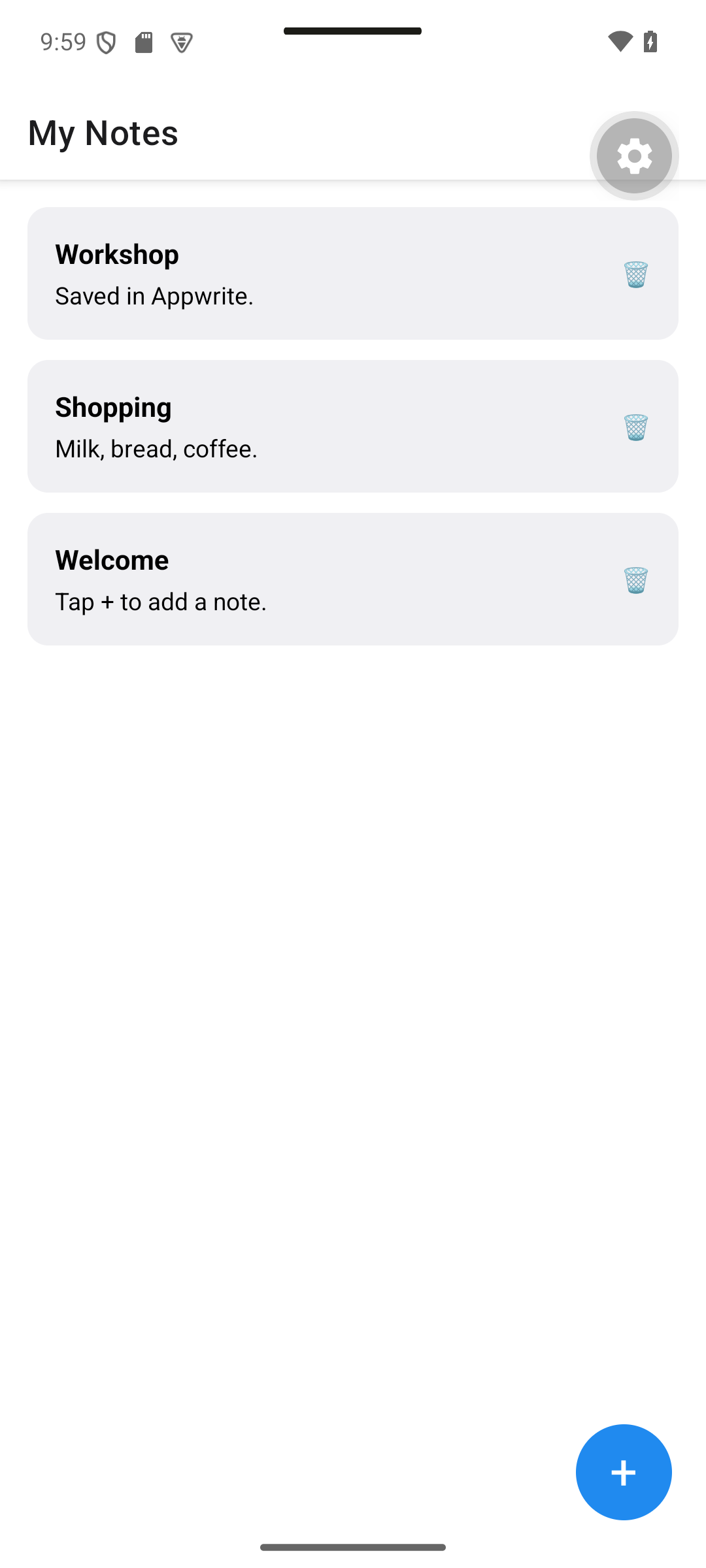
The successfully saved Workshop note appears in the list.
| React Native · Android | Flutter · Android |
|---|---|
|
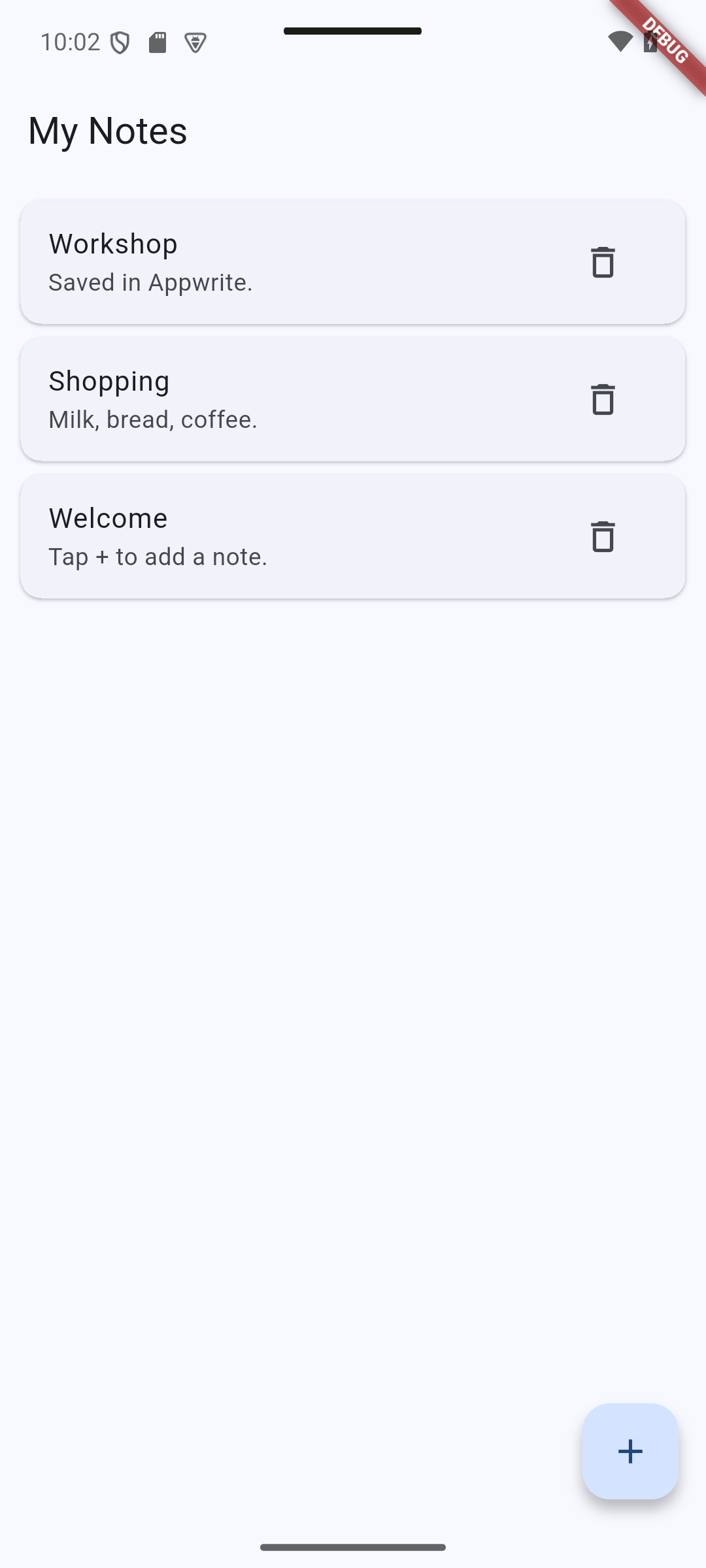
|
Concepts in this section:
- Writing data and updating the UI with the server’s answer
- Error feedback to the user without crashing (alert / snackbar)
Visual guide. Watch when the form closes and when the list changes: these are separate events.
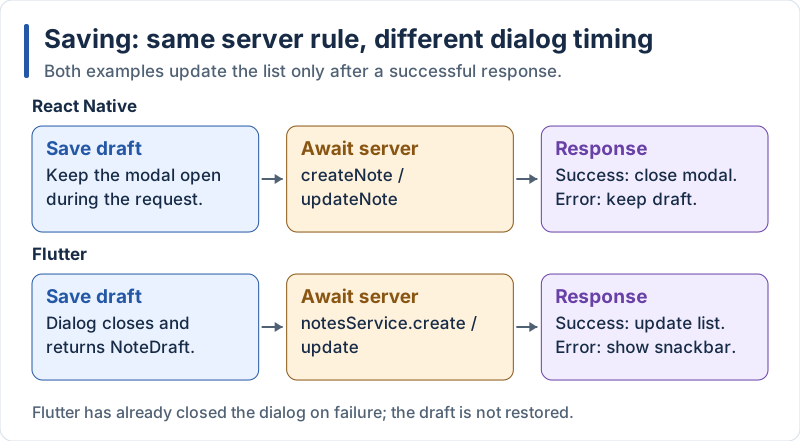
Only a successful server response changes the displayed notes.
React Native
Add the import and a save function that creates the note, then plug it into the modal:
// src/app/notes.tsx (excerpt)
import { Alert } from 'react-native';
import { createNote, listNotes } from '../services/notes';
import { errorMessage } from '../lib/errors';
import type { Note, NoteDraft } from '../types';

// inside NotesScreen, below `load`:
const save = async (draft: NoteDraft) => {
  try {
    if (editing === 'new') {
      const created = await createNote(draft);
      setNotes((current) => [created, ...current]);
    }
    setEditing(null);
  } catch (e) {
    Alert.alert('Could not save the note', errorMessage(e));
  }
};

// in the JSX, after the FlatList:
<Pressable style={styles.fab} onPress={() => setEditing('new')} accessibilityRole="button" accessibilityLabel="Add note">
  <Text style={styles.fabText}>+</Text>
</Pressable>
<NoteInputModal
  visible={editing !== null}
  initial={editing && editing !== 'new' ? editing : undefined}
  onSave={save}
  onCancel={() => setEditing(null)}
/>
Explanation:
- We
awaitthe server first and only then change the list: the screen shows what is really stored (the new row id comes from the server) setNotes((current) => [created, ...current])uses the functional form of the setter: it works on the latest state even if several updates are queued- On failure the modal stays open so the user does not lose the text
Flutter
// lib/screens/notes_screen.dart (excerpt)
void _showError(String message) {
  if (!mounted) return;
  ScaffoldMessenger.of(context).showSnackBar(SnackBar(content: Text(message)));
}

Future<void> _add() async {
  final draft = await showNoteInputDialog(context);
  if (draft == null) return;
  try {
    final created = await notesService.create(draft);
    if (!mounted) return;
    setState(() => _notes.insert(0, created));
  } on AppwriteException catch (e) {
    _showError(e.message ?? 'Could not save the note');
  }
}

// in build(), on the Scaffold:
floatingActionButton: FloatingActionButton(
  onPressed: _add,
  tooltip: 'Add note',
  child: const Icon(Icons.add),
),
Explanation:
- The dialog from Part 1 is reused as is: it still returns a
NoteDraft?. This is the benefit of the refactoring done in Part 1 SnackBaris the Material way to show a short message at the bottom of the screen_showErrorchecksmountedbefore usingcontext, which the analyzer requires after anawait
6.8 Delete Notes
Expected result. Deleting Workshop first asks for confirmation; Cancel keeps the note.
| React Native · Android | Flutter · Android |
|---|---|
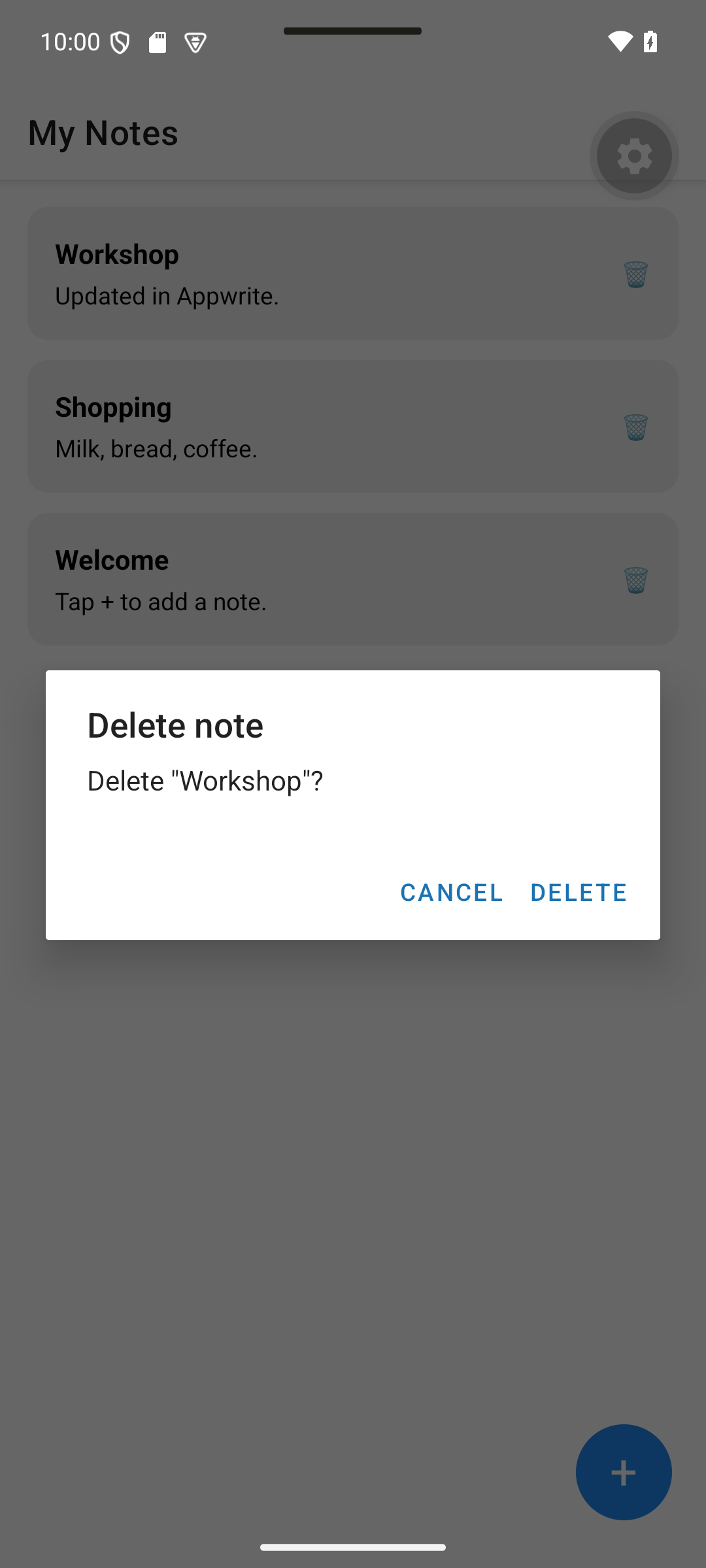
|
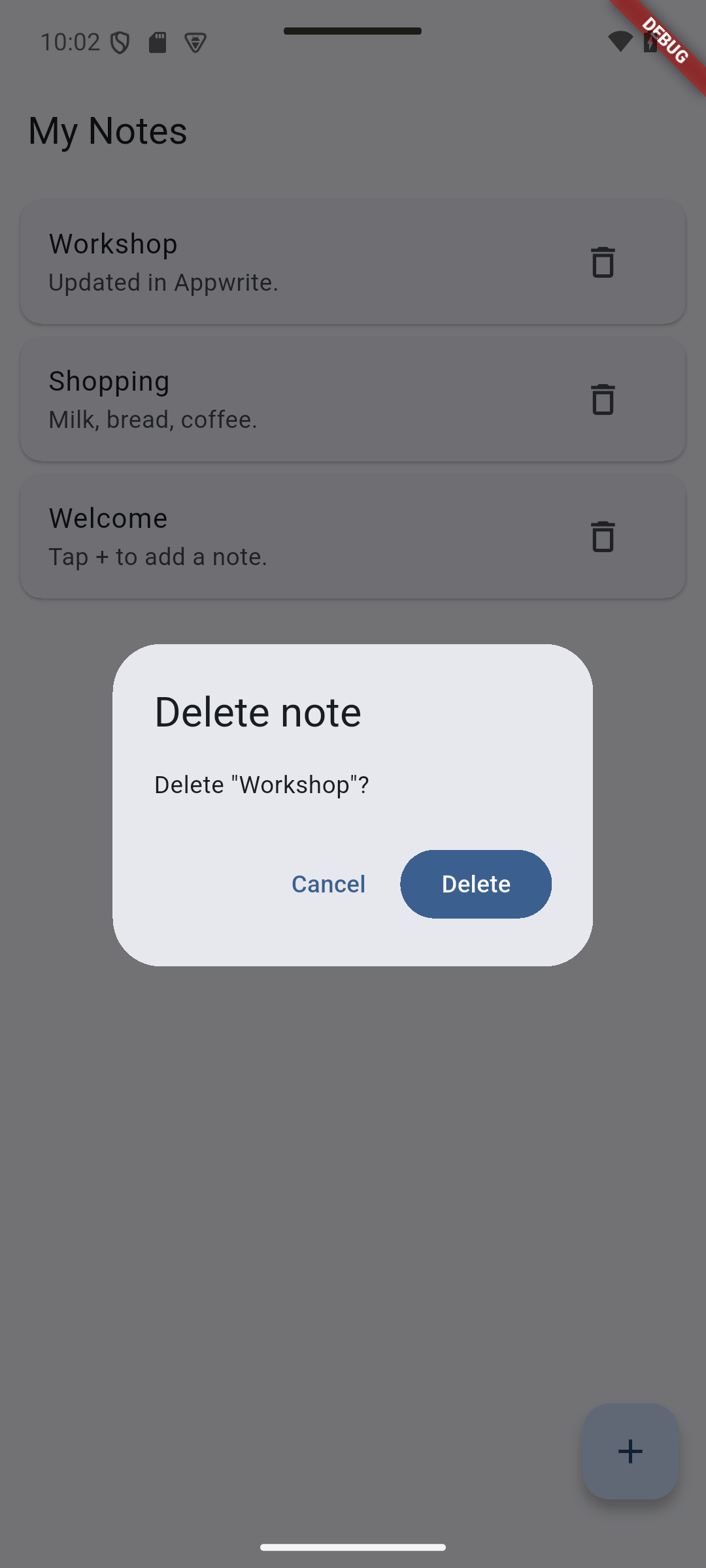
|
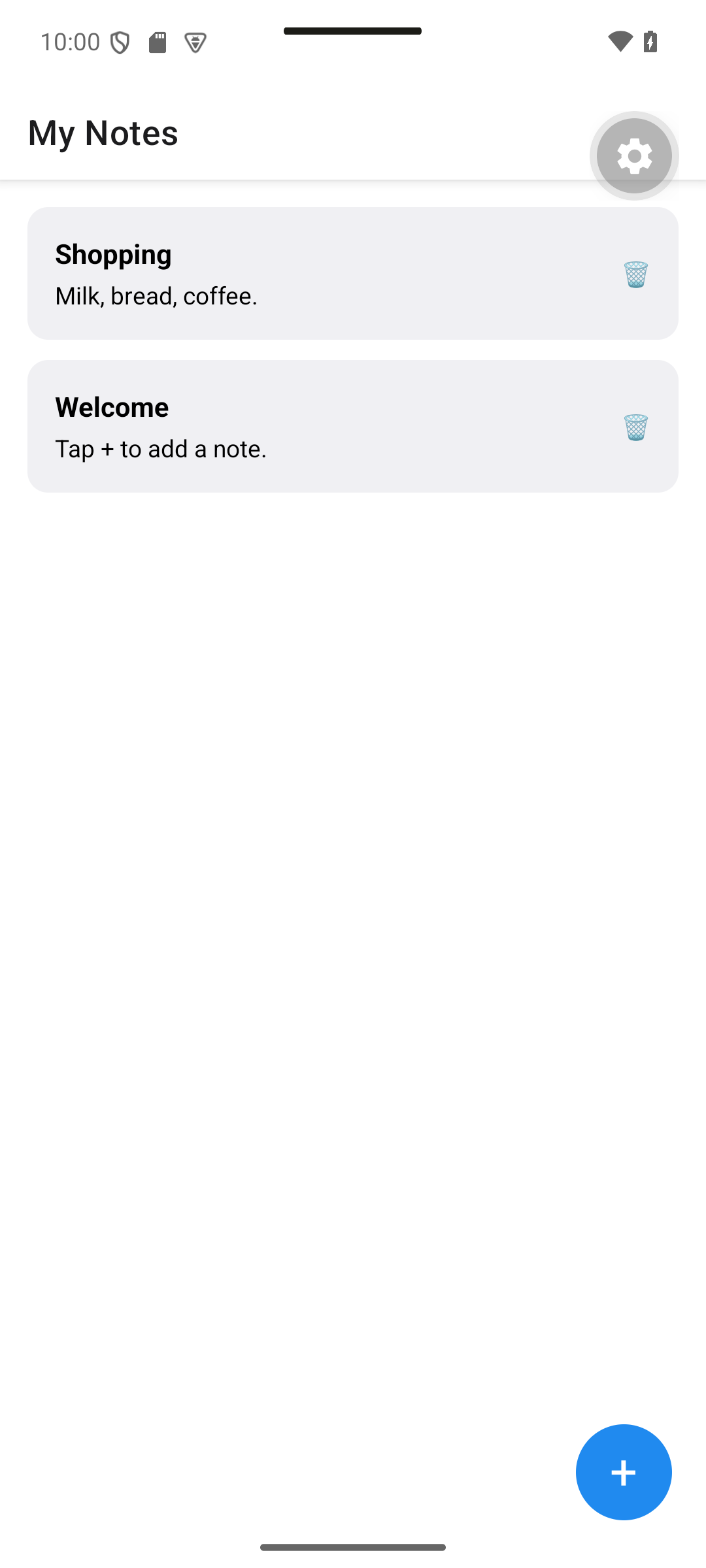
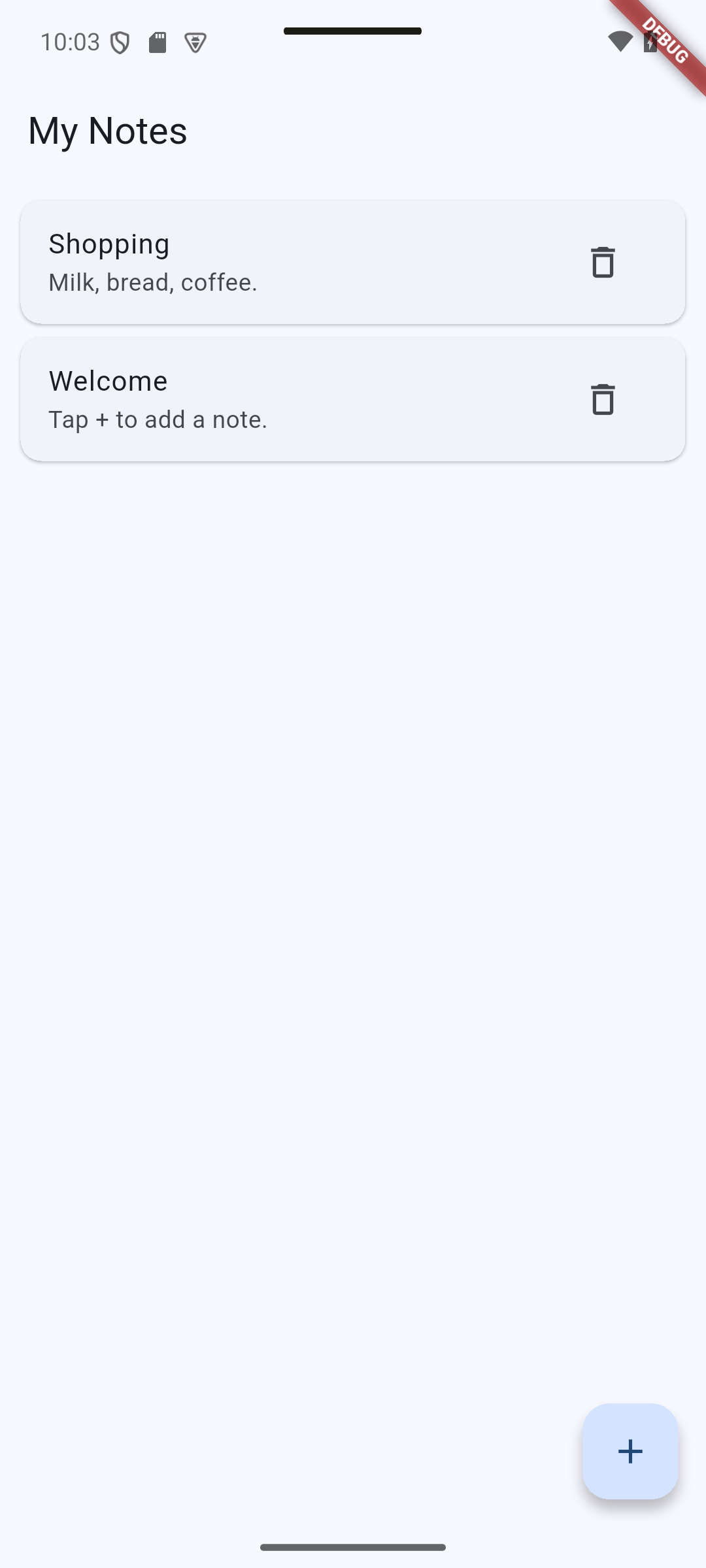
After confirming Delete, Workshop disappears and the other rows remain.
| React Native · Android | Flutter · Android |
|---|---|
|
|
Concepts in this section: destructive actions need a confirmation; pessimistic updates (wait for the server) vs optimistic updates (change the UI first, undo on failure).
Visual guide. Compare cancellation, successful deletion, and failed deletion.
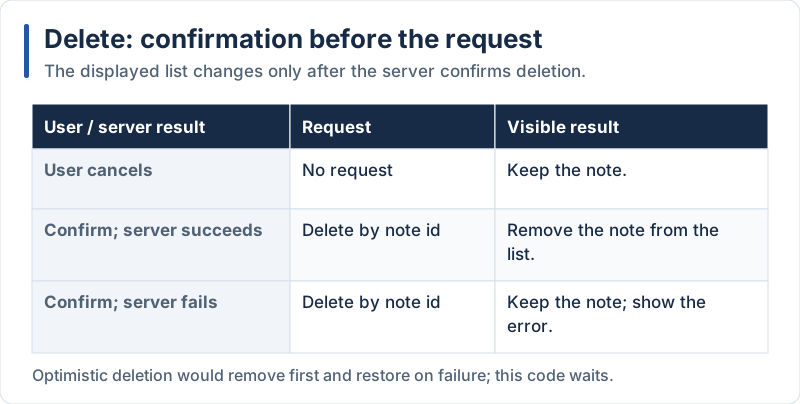
The examples wait for the server before removing the note from the list.
We use the pessimistic approach: simple and always consistent.
React Native
// src/app/notes.tsx (excerpt)
import { deleteNote } from '../services/notes';

const remove = (note: Note) => {
  Alert.alert('Delete note', `Delete "${note.title}"?`, [
    { text: 'Cancel', style: 'cancel' },
    {
      text: 'Delete',
      style: 'destructive',
      onPress: async () => {
        try {
          await deleteNote(note.id);
          setNotes((current) => current.filter((n) => n.id !== note.id));
        } catch (e) {
          Alert.alert('Could not delete the note', errorMessage(e));
        }
      },
    },
  ]);
};

// in renderItem:
<NoteItem note={item} onEdit={setEditing} onDelete={() => remove(item)} />
Explanation:
Alert.alertwith a buttons array shows a native confirmation dialog (the buttons are not supported byAlertwhen running in the browser: use aModalthere if you target web)style: 'destructive'displays the button in red on iOS- The note is removed from the list only after the server confirmed
Flutter
// lib/screens/notes_screen.dart (excerpt)
Future<void> _delete(Note note) async {
  final confirmed = await showDialog<bool>(
    context: context,
    builder: (context) => AlertDialog(
      title: const Text('Delete note'),
      content: Text('Delete "${note.title}"?'),
      actions: [
        TextButton(
          onPressed: () => Navigator.pop(context, false),
          child: const Text('Cancel'),
        ),
        FilledButton(
          onPressed: () => Navigator.pop(context, true),
          child: const Text('Delete'),
        ),
      ],
    ),
  );
  if (confirmed != true) return;

  try {
    await notesService.delete(note.id);
    if (!mounted) return;
    setState(() => _notes.removeWhere((n) => n.id == note.id));
  } on AppwriteException catch (e) {
    _showError(e.message ?? 'Could not delete the note');
  }
}

// in itemBuilder:
onDelete: () => _delete(note),
Explanation:
showDialog<bool>returnstrue/false, ornullif the user taps outside the dialog: that is why we testconfirmed != true- Same flow as React Native: confirm, call the service, then update the list
6.9 Update Notes
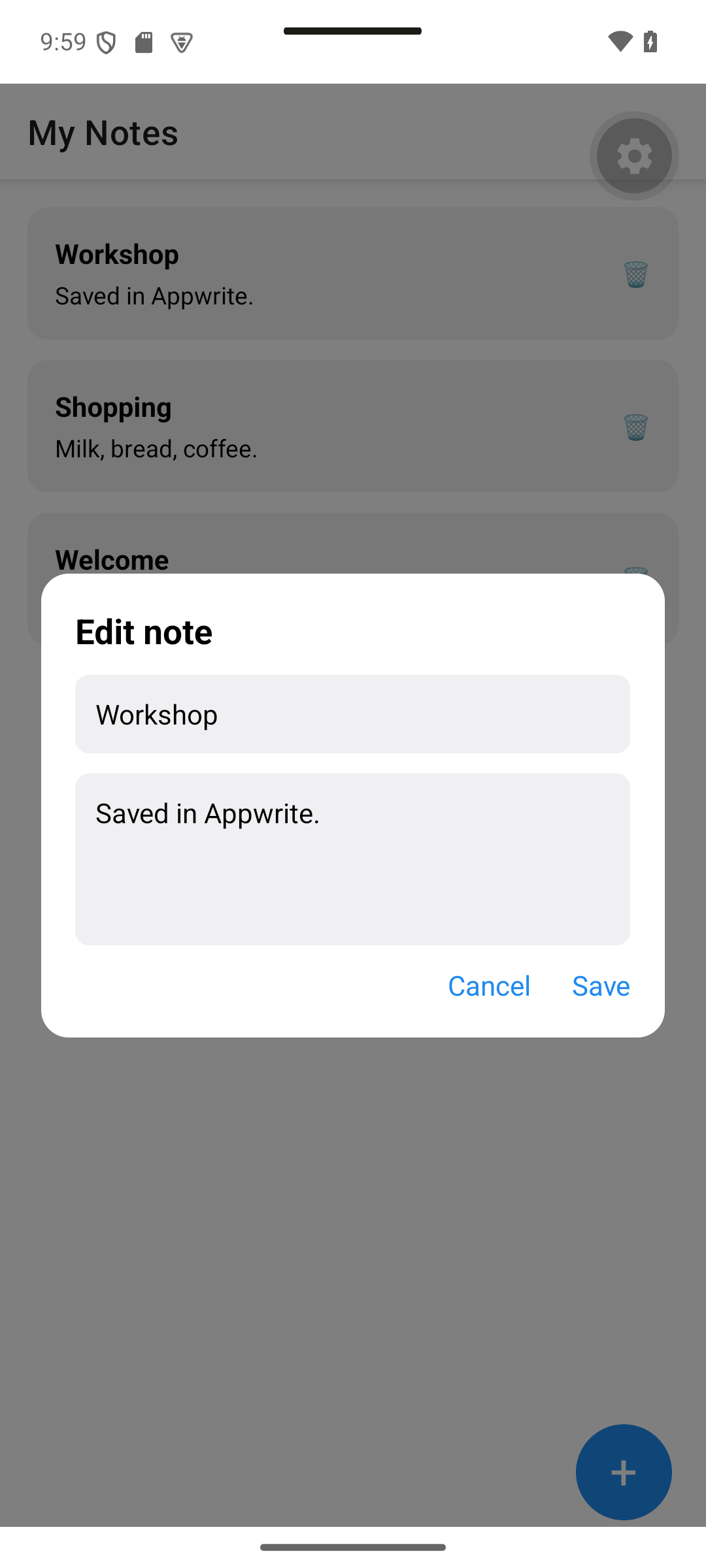
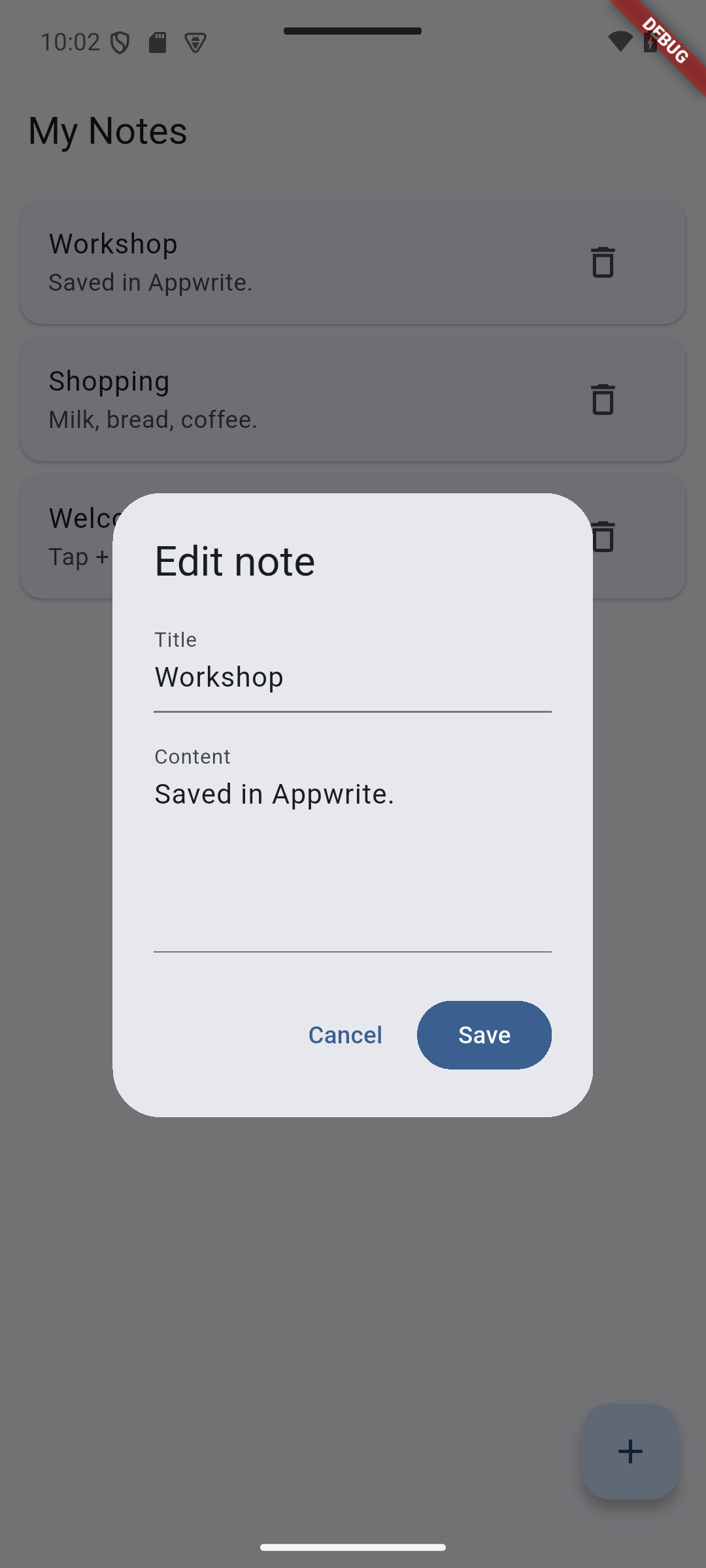
Expected result. Tapping Workshop opens the existing title and content for editing.
| React Native · Android | Flutter · Android |
|---|---|
|
|
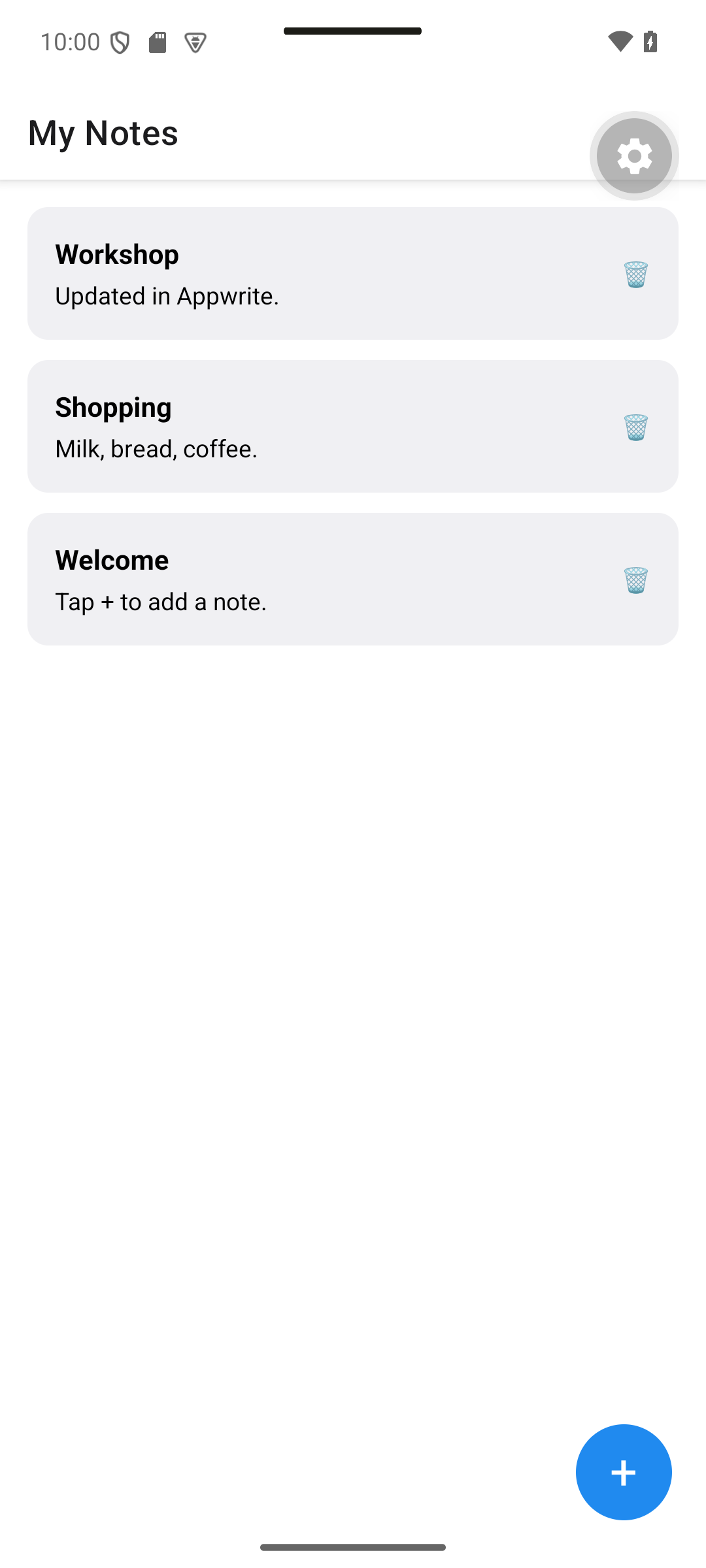
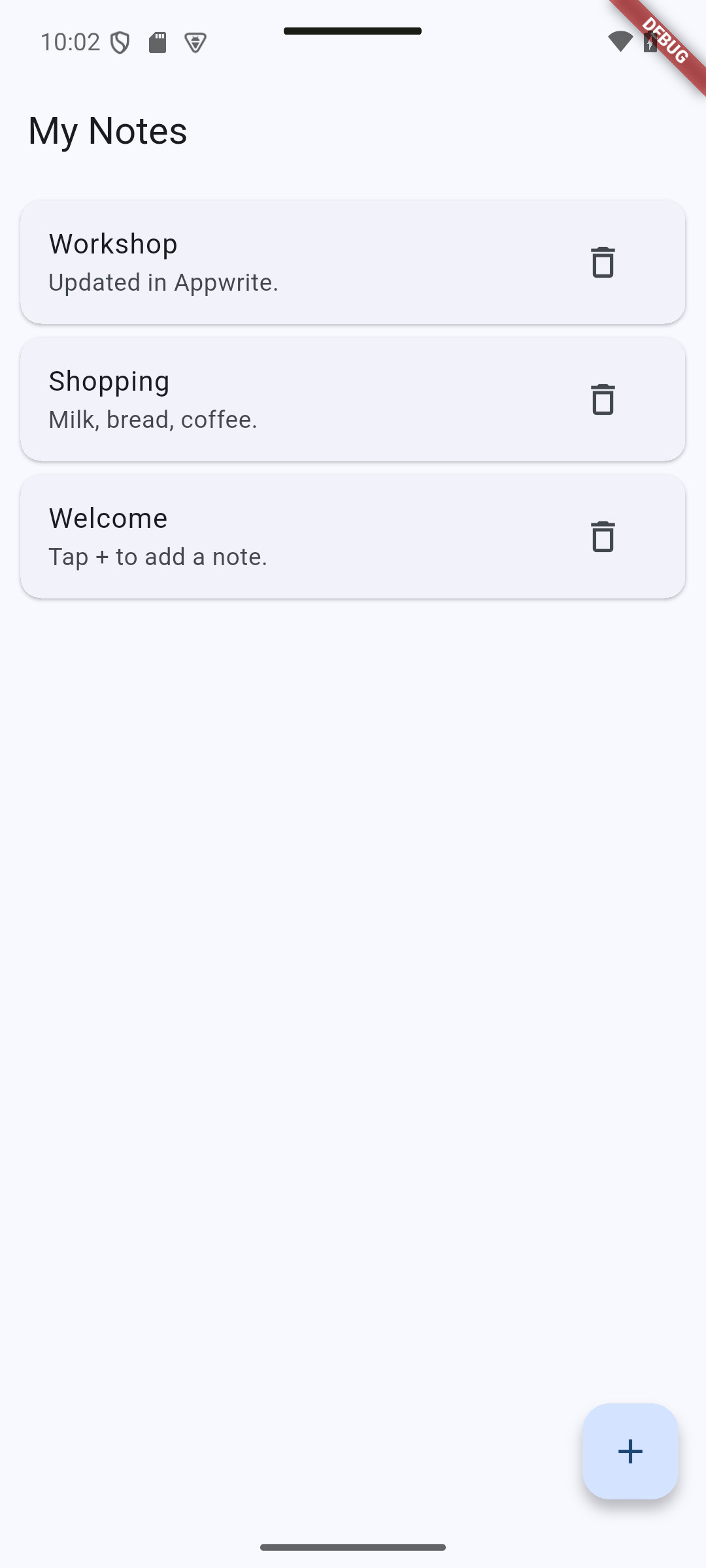
After saving, the list displays Updated in Appwrite.
| React Native · Android | Flutter · Android |
|---|---|
|
|
Concepts in this section: reusing the same form for create and edit; one save function with two branches.
Visual guide. Use the current editing mode to select the request and the list update.
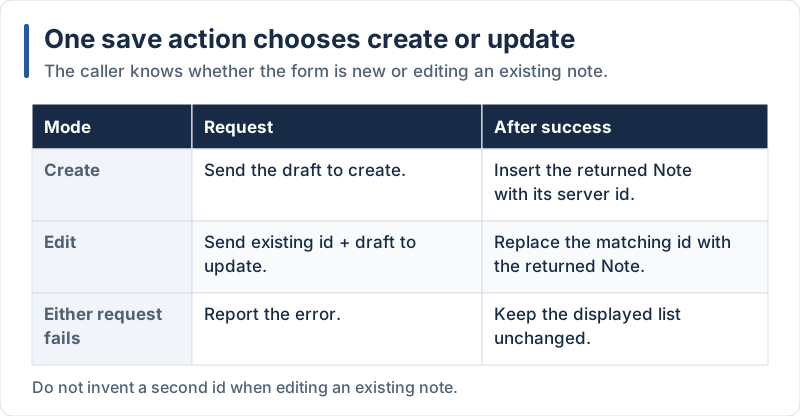
An edit keeps the existing id; creation uses the id returned by the server.
React Native
Complete the save function with the edit branch:
// src/app/notes.tsx (excerpt)
import { createNote, deleteNote, listNotes, updateNote } from '../services/notes';

const save = async (draft: NoteDraft) => {
  try {
    if (editing === 'new') {
      const created = await createNote(draft);
      setNotes((current) => [created, ...current]);
    } else if (editing) {
      const updated = await updateNote(editing.id, draft);
      setNotes((current) => current.map((n) => (n.id === updated.id ? updated : n)));
    }
    setEditing(null);
  } catch (e) {
    Alert.alert('Could not save the note', errorMessage(e));
  }
};
Here is the complete screen at the end of this part:
// src/app/notes.tsx
import { useCallback, useEffect, useState } from 'react';
import { ActivityIndicator, Alert, FlatList, Pressable, StyleSheet, Text, View } from 'react-native';

import { NoteInputModal } from '../components/NoteInputModal';
import { NoteItem } from '../components/NoteItem';
import { errorMessage } from '../lib/errors';
import { createNote, deleteNote, listNotes, updateNote } from '../services/notes';
import type { Note, NoteDraft } from '../types';

export default function NotesScreen() {
  const [notes, setNotes] = useState<Note[]>([]);
  const [loading, setLoading] = useState(true);
  const [error, setError] = useState<string | null>(null);
  // null = dialog closed, 'new' = creating, a Note = editing it
  const [editing, setEditing] = useState<Note | 'new' | null>(null);

  const load = useCallback(async () => {
    setLoading(true);
    setError(null);
    try {
      setNotes(await listNotes());
    } catch (e) {
      setError(errorMessage(e));
    } finally {
      setLoading(false);
    }
  }, []);

  useEffect(() => {
    void load();
  }, [load]);

  const save = async (draft: NoteDraft) => {
    try {
      if (editing === 'new') {
        const created = await createNote(draft);
        setNotes((current) => [created, ...current]);
      } else if (editing) {
        const updated = await updateNote(editing.id, draft);
        setNotes((current) => current.map((n) => (n.id === updated.id ? updated : n)));
      }
      setEditing(null);
    } catch (e) {
      Alert.alert('Could not save the note', errorMessage(e));
    }
  };

  const remove = (note: Note) => {
    Alert.alert('Delete note', `Delete "${note.title}"?`, [
      { text: 'Cancel', style: 'cancel' },
      {
        text: 'Delete',
        style: 'destructive',
        onPress: async () => {
          try {
            await deleteNote(note.id);
            setNotes((current) => current.filter((n) => n.id !== note.id));
          } catch (e) {
            Alert.alert('Could not delete the note', errorMessage(e));
          }
        },
      },
    ]);
  };

  if (loading && notes.length === 0) {
    return (
      <View style={styles.center}>
        <ActivityIndicator size="large" />
      </View>
    );
  }

  if (error) {
    return (
      <View style={styles.center}>
        <Text style={styles.error}>{error}</Text>
        <Pressable onPress={load}>
          <Text style={styles.retry}>Retry</Text>
        </Pressable>
      </View>
    );
  }

  return (
    <View style={styles.container}>
      <FlatList
        data={notes}
        keyExtractor={(note) => note.id}
        contentContainerStyle={styles.list}
        refreshing={loading}
        onRefresh={load}
        ListEmptyComponent={<Text style={styles.empty}>No notes yet.</Text>}
        renderItem={({ item }) => (
          <NoteItem note={item} onEdit={setEditing} onDelete={() => remove(item)} />
        )}
      />

      <Pressable
        style={styles.fab}
        onPress={() => setEditing('new')}
        accessibilityRole="button"
        accessibilityLabel="Add note">
        <Text style={styles.fabText}>+</Text>
      </Pressable>

      <NoteInputModal
        visible={editing !== null}
        initial={editing && editing !== 'new' ? editing : undefined}
        onSave={save}
        onCancel={() => setEditing(null)}
      />
    </View>
  );
}

const styles = StyleSheet.create({
  container: { flex: 1, backgroundColor: '#fff' },
  center: { flex: 1, alignItems: 'center', justifyContent: 'center', gap: 12, padding: 24 },
  list: { padding: 16, gap: 12 },
  empty: { textAlign: 'center', color: '#60646c' },
  error: { color: '#c0392b', textAlign: 'center' },
  retry: { color: '#208AEF', fontSize: 16 },
  fab: {
    position: 'absolute',
    right: 20,
    bottom: 28,
    width: 56,
    height: 56,
    borderRadius: 28,
    backgroundColor: '#208AEF',
    alignItems: 'center',
    justifyContent: 'center',
  },
  fabText: { color: '#fff', fontSize: 28, lineHeight: 32 },
});
Explanation:
editingtells which branch to run:'new'creates, aNoteupdates, so the same modal serves bothupdateNotereturns the updated row, and we replace the old item withmapupdateRowonly sends the fields we pass: untouched columns keep their value
Flutter
Add the edit function and use it in itemBuilder:
// lib/screens/notes_screen.dart (excerpt)
Future<void> _edit(Note note) async {
  final draft = await showNoteInputDialog(context, initial: note);
  if (draft == null) return;
  try {
    final updated = await notesService.update(note.id, draft);
    if (!mounted) return;
    setState(() {
      final index = _notes.indexWhere((n) => n.id == note.id);
      _notes[index] = updated;
    });
  } on AppwriteException catch (e) {
    _showError(e.message ?? 'Could not update the note');
  }
}

// in itemBuilder:
onEdit: () => _edit(note),
Here is the complete screen at the end of this part:
// lib/screens/notes_screen.dart
import 'package:appwrite/appwrite.dart';
import 'package:flutter/material.dart';

import '../models/note.dart';
import '../services/notes_service.dart';
import '../widgets/note_input_dialog.dart';
import '../widgets/note_item.dart';

class NotesScreen extends StatefulWidget {
  const NotesScreen({super.key});

  @override
  State<NotesScreen> createState() => _NotesScreenState();
}

class _NotesScreenState extends State<NotesScreen> {
  List<Note> _notes = [];
  bool _loading = true;
  String? _error;

  @override
  void initState() {
    super.initState();
    _load();
  }

  Future<void> _load() async {
    setState(() {
      _loading = true;
      _error = null;
    });
    try {
      final notes = await notesService.list();
      if (!mounted) return;
      setState(() => _notes = notes);
    } on AppwriteException catch (e) {
      if (!mounted) return;
      setState(() => _error = e.message ?? 'Could not load notes');
    } finally {
      if (mounted) setState(() => _loading = false);
    }
  }

  void _showError(String message) {
    if (!mounted) return;
    ScaffoldMessenger.of(context).showSnackBar(SnackBar(content: Text(message)));
  }

  Future<void> _add() async {
    final draft = await showNoteInputDialog(context);
    if (draft == null) return;
    try {
      final created = await notesService.create(draft);
      if (!mounted) return;
      setState(() => _notes.insert(0, created));
    } on AppwriteException catch (e) {
      _showError(e.message ?? 'Could not save the note');
    }
  }

  Future<void> _edit(Note note) async {
    final draft = await showNoteInputDialog(context, initial: note);
    if (draft == null) return;
    try {
      final updated = await notesService.update(note.id, draft);
      if (!mounted) return;
      setState(() {
        final index = _notes.indexWhere((n) => n.id == note.id);
        _notes[index] = updated;
      });
    } on AppwriteException catch (e) {
      _showError(e.message ?? 'Could not update the note');
    }
  }

  Future<void> _delete(Note note) async {
    final confirmed = await showDialog<bool>(
      context: context,
      builder: (context) => AlertDialog(
        title: const Text('Delete note'),
        content: Text('Delete "${note.title}"?'),
        actions: [
          TextButton(
            onPressed: () => Navigator.pop(context, false),
            child: const Text('Cancel'),
          ),
          FilledButton(
            onPressed: () => Navigator.pop(context, true),
            child: const Text('Delete'),
          ),
        ],
      ),
    );
    if (confirmed != true) return;

    try {
      await notesService.delete(note.id);
      if (!mounted) return;
      setState(() => _notes.removeWhere((n) => n.id == note.id));
    } on AppwriteException catch (e) {
      _showError(e.message ?? 'Could not delete the note');
    }
  }

  @override
  Widget build(BuildContext context) {
    Widget body;
    if (_loading && _notes.isEmpty) {
      body = const Center(child: CircularProgressIndicator());
    } else if (_error != null) {
      body = Center(
        child: Column(
          mainAxisSize: MainAxisSize.min,
          spacing: 12,
          children: [
            Text(_error!),
            FilledButton(onPressed: _load, child: const Text('Retry')),
          ],
        ),
      );
    } else {
      body = RefreshIndicator(
        onRefresh: _load,
        child: _notes.isEmpty
            ? ListView(
                children: const [
                  Padding(padding: EdgeInsets.all(32), child: Center(child: Text('No notes yet.'))),
                ],
              )
            : ListView.builder(
                padding: const EdgeInsets.all(8),
                itemCount: _notes.length,
                itemBuilder: (context, index) {
                  final note = _notes[index];
                  return NoteItem(
                    key: ValueKey(note.id),
                    note: note,
                    onEdit: () => _edit(note),
                    onDelete: () => _delete(note),
                  );
                },
              ),
      );
    }

    return Scaffold(
      appBar: AppBar(title: const Text('My Notes')),
      body: body,
      floatingActionButton: FloatingActionButton(
        onPressed: _add,
        tooltip: 'Add note',
        child: const Icon(Icons.add),
      ),
    );
  }
}
Explanation:
- The dialog is opened with
initial: note, so the fields start with the current values updatereturns the updatedNote; we replace the item at the same index- Run the app and check the result in the Appwrite console (Databases → NotesDB → notes): rows must appear, change and disappear when you use the app. Restart the app: the notes are still there
React Native vs Flutter Comparison
Expected result. The paired captures show the same server operations with each framework’s controls. Compare the forms and confirmation dialogs above; the data and expected outcomes are shared.
Visual guide. Use the data-layer diagram and remote states to compare the implementations below.
| Concept | React Native | Flutter |
|---|---|---|
| Appwrite package | react-native-appwrite |
appwrite |
| Configuration | .env with EXPO_PUBLIC_* |
env.json with --dart-define-from-file |
| Platform registration | setPlatform(...) in code |
Read automatically from the app id |
| SDK call style | One object: listRows({ databaseId, ... }) |
Named parameters: listRows(databaseId: ...) |
| Async primitive | Promise / async await |
Future / async await |
| Error handling | try / catch (e) |
try / on AppwriteException catch (e) |
| Load on screen start | useEffect |
initState |
| Loading / error states | useState + early return |
Fields in State + branches in build |
| Pull-to-refresh | FlatList onRefresh |
RefreshIndicator |
Safe after await |
State setters are safe to call | Check mounted before setState / using context |
| User feedback | Alert.alert |
SnackBar / showDialog |
In Part 3 we add user accounts, so that each user only sees (and can only change) their own notes.
By Wahid Hamdi