Lab 01 — IAM: Identity and Access Management
Series: Le Café ☕ — AWS Hands-On Labs with LocalStack
Level: Beginner → Intermediate | Duration: ~75 min
Prerequisites: Lab 00 complete, LocalStack running,awslocalconfigured
🎯 Learning Objectives
By the end of this lab you will be able to:
- Explain the difference between IAM users, groups, roles, and policies
- Create a realistic role-based access structure for a small organisation
- Write a custom IAM policy in JSON and understand every field it contains
- Attach policies to groups rather than individual users (best practice)
- Assume an IAM role and understand what that means for application security
- Recognise common IAM misconfigurations that lead to security incidents
🏪 Scenario — Le Café Goes Cloudy
Le Café is growing. The engineering team now has three distinct functions:
Developers need to upload and read application assets in S3, but they should never touch the database or billing.
Operations staff need to manage compute resources and read logs, but should not be able to change application code or S3 content.
The ordering application itself (a backend service, not a human) needs to read from S3 and write to an SQS queue every time a customer places an order.
Your task is to model this real-world access structure in IAM — entirely within LocalStack — so that each actor has exactly the permissions they need and nothing more.
🧠 Concept — The IAM Mental Model
IAM is one of the most important AWS services to understand deeply, because every other service depends on it. A misconfigured IAM policy is the root cause of a significant proportion of real-world cloud security breaches. So before we write a single command, let’s build a solid mental model.
Think of IAM as the bouncer system for your entire AWS account. Every API call — whether from a human, a script, or a running service — must pass through IAM before AWS will execute it. IAM answers one question: “Is this actor allowed to perform this action on this resource?”
IAM has four fundamental building blocks, and understanding how they relate to each other is the key to everything that follows.
Users represent individual human identities. A user has long-lived credentials (a username/password for the console, or an access key/secret for the CLI). Because these credentials are long-lived, they are a security risk if leaked. In modern AWS, human users are increasingly replaced by SSO federation, but you need to understand users before you can appreciate why that shift happened.
Groups are simply collections of users. You never attach a policy directly to a user — you attach it to a group, then put the user in the group. This sounds like an unnecessary indirection, but it pays enormous dividends: when someone joins the team, you add them to a group and they instantly inherit the right permissions. When they change roles, you move them to a different group. You never have to hunt through individual user configurations.
Policies are JSON documents that define what is allowed or denied. A policy contains one or more statements, and each statement specifies an Effect (Allow or Deny), a list of Actions (AWS API calls like s3:GetObject), and a Resource (which specific resource the action applies to, identified by its ARN). AWS ships hundreds of pre-written managed policies, but writing custom policies gives you the precision that the principle of least privilege demands.
Roles are the most powerful and most misunderstood IAM concept. Unlike a user, a role has no long-lived credentials. Instead, a role is assumed — a trusted entity (a user, a service, or an application) temporarily “wears” the role and receives short-lived credentials that expire automatically. This is how an EC2 instance or Lambda function authenticates to AWS: it assumes a role, gets a temporary token, and that token is automatically refreshed. No access keys in your code, no credentials to rotate manually.
💡 A useful analogy: Think of a user as a permanent employee badge and a role as a visitor lanyard. The visitor lanyard gives access to specific areas for a limited time, then expires. If someone steals a visitor lanyard, the damage is limited. If they steal a permanent badge, the damage is indefinite — which is exactly why roles are preferred for applications and automation.
🏗️ Architecture — Le Café IAM Structure
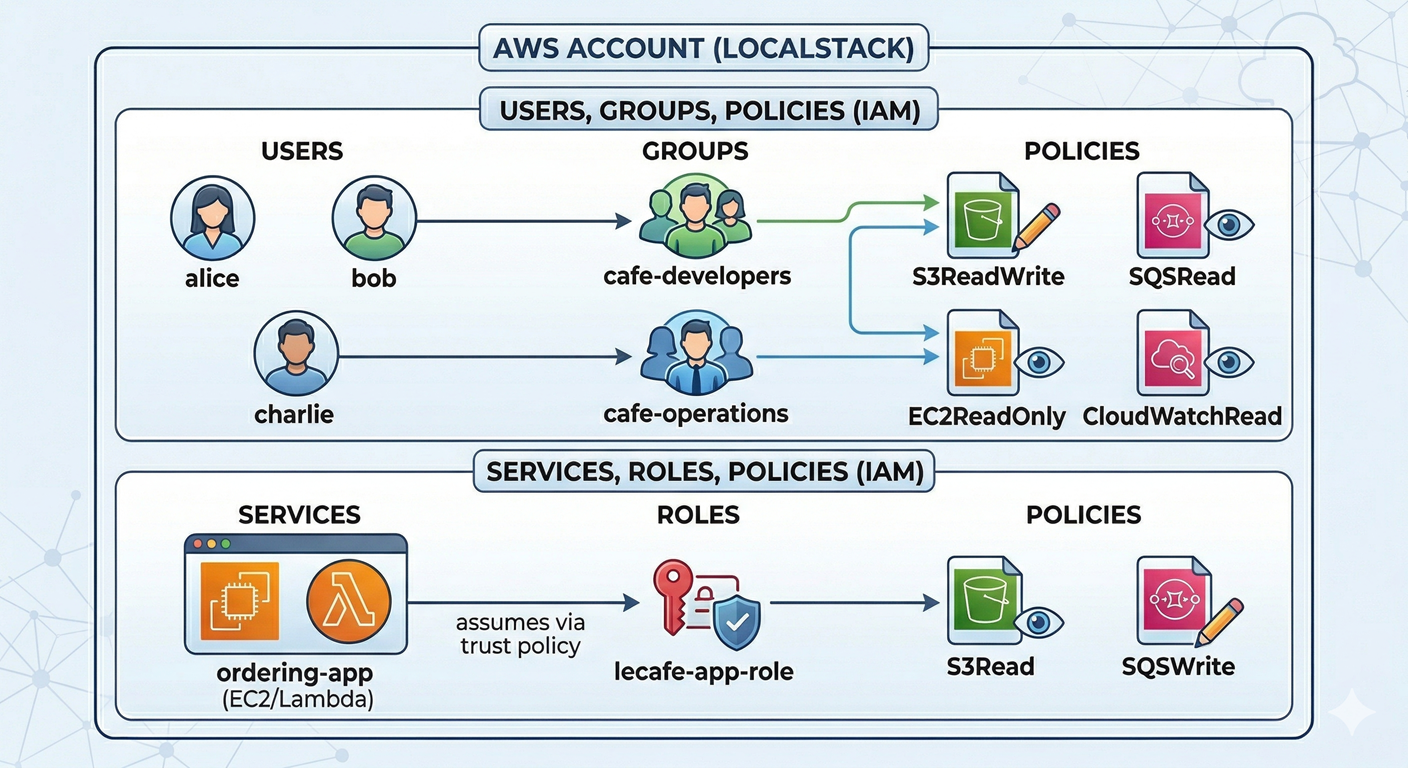
⚙️ Part 1 — Create the Users
Step 1 — Start LocalStack and Verify It Is Ready
localstack start -d
localstack status services

# Make sure you are using the localstack profile
export AWS_PROFILE=localstack
Step 2 — Create the Human Users
We will create three users representing real Le Café employees.
# Alice is a developer
awslocal iam create-user --user-name alice

# Bob is also a developer
awslocal iam create-user --user-name bob

# Charlie is from the operations team
awslocal iam create-user --user-name charlie
# Verify all three users were created
awslocal iam list-usersNotice that list-users returns an Arn for each user. An ARN (Amazon Resource Name) is the unique identifier for any AWS resource. The pattern is always arn:aws:service:region:account-id:resource-type/resource-name. You will use ARNs constantly when writing policies, so get comfortable reading them.
🗂️ Part 2 — Create the Groups
Step 3 — Create the Two Staff Groups
awslocal iam create-group --group-name cafe-developers

awslocal iam create-group --group-name cafe-operations
Step 4 — Add Users to Their Respective Groups
# Developers group
awslocal iam add-user-to-group --user-name alice --group-name cafe-developers
awslocal iam add-user-to-group --user-name bob   --group-name cafe-developers

# Operations group
awslocal iam add-user-to-group --user-name charlie --group-name cafe-operations
# Confirm group membership
awslocal iam get-group --group-name cafe-developers
awslocal iam get-group --group-name cafe-operationsWhy does this matter? Imagine Le Café hires five more developers next month. You add them to
cafe-developersand they instantly have the correct permissions — no per-user configuration required. This is the scalability argument for groups, and it is one of the first things auditors check when reviewing an AWS account.
📄 Part 3 — Write Custom Policies
This is the most important section of the lab. AWS managed policies like AmazonS3ReadOnlyAccess are convenient, but they are deliberately broad. A custom policy lets you be surgical. We will write two custom policies from scratch.
Step 5 — Understand the Policy JSON Structure
Before writing the policy, let’s examine the anatomy of a policy document. Every IAM policy you will ever write follows this exact skeleton:
{
  "Version": "2012-10-17",
  "Statement": [
    {
      "Sid": "HumanReadableLabel",
      "Effect": "Allow",
      "Action": ["service:ActionName"],
      "Resource": "arn:aws:service:region:account:resource"
    }
  ]
}
Version is always "2012-10-17" — this is a policy language version, not a date you change. Statement is an array, meaning one policy document can contain multiple permission blocks. Sid is an optional label for your own documentation. Effect is either Allow or Deny — and crucially, AWS defaults to deny everything unless you explicitly allow it. Action lists the specific API operations permitted. Resource scopes those permissions to specific ARNs — using "*" means any resource, which is a code smell in production.
Step 6 — Create the Developer Policy (S3 Read/Write)
Developers need to upload and download assets from the lecafe-assets bucket only. They do not need to list all buckets or touch any other bucket. Let’s write that precisely.
cat > /tmp/developer-s3-policy.json << 'EOF'
{
  "Version": "2012-10-17",
  "Statement": [
    {
      "Sid": "AllowS3BucketListing",
      "Effect": "Allow",
      "Action": [
        "s3:ListBucket"
      ],
      "Resource": "arn:aws:s3:::lecafe-assets"
    },
    {
      "Sid": "AllowS3ObjectOperations",
      "Effect": "Allow",
      "Action": [
        "s3:GetObject",
        "s3:PutObject",
        "s3:DeleteObject"
      ],
      "Resource": "arn:aws:s3:::lecafe-assets/*"
    }
  ]
}
EOF
Notice we need two separate statements because s3:ListBucket applies to the bucket ARN (arn:aws:s3:::lecafe-assets) while object operations like GetObject apply to objects inside the bucket (arn:aws:s3:::lecafe-assets/*). This is a classic beginner mistake: writing s3:GetObject on the bucket ARN will silently fail because the ARN targets do not match. The /* at the end means “any object within this bucket.”
# Register the policy in LocalStack's IAM
awslocal iam create-policy \
  --policy-name LeCafe-Developer-S3 \
  --policy-document file:///tmp/developer-s3-policy.json
Step 7 — Create the Operations Policy (EC2 Read-Only)
Operations staff need to see EC2 instance state and read CloudWatch logs — but must never start or stop instances or modify anything.
cat > /tmp/operations-policy.json << 'EOF'
{
  "Version": "2012-10-17",
  "Statement": [
    {
      "Sid": "AllowEC2ReadOnly",
      "Effect": "Allow",
      "Action": [
        "ec2:DescribeInstances",
        "ec2:DescribeInstanceStatus",
        "ec2:DescribeRegions",
        "ec2:DescribeSecurityGroups",
        "ec2:DescribeVpcs"
      ],
      "Resource": "*"
    },
    {
      "Sid": "AllowCloudWatchReadOnly",
      "Effect": "Allow",
      "Action": [
        "logs:DescribeLogGroups",
        "logs:DescribeLogStreams",
        "logs:GetLogEvents",
        "logs:FilterLogEvents"
      ],
      "Resource": "*"
    }
  ]
}
EOF

awslocal iam create-policy \
  --policy-name LeCafe-Operations-ReadOnly \
  --policy-document file:///tmp/operations-policy.json
💡 Why
"Resource": "*"for EC2? Most EC2 Describe actions do not support resource-level restrictions — AWS requires"*"for them. This is a limitation of EC2’s IAM integration, not a best-practice recommendation. Whenever a service supports resource-level ARNs, you should always scope the policy as narrowly as possible.
Step 8 — Attach Policies to Groups
Now we connect the policies to the groups. Notice we are using policy ARNs here. In LocalStack, the account ID portion of the ARN is always 000000000000.
# Attach developer policy to the developers group
awslocal iam attach-group-policy \
  --group-name cafe-developers \
  --policy-arn arn:aws:iam::000000000000:policy/LeCafe-Developer-S3

# Attach operations policy to the operations group
awslocal iam attach-group-policy \
  --group-name cafe-operations \
  --policy-arn arn:aws:iam::000000000000:policy/LeCafe-Operations-ReadOnly
# Verify the attachments
awslocal iam list-attached-group-policies --group-name cafe-developers
awslocal iam list-attached-group-policies --group-name cafe-operationsAll three developers (alice and bob) now inherit the S3 policy through their group membership. Charlie inherits the operations policy. No user was touched directly — this is exactly how a well-administered AWS account should work.
🎭 Part 4 — Create a Service Role
So far we have handled human users. Now let’s handle the ordering application — a backend service that needs AWS permissions but is not a person. This is where IAM Roles become essential.
Step 9 — Understand Trust Policies
Every IAM role has two policy documents attached to it. The permission policy defines what the role is allowed to do (e.g., read from S3). The trust policy defines who is allowed to assume the role (e.g., EC2 instances, Lambda functions, or specific users). The trust policy is sometimes called an “assume-role policy” or a “principal policy.”
Think of it this way: the permission policy is the lanyard’s access level, and the trust policy is the list of people allowed to pick up that lanyard.
Step 10 — Write the Trust Policy
For our ordering app (which would normally run on EC2 or Lambda), we will write a trust policy that allows the EC2 service to assume this role. This is the standard pattern for giving an EC2 instance an identity.
cat > /tmp/trust-policy.json << 'EOF'
{
  "Version": "2012-10-17",
  "Statement": [
    {
      "Sid": "AllowEC2ToAssumeRole",
      "Effect": "Allow",
      "Principal": {
        "Service": "ec2.amazonaws.com"
      },
      "Action": "sts:AssumeRole"
    }
  ]
}
EOF
The Principal field is unique to trust policies — it does not appear in regular permission policies. It specifies the entity being granted the right to assume the role. sts:AssumeRole refers to the AWS Security Token Service, which is the mechanism that issues the short-lived credentials when a role is assumed.
Step 11 — Create the Role
awslocal iam create-role \
  --role-name lecafe-app-role \
  --assume-role-policy-document file:///tmp/trust-policy.json \
  --description "Role assumed by the Le Cafe ordering application"
Step 12 — Write and Attach the Application Permission Policy
The ordering app needs to read assets from S3 and write orders to SQS. Nothing else.
cat > /tmp/app-role-policy.json << 'EOF'
{
  "Version": "2012-10-17",
  "Statement": [
    {
      "Sid": "AllowS3AssetRead",
      "Effect": "Allow",
      "Action": [
        "s3:GetObject",
        "s3:ListBucket"
      ],
      "Resource": [
        "arn:aws:s3:::lecafe-assets",
        "arn:aws:s3:::lecafe-assets/*"
      ]
    },
    {
      "Sid": "AllowSQSOrderWrite",
      "Effect": "Allow",
      "Action": [
        "sqs:SendMessage",
        "sqs:GetQueueUrl",
        "sqs:GetQueueAttributes"
      ],
      "Resource": "arn:aws:sqs:us-east-1:000000000000:lecafe-orders"
    }
  ]
}
EOF

awslocal iam put-role-policy \
  --role-name lecafe-app-role \
  --policy-name LeCafe-App-Permissions \
  --policy-document file:///tmp/app-role-policy.json
Note that we used put-role-policy (an inline policy embedded directly in the role) rather than creating a separate managed policy and attaching it. Both approaches work; inline policies are useful for permissions tightly coupled to a specific role that you never intend to reuse elsewhere.
Step 13 — Simulate Assuming the Role
In real AWS, an EC2 instance would assume this role automatically via the instance metadata service. In LocalStack, we can manually simulate the assumption using STS to see how it works.
awslocal sts assume-role \
  --role-arn arn:aws:iam::000000000000:role/lecafe-app-role \
  --role-session-name ordering-app-session
Examine the output carefully. You will see three fields: AccessKeyId, SecretAccessKey, and SessionToken, plus an Expiration timestamp. These are the temporary credentials the application would use to authenticate. In real AWS they expire after 1 hour by default. When they expire, the application calls AssumeRole again and gets fresh ones — no human intervention required, no credentials stored in code.
This automatic rotation is why roles are dramatically safer than long-lived user access keys for application workloads.
🔍 Part 5 — Simulate and Verify Permissions
Step 14 — Create the Supporting Resources
Before we can test permissions meaningfully, let’s create the S3 bucket and SQS queue our policies reference.
# Create the assets bucket
awslocal s3 mb s3://lecafe-assets

# Create the orders queue
awslocal sqs create-queue --queue-name lecafe-orders
Step 15 — Inspect the Full IAM Picture
# Review the full role configuration including its trust and inline policies
awslocal iam get-role --role-name lecafe-app-role
awslocal iam get-role-policy --role-name lecafe-app-role --policy-name LeCafe-App-Permissions

# Review alice's effective permissions (via her group)
awslocal iam list-groups-for-user --user-name alice
awslocal iam list-attached-group-policies --group-name cafe-developers
# See the content of your custom policy
awslocal iam get-policy \
--policy-arn arn:aws:iam::000000000000:policy/LeCafe-Developer-S3
awslocal iam get-policy-version \
--policy-arn arn:aws:iam::000000000000:policy/LeCafe-Developer-S3 \
--version-id v1🛡️ Defender’s Perspective
IAM is where most cloud security stories begin and end. Spend time here — the patterns you build now will protect real systems later.
The principle of least privilege is not a suggestion. In 2019, Capital One suffered a breach that exposed over 100 million customer records. The root cause was an IAM role with far broader permissions than it needed. The attacker exploited a web application vulnerability to assume the role, then used its excessive permissions to exfiltrate data from S3. A correctly scoped role — one that could only access the specific bucket it needed for its legitimate function — would have dramatically limited the blast radius. Every time you write "Resource": "*" without a concrete reason, you are making a Capital One-style incident more likely.
Deny beats Allow. AWS evaluates policies in a specific order: an explicit Deny in any policy always overrides any number of Allow statements. This means you can attach a broad managed policy to a group and then add a targeted Deny statement to block specific dangerous actions — for example, denying s3:DeleteBucket at the group level even if a managed policy would otherwise allow it.
Access keys are a liability. Every access key you create for a human user is a credential that can be phished, committed to a public Git repository, or leaked through a misconfigured application. AWS’s own credential scanning service finds thousands of real keys on GitHub every day. The safest access key is one that was never created — use roles, SSO federation, and short-lived tokens wherever possible.
🧩 Challenge Tasks
Challenge 1 — Explicit Deny. Create a new inline policy on the cafe-developers group that explicitly denies s3:DeleteObject on all resources, even though the group’s permission policy currently allows it. Verify by inspecting the group’s policies and reasoning through what would happen if a developer called DeleteObject.
Challenge 2 — Condition Keys. Modify the LeCafe-Developer-S3 policy to add a Condition block that only allows PutObject if the object is tagged with {"Environment": "development"}. Use the IAM documentation to find the correct condition key (s3:RequestObjectTag/Environment). This teaches you how condition keys make policies context-aware.
Challenge 3 — Password Policy. In real AWS accounts, you set an account-wide password policy to enforce complexity and rotation. Run awslocal iam update-account-password-policy with options requiring a minimum 12-character password, at least one uppercase letter, one number, and one symbol. Then verify with awslocal iam get-account-password-policy.
🤔 Reflection Questions
-
We attached policies to groups rather than to individual users. Can you think of a scenario where attaching a policy directly to a user might seem tempting but is still the wrong approach? What long-term maintenance problem does it create?
-
The trust policy for
lecafe-app-roleallowsec2.amazonaws.comas the principal. What would happen if you changed that principal tolambda.amazonaws.com? What does this tell you about the relationship between roles and the services that assume them? -
Temporary credentials from
sts:AssumeRoleexpire automatically. Why is this property valuable from a security standpoint, and what does it mean for application design — specifically, how must the application handle credential expiration gracefully?
🧹 Cleanup
# Detach group policies
awslocal iam detach-group-policy \
  --group-name cafe-developers \
  --policy-arn arn:aws:iam::000000000000:policy/LeCafe-Developer-S3

awslocal iam detach-group-policy \
  --group-name cafe-operations \
  --policy-arn arn:aws:iam::000000000000:policy/LeCafe-Operations-ReadOnly

# Remove users from groups
awslocal iam remove-user-from-group --user-name alice   --group-name cafe-developers
awslocal iam remove-user-from-group --user-name bob     --group-name cafe-developers
awslocal iam remove-user-from-group --user-name charlie --group-name cafe-operations

# Delete groups
awslocal iam delete-group --group-name cafe-developers
awslocal iam delete-group --group-name cafe-operations

# Delete users
awslocal iam delete-user --user-name alice
awslocal iam delete-user --user-name bob
awslocal iam delete-user --user-name charlie

# Delete the role (inline policy must be removed first)
awslocal iam delete-role-policy \
  --role-name lecafe-app-role \
  --policy-name LeCafe-App-Permissions
awslocal iam delete-role --role-name lecafe-app-role

# Delete managed policies
awslocal iam delete-policy \
  --policy-arn arn:aws:iam::000000000000:policy/LeCafe-Developer-S3
awslocal iam delete-policy \
  --policy-arn arn:aws:iam::000000000000:policy/LeCafe-Operations-ReadOnly

# Stop LocalStack when done
localstack stop
Notice the deletion order. IAM requires you to detach policies before deleting groups, and delete inline policies before deleting roles. This dependency order is intentional — it prevents you from accidentally orphaning permissions.
📋 Quick Reference
| Concept | Command |
|---|---|
| Create user | awslocal iam create-user --user-name NAME |
| Create group | awslocal iam create-group --group-name NAME |
| Add user to group | awslocal iam add-user-to-group --user-name U --group-name G |
| Create managed policy | awslocal iam create-policy --policy-name N --policy-document file://PATH |
| Attach policy to group | awslocal iam attach-group-policy --group-name G --policy-arn ARN |
| Create role | awslocal iam create-role --role-name N --assume-role-policy-document file://PATH |
| Add inline policy to role | awslocal iam put-role-policy --role-name N --policy-name N --policy-document file://PATH |
| Simulate role assumption | awslocal sts assume-role --role-arn ARN --role-session-name NAME |
| Inspect role | awslocal iam get-role --role-name NAME |
| LocalStack account ID | 000000000000 (always, in all ARNs) |