Lab 00 — Discover AWS Locally with LocalStack
Series: Le Café ☕ — AWS Hands-On Labs with LocalStack
Level: Beginner | Duration: ~60 min | Prerequisites: Docker, Python 3.8+, AWS CLI
🎯 Learning Objectives
By the end of this lab you will be able to:
- Explain what LocalStack is and why it exists
- Install and start LocalStack on your machine
- Configure the AWS CLI to talk to LocalStack instead of real AWS
- Interact with three core AWS services (S3, IAM, SQS) entirely offline
- Understand how LocalStack fits into a professional DevOps workflow
🏪 Scenario — Welcome to Le Café
You have just joined Le Café, a fast-growing coffee-shop chain that is moving its infrastructure to AWS. Your manager wants the engineering team to practise AWS skills without spending real money or risking production environments. Your mission today is to set up a fully local AWS sandbox using LocalStack, then prove it works by creating your first cloud resources — all on your laptop.
🧠 Concept — What Is LocalStack and Why Does It Matter?
When you build on AWS, every API call — creating a bucket, launching an EC2 instance, sending a message to SQS — hits a real AWS endpoint and can cost money or produce side effects. During development and learning, this creates friction: you need valid credentials, internet access, and budget approval just to experiment.
LocalStack is an open-source tool that emulates the AWS API surface entirely on your local machine. It runs as a Docker container and listens on http://localhost:4566. When you point the AWS CLI (or any AWS SDK) at that address instead of https://aws.amazonaws.com, it behaves almost identically — creating fake but fully functional resources in memory. Think of it as a flight simulator for AWS: real controls, real feedback, zero altitude.
This makes LocalStack ideal for:
- Learning AWS services without a credit card
- Writing and testing Infrastructure-as-Code (Terraform, CloudFormation) before deploying
- Running automated tests in CI/CD pipelines with no cloud dependency
- Collaborating offline or in restricted network environments
💡 Mental model: LocalStack is to AWS what
localhostis to a production web server. The API is the same; only the backend changes.
🏗️ Architecture Overview
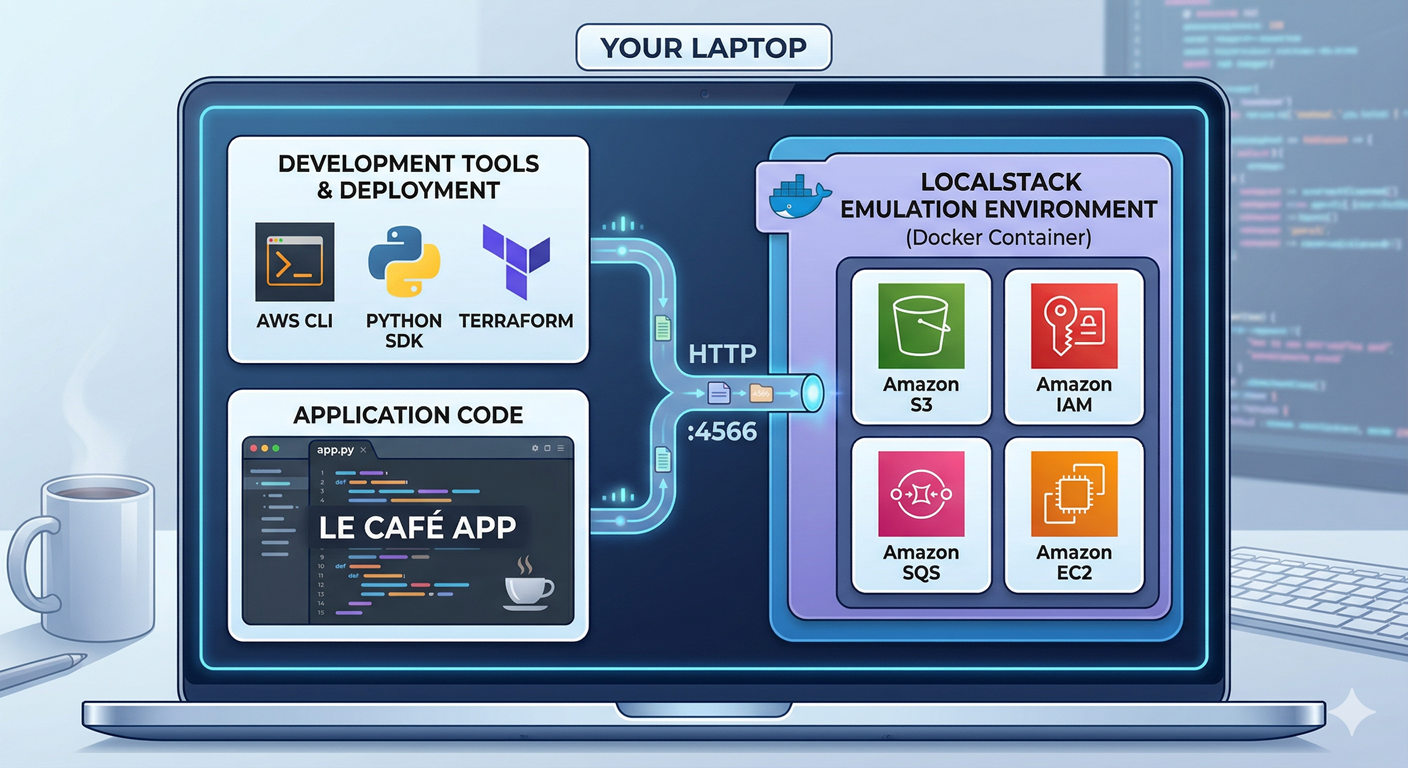
Every service inside LocalStack speaks the real AWS REST/JSON API. Your tools never know the difference.
⚙️ Part 1 — Installation
Step 1 — Install Docker
LocalStack runs as a Docker container, so Docker must be installed and running first.
# Verify Docker is installed and the daemon is running
docker --version
docker ps
If docker ps returns an error, start Docker Desktop (macOS/Windows) or run sudo systemctl start docker (Linux) before continuing.
Step 2 — Install the LocalStack CLI
The LocalStack CLI is a small Python wrapper that makes starting and managing the container easier than writing docker run commands by hand.
# Install the CLI globally via pip
pip install localstack

# Confirm the installation
localstack --version
Why a CLI wrapper? The Docker run command for LocalStack has many optional flags (port mappings, volume mounts, environment variables). The CLI abstracts that complexity into a single
localstack startcommand.
Step 3 — Install awslocal (the LocalStack-aware AWS CLI wrapper)
awslocal is a thin wrapper around the standard aws CLI that automatically adds --endpoint-url http://localhost:4566 to every command, saving you from typing it every time.
pip install awscli-local

# Verify
awslocal --version
💡 awslocal vs aws: Both tools work.
awslocalis just a convenience alias. As you advance, you will use the standardawsCLI with--endpoint-urlin scripts, which is closer to what you would do in CI/CD.
🚀 Part 2 — Start LocalStack
Step 4 — Launch the LocalStack Container
localstack start -dThe -d flag runs LocalStack in detached mode (background), so your terminal stays free. LocalStack pulls the Docker image on the first run — this may take a minute.
# Watch the container start up
localstack status services
You should see a table of AWS service names with their status. Services marked running or available are ready to receive API calls. If any show error, check localstack logs for details.
Step 5 — Understand What Just Started
# Check the running container
docker ps --filter name=localstack

# Inspect LocalStack health endpoint
curl http://localhost:4566/_localstack/health | python3 -m json.tool
The health endpoint returns a JSON object listing every emulated service and its status. This is LocalStack’s “are you alive?” check — you will use it in CI/CD pipelines to wait for readiness before running tests.
Expected output (excerpt):
{
  "services": {
    "s3": "running",
    "iam": "running",
    "sqs": "running",
    "ec2": "running"
  },
  "version": "3.x.x"
}
🔑 Part 3 — Configure the AWS CLI
Step 6 — Create a Fake AWS Profile for LocalStack
LocalStack does not validate credentials, but the AWS CLI requires them to exist. We create a dedicated profile so we never accidentally mix up LocalStack and real AWS.
aws configure --profile localstackEnter the following values at each prompt:
AWS Access Key ID:     test
AWS Secret Access Key: test
Default region name:   us-east-1
Default output format: json
Why “test”? LocalStack accepts any non-empty string as credentials. Using
testis a community convention that signals “this is fake” — it prevents you from accidentally committing a real access key.
Step 7 — Set the Profile as Your Default for This Session
export AWS_PROFILE=localstackThis environment variable tells every aws and awslocal command in your current terminal to use the localstack profile automatically. You will not need --profile localstack on every command.
🪣 Part 4 — Your First LocalStack Resources
Now that LocalStack is running and your CLI is configured, let’s create real AWS resources — locally.
Step 8 — Create an S3 Bucket (Le Café Menu Storage)
Le Café wants to store its digital menus in S3. Let’s create the bucket.
# Create the bucket
awslocal s3 mb s3://lecafe-menus

# Verify it exists
awslocal s3 ls
Why it matters: s3 mb sends a CreateBucket API call to LocalStack’s S3 endpoint. LocalStack stores the bucket metadata in memory. The s3 ls command then calls ListBuckets — you are making real AWS API calls, just not to real AWS.
# Upload a sample menu file
echo "Espresso: 2.50 | Latte: 3.50 | Croissant: 2.00" > menu.txt
awslocal s3 cp menu.txt s3://lecafe-menus/menu-paris.txt

# Confirm the upload
awslocal s3 ls s3://lecafe-menus/

# Download it back to verify round-trip
awslocal s3 cp s3://lecafe-menus/menu-paris.txt menu-downloaded.txt
cat menu-downloaded.txt
Step 9 — Create an IAM User (Le Café App User)
In real AWS, your application should never run with root credentials. Let’s simulate creating a dedicated IAM user for the Le Café backend.
# Create the IAM user
awslocal iam create-user --user-name lecafe-app

# List users to confirm
awslocal iam list-users
# Attach a policy — allow this user to read from S3
awslocal iam attach-user-policy \
--user-name lecafe-app \
--policy-arn arn:aws:iam::aws:policy/AmazonS3ReadOnlyAccess
# Verify the attached policies
awslocal iam list-attached-user-policies --user-name lecafe-appWhy this matters: IAM is the foundation of AWS security. Even in a local environment, practising the creation of least-privilege users builds the habit that protects real cloud accounts.
Step 10 — Create an SQS Queue (Order Processing)
Le Café wants to process orders asynchronously. SQS (Simple Queue Service) is the AWS-native way to decouple producers (the ordering app) from consumers (the kitchen system).
# Create a standard queue
awslocal sqs create-queue --queue-name lecafe-orders

# Get the queue URL — you will need this to send messages
awslocal sqs get-queue-url --queue-name lecafe-orders
# Send a test order message
awslocal sqs send-message \
--queue-url http://localhost:4566/000000000000/lecafe-orders \
--message-body '{"item": "Latte", "size": "large", "table": 7}'
# Read the message back (simulating the kitchen consumer)
awslocal sqs receive-message \
--queue-url http://localhost:4566/000000000000/lecafe-ordersYou should see the JSON body of your order in the response. The message has been stored in LocalStack’s in-memory SQS engine and returned to you just as real SQS would — including a ReceiptHandle that you would use to delete the message after processing.
🔍 Part 5 — Inspect LocalStack Internals
Step 11 — Explore the LocalStack Dashboard (Pro Feature Preview)
LocalStack Community edition exposes a basic web UI at:
http://localhost:4566/_localstack/swaggerOpen this URL in your browser. You will see the full Swagger documentation for every LocalStack endpoint — this is the same API spec that the real AWS services expose. Browsing it teaches you what operations are available and what parameters they accept.
Step 12 — Check LocalStack Logs
localstack logsEvery API call your CLI made is logged here. You can see the HTTP method, path, status code, and latency for each request. This is invaluable for debugging when something does not behave as expected.
🛡️ Defender’s Perspective
Understanding LocalStack also makes you a better security engineer. Here is how the same concepts apply defensively in real AWS:
Credential hygiene. Notice that LocalStack accepted test/test as credentials without complaint. Real AWS validates every request with HMAC-SHA256 signatures. This difference reminds us that in production, rotating credentials, using IAM roles instead of long-lived keys, and enabling MFA are non-negotiable.
Least privilege in practice. In Step 9 we attached AmazonS3ReadOnlyAccess to lecafe-app. In real AWS, you would go further: write a custom policy scoped to only the specific bucket and actions the application needs. The habit of defining permissions before writing application code — not after — is a core DevSecOps principle.
Network isolation. LocalStack runs on localhost. In real AWS, services are accessed over the internet or through VPC endpoints. Practising with LocalStack first helps you recognize why VPC configuration, security groups, and endpoint policies matter when you graduate to real deployments.
🧩 Challenge Tasks
These tasks do not have step-by-step guidance — use the AWS CLI documentation (awslocal <service> help) and what you learned above to complete them on your own.
Challenge 1 — Versioned Bucket. Enable S3 versioning on lecafe-menus, upload two versions of menu-paris.txt with different content, then list all versions of the object using awslocal s3api list-object-versions.
Challenge 2 — Dead Letter Queue. Create a second SQS queue called lecafe-orders-dlq. Configure lecafe-orders to send messages to the DLQ after 3 failed processing attempts. Use awslocal sqs set-queue-attributes and research the RedrivePolicy attribute.
Challenge 3 — IAM Group. Create an IAM group called cafe-developers, add lecafe-app to the group, and attach the AmazonSQSFullAccess policy to the group instead of the user directly. Then verify the user inherits the policy.
🤔 Reflection Questions
-
LocalStack stores resources in memory by default, which means they disappear when the container stops. What are the trade-offs between ephemeral (in-memory) and persistent (volume-mounted) LocalStack storage in a team development workflow?
-
If LocalStack accepts any credentials without validation, what could go wrong if a developer accidentally runs
aws(withoutawslocal) against real AWS while thinking they are in a local environment? How would you prevent this mistake on a team? -
The SQS message you sent included a
ReceiptHandlein the response. Why does SQS require this handle to delete a message, rather than just using the message ID? What problem does this design solve in distributed systems?
🧹 Cleanup
When you are done, stop LocalStack to free up system resources. Because LocalStack is stateless by default, all resources you created will be gone when the container stops — just like closing a simulator.
localstack stopVerify the container is gone:
docker ps --filter name=localstack📋 Quick Reference
| Task | Command |
|---|---|
| Start LocalStack | localstack start -d |
| Check service status | localstack status services |
| Stop LocalStack | localstack stop |
| View logs | localstack logs |
| Create S3 bucket | awslocal s3 mb s3://bucket-name |
| Upload to S3 | awslocal s3 cp file.txt s3://bucket/key |
| Create IAM user | awslocal iam create-user --user-name name |
| Create SQS queue | awslocal sqs create-queue --queue-name name |
| Send SQS message | awslocal sqs send-message --queue-url URL --message-body '...' |
| Health check | curl http://localhost:4566/_localstack/health |